












Back to All Guides
GET IN TOUCH
If you would like to get further information about Frog or help in getting it set up in your school please get in touch via the contact details below...
hello@frogeducation.com
Creating a Assignment
There are several ways to create an assignment in Frog.
Start an Assignment
How to start an assignment
There are multiple ways of starting an assignment in Frog.
Create by using the Create a new... function
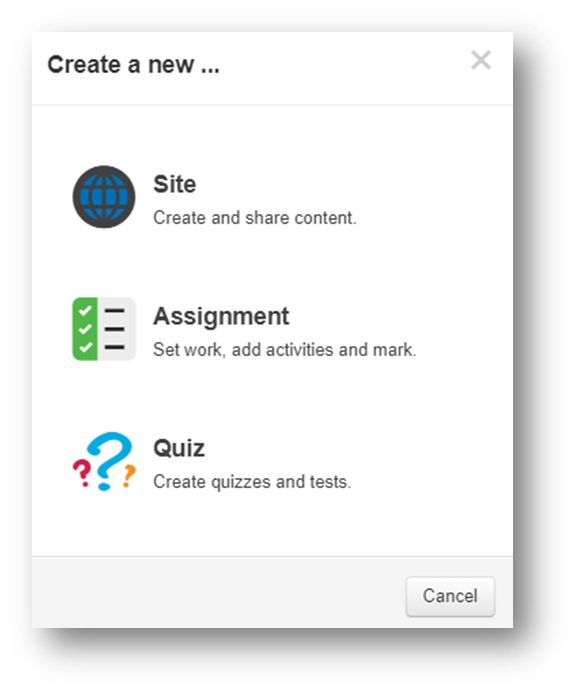
You can create an assignment using the Create a new… function. Select the blue plus button on the Frog Bar. This will open the Create a new… panel.
Create assignment by sharing
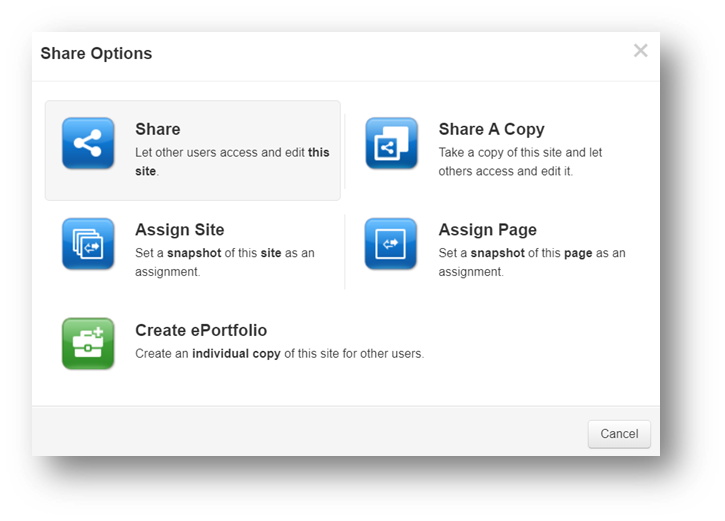
You can also create a new assignment by sharing an already existing Frog site or page. Start by selecting the Share option found on the Frog Bar when viewing a site that you have permission to Edit and manage.
Create an assignment from FrogDrive
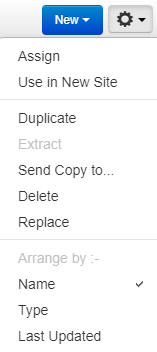
Finally, you can also assign a resource from your FrogDrive. Start by selecting a resource from your FrogDrive, then selecting the Action cog, then Assign will open the Assignment creator.

Create an assignment from Assignment manager
From Assignment Manager you can also create an assignment by selecting the New assignment button.
Assignment Creation
Details
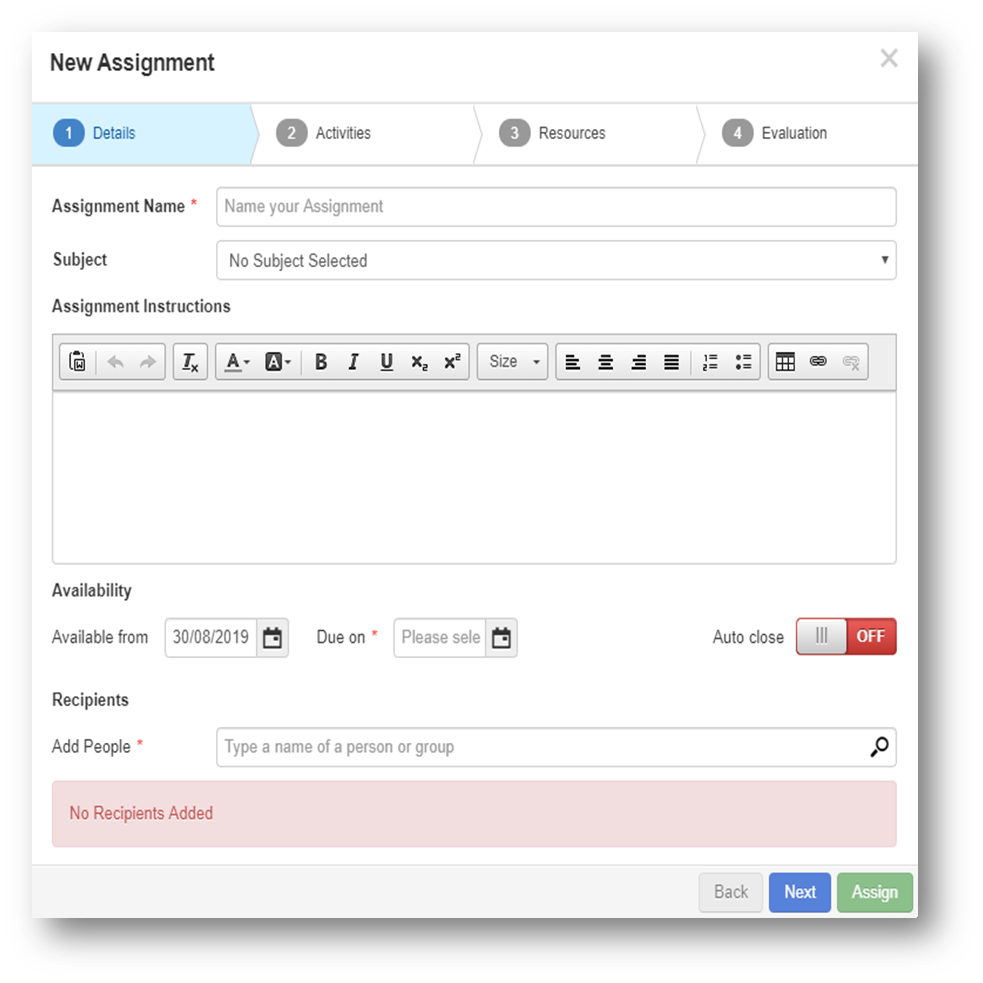
Starting as assignment in Frog triggers the Assignment creation process. The first step in the process is to determine the details for the assignment you are creating. Your assignment will require:
- An assignment name
- A subject
- Assignment instructions
- Availability
- Recipients.
Note: You will only be able to progress if the mandatory fields are filled.

Activities
Next, is Activities. If you are creating your assignment using either the:
-
Create a new...
- FrogDrive
- Assignment Manager.
You will be required to add one or more activities. The activities you can choose from are:
- Code Activity Widget
- Other Activity Widget
- File Drop Widget
- Quiz Widget
- Text Activity Widget
- Google Activity Widget (Note: Google integration with Frog is required)
- SCORM Player Widget.
Note: If you are creating your assignment by sharing and existing Frog site, these activities will need to be added to a page within your Frog site as widgets. You will not be able to add any additional activities during the assignment creation process, they will be automatically populated from any activity widgets you've added to pages on your Frog site.
Resources
Next, you can add resources to support students in understanding the assignment being set. These can be added by either Upload from an external drive or using FrogDrive.
If you are sharing a page or Frog site as an assignment, you will need to ensure any resources for students are included on the pages of your Frog site. You will not be able to add any additional resources as the site should be populated with these resources.
Evaluation
In the final step you can edit the evaluation of the assignment. You can choose either:
- Percentage
- Mark out of
- Custom mark scheme (Note: Custom mark scheme are set and managed using the Mark Scheme Manager application).
You can also choose to add a Self evaluation feature for the students to add comments and evaluate their own understanding of the assignment.