












Back to All Guides
GET IN TOUCH
If you would like to get further information about Frog or help in getting it set up in your school please get in touch via the contact details below...
hello@frogeducation.com
FrogDrive
FrogDrive can be found in the Quick launch feature. It provides you with access to your files, ePortfolio collections and Frog sites within the Frog platform.
About FrogDrive
FrogDrive is the file management application that allows you to keep all your content in Frog organised. You can access FrogDrive by searching for it in the search bar or by selecting Quick launch.
FrogDrive allows you to access, launch and manage many kinds of content in Frog:
- Any files you have uploaded to your personal FrogDrive
- Any files or folders shared with you
- ePortfolios that have been shared with you or collections you manage
- Any Frog sites you have created or have been shared with you
- Any quizzes you have created or that are in Frog sites that have been shared with you
- Any Frog applications you have access to
- Any forms you have created or that are in Frog sites that have been shared with you
- Any polls you have created or that are in Frog sites that have been shared with you
- Files stored in your Google Drive (requires your Frog environment to be integrated with Google)
- Files stored in your OneDrive (requires your Frog environment to be integrated with OneDrive).
Latest Files
Latest files is designed to give you quick access to any images or documents you have recently uploaded to your FrogDrive or to any Frog sites you've been editing.
Favourites
As you browse any Frog sites created by you or shared with you, you will find a star icon below each one.
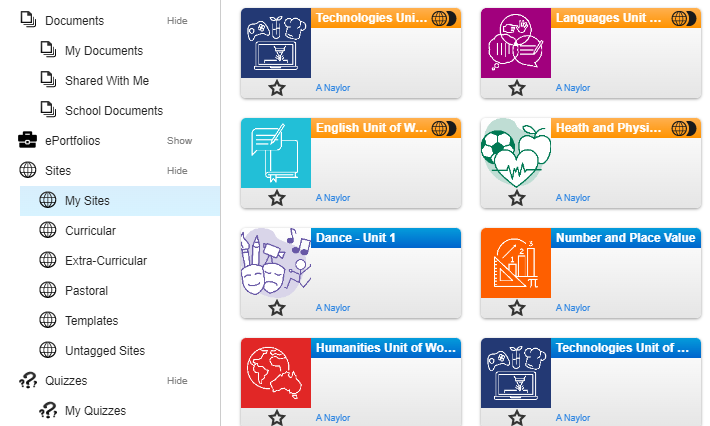
Selecting this star will add this Frog site to your Favourites list. This is a quick way to access Frog sites you frequently use or are currently working on.
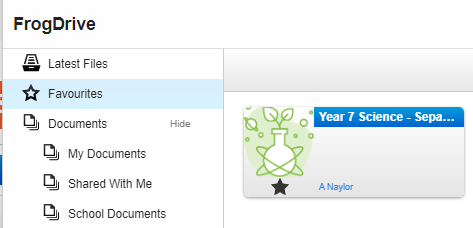
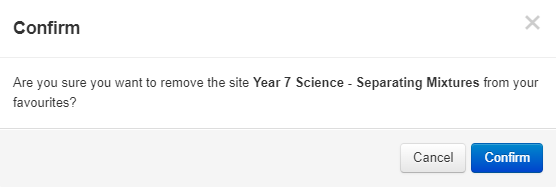
You can 'Unfavourite' any Frog site by selecting the star again. If you are in your Favourites list, Frog will ask you to confirm you want to remove the Frog site from your Favourites list.
Documents
My Documents
The My documents folder contains all the files you have personally uploaded to Frog as well as all Frog sites that you have created.
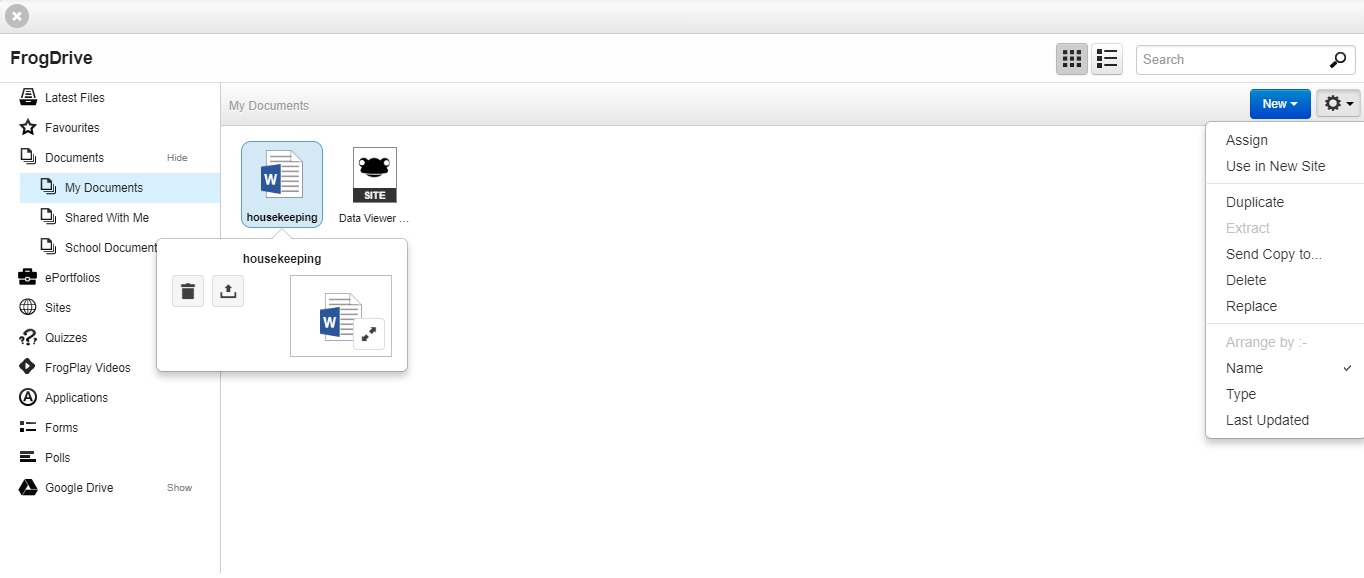
Pressing the New button gives you the option to create/upload new files. You can also add folders to organise your documents and you can create new Frog sites in this area.
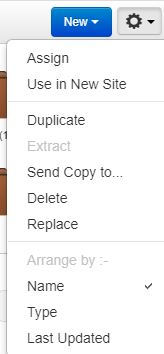
When you have uploaded content to your FrogDrive, you can open it by selecting it once, then by selecting the Action cog, you have the ability to:
- Assign - The selected file is used as the basis for a new assignment
- Use in new site - A new site is created containing a link to the selected file
- Duplicate - A copy is made of the selected file with a ‘_1’ being added to the filename of the new file
- Extract - This option will only appear when a zip file is selected. Selecting this option will unpack files contained in the selected zip file into the FrogDrive.
Note: Files will not be unpacked if they are not recognised as an accepted file type as specified in the File types section of the System preferences. Any files that were ‘Hidden’ files when they were originally zipped up, will be no longer be hidden when unpacked - Send copy to… - Use this option to send a file to appear on the Timeline of a specified user, group or Frog site
- Delete - Deletes your selected item.
Shared With Me
The Shared with me folder within FrogDrive will display any files or folders that been shared specifically with you or a group you are a member of. All users who have been given Edit and manage rights to a folder will be able to upload content as well as delete items and share the folder with new users. These rights are set when initially sharing the folder. Giving users Contribute access will mean that they can access the folder and add files to it, but they are unable to delete or share the folder. Can view means the user can view and access the files but are unable to add or delete files.
School Documents
The School documents folder is a shared area that allows staff and admin to upload files and share Frog sites for all other users to access. Staff members can see files uploaded by admins and other staff members but can only manage files and folders they have created. Admin users can manage all resources within the School documents folder.
ePortfolios
Within FrogDrive you will find the ePortfolios section in the vertical menu on the left hand side. As a member of staff, selecting this option will open the ePortfolio area and two sub-menus will appear to the left:
- My ePortfolios
- Collections.
Students will see their own ePortfolios, and parents will see a their child's ePortfolios.
Sites
The My sites area of FrogDrive will display all Frog sites that you own or have created in Frog. The search bar means you can narrow your search and after entering a search term, you can then choose whether to search within your Frog sites, or all Frog sites on the platform. When searching all Frog sites, the results will only display the Frog sites you have access to.
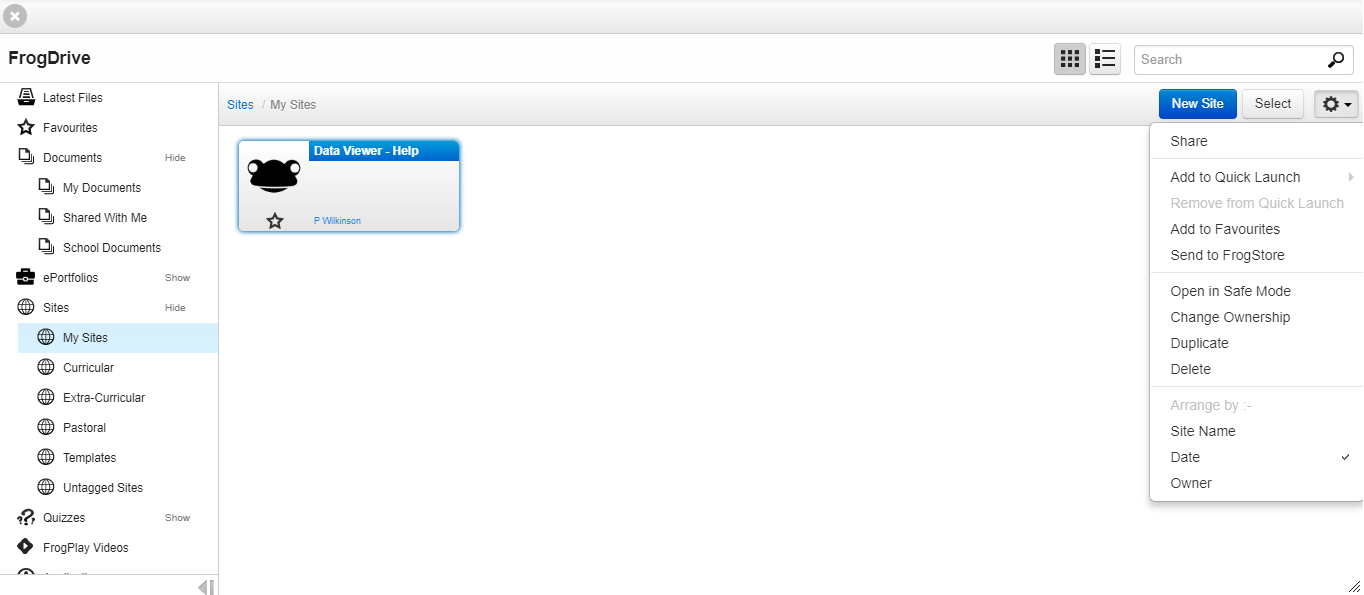
Selecting a Frog site by selecting it once, then opening the Action cog drop down menu will display a number of useful functionalities available. The Select button next to this drop-down menu allows you to select multiple Frog sites and make some bulk changes.
Below My sites there are the following menu options:
- Curricular - The Curricular category contains any Frog sites that you have access to that have been tagged as Curricular and have also been tagged with a subject
- Extra-curricular - The Extra-curricular category contains any Frog sites that you have access to that have been tagged as Extra-Curricular and have also been tagged with a sub-tag of clubs, trips, events or student bodies
- Pastoral - The Pastoral category contains any Frog sites that you have access to that have been tagged as pastoral and have also been tagged with a Pastoral sub category
- Templates - The Templates category contains any Frog sites that you have access to that have been marked as a template. Templates appear with a golden name bar
- Untagged sites - The Untagged sites category contains any Frog sites that you have access to that have not been tagged with any of the above options.
Share, add to Favourites or delete
Start by navigating to the Quick launch icon from the Frog bar and select FrogDrive.
From the menu options, select My documents. You will see a list of Frog sites that are owned by the user who is logged into Frog. Select a Frog site and three options will appear. These are:
- Share - Allows you to Share the selected Frog site with other users. (Note: Frog sites shared with a user can be can be found in their Shared with me folder in FrogDrive.
- Favourite - Adds to your Favourite folder in FrogDrive
- Delete - Deletes the selected Frog site
(Note: Before being able to delete, you will be asked to confirm that you want to do this. Deleting a Frog site can not be undone. You will also be required type your username into the available field. Usernames are managed from within the Users application in Frog. Most commonly a user name will be the first initial of a first or preferred name and the full last name of a user. E.g. J.Smith.
Quizzes
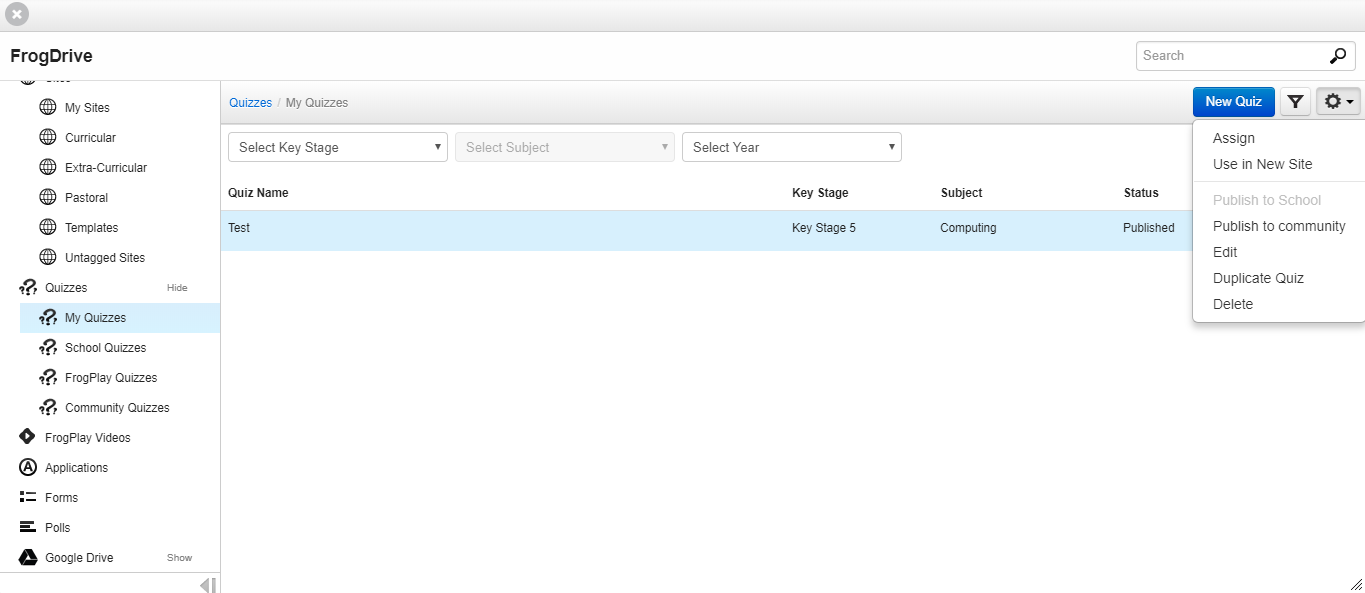
The Quizzes area of FrogDrive allows you to view all the quizzes you have created as well as any that have been made available to you. The ‘My quizzes’ area will be opened as default and this shows you all the quizzes that you have created. As with all quiz sections, you have the option to create a new quiz, you can search for an existing quiz using the search bar, or filter your results to specific year groups or subjects and then view the quiz before selecting it. Select a quiz and you can then select the Action cog for the following options:
- Assign - This will create a new assignment with the quiz attached as the activity
- Use in new site - A new Frog site will be created with this activity added to it
- Publish to school - This makes the quiz available to everyone in the preschool and/or school and will be visible in the School quizzes area of FrogDrive
- Edit - This allows you to edit a quiz
- Duplicate - A duplicate quiz will be created, and you will have the option to edit questions before duplicating
- Delete - This will delete the quiz.
Applications
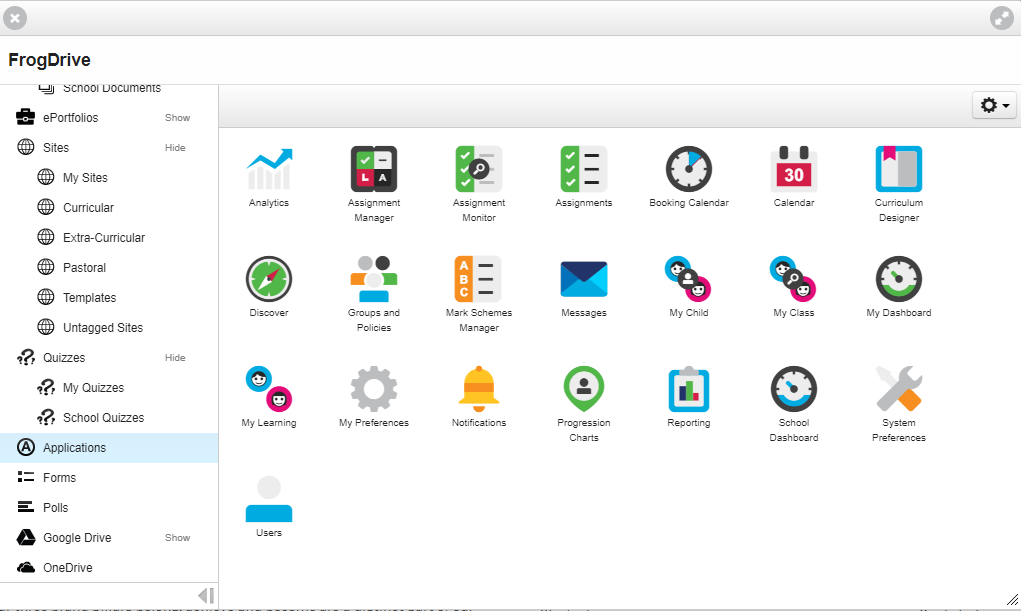
The Applications category contains links to all the applications you can access. From within this category you can add and remove application links from the Quick launch menu.
Forms
The Forms category contains all the forms users have created. There is a search option within here that allows users to search through just forms in either My forms or All forms. Users can create new forms and edit existing forms from this category.
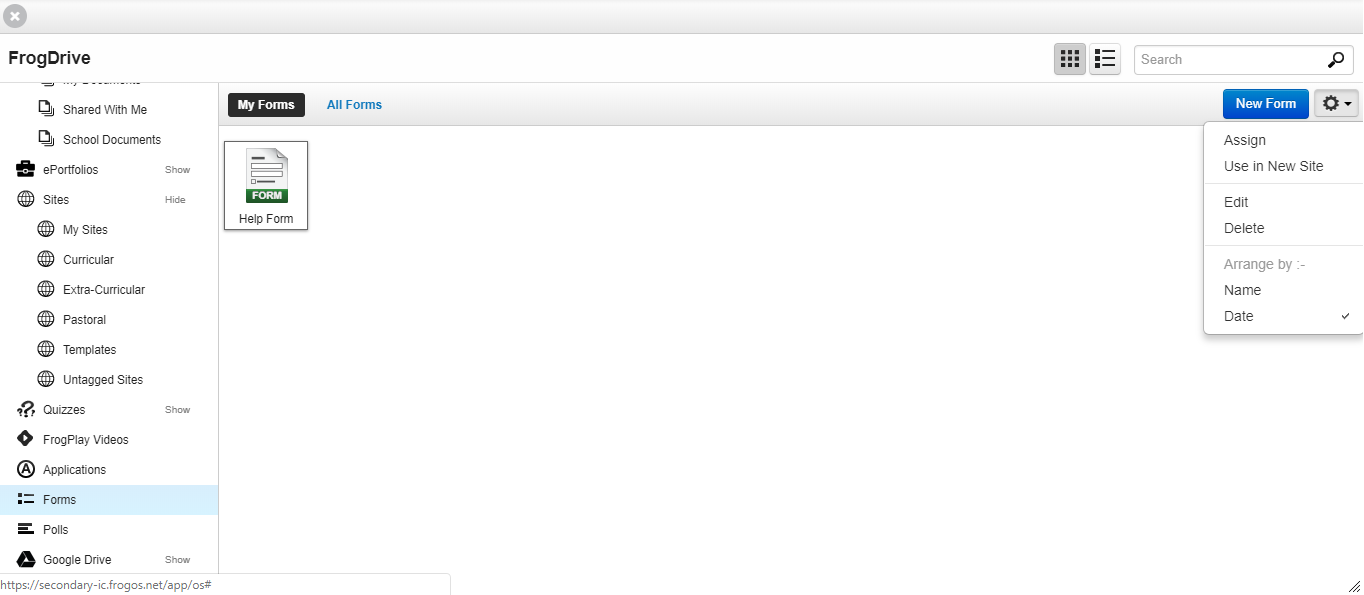
There are further options available in the Action cog drop-down menu:
- Assign - This will create a new assignment with the form attached as the activity
- Use in new site - A new Frog site will be created with this form added to it
- Edit - Allows users to edit a form
- Delete - Deletes the form.
Polls
The Poll category contains all the polls you have created. There is a search option within here that allows users to search through just polls in either My polls or All polls. Users can create new polls and edit existing polls from this category.
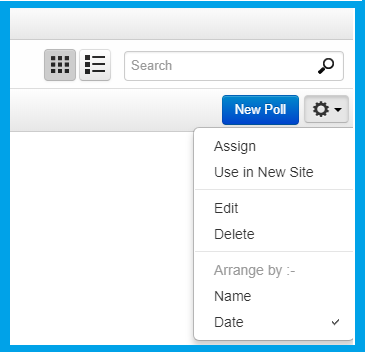
You also have the options available in the Action cog drop-down menu:
- Assign - This will create a new assignment with the poll attached as the activity
- Use in new site - A new Frog site will be created with this poll added to it
- Edit - Allows you to edit a poll
- Delete - Deletes the poll.
Google Drive
If a school has set up Google as part of Frog, it's possible to access all Google files, including shared files inside FrogDrive.
To access a Google Drive:
- Open FrogDrive
- The first time you open FrogDrive after Google integration has been set up, users will be prompted in a pop-up to Choose an account or sign into a Google account. This must be the Google account associated with your @schools account
- Fill in your Google login details, using your @schools email and password
- You may get a message saying the app isn’t verified by Google. This app is actually talking about your Frog. Don’t worry, just select the Advanced section and then select the link at the bottom
- You’ll then be shown a screen explaining that Frog wants access to your Google account. The pop-up closes and sends you back to FrogDrive
- On the left hand side of FrogDrive, users should be able to see the Google Drive option.
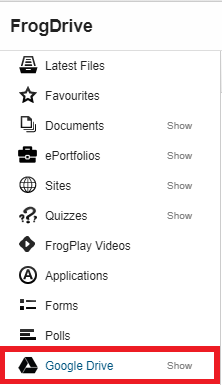
Selecting this will open up the Google Drive for that user.
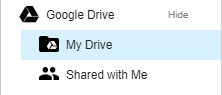
All files and folders in the respective drives will be displayed to the user. Users can change the view from an Icon view to a List view.
It's possible to open the Google Drive on a separate tab by selecting the 'Google Drive' button in the top right hand corner.
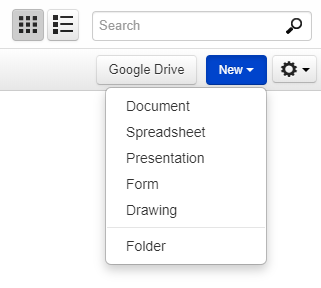
Users can create new files by selecting the blue 'New' button, and choosing an option from the drop-down menu.
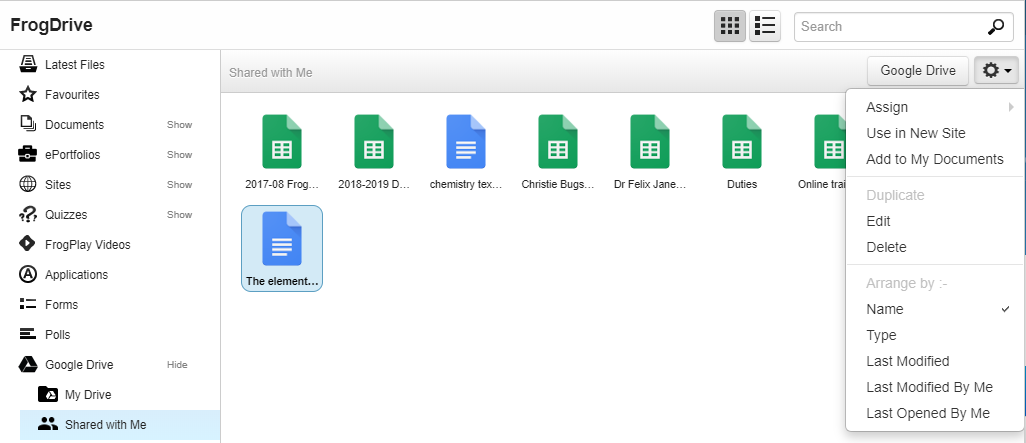
Once a file is selected it will be highlighted and clicking on the Action cog gives the user further options.
OneDrive
Once your OneDrive set up has been completed successfully, you will be able to access your OneDrive via the FrogDrive application.
When you navigate to the FrogDrive, a pop up window may appear asking you to disable your pop up blocker depending on what browser you are using. You will need to disable the pop up blocker and then select Confirm. This will then allow a Microsoft pop-up window to appear asking you to enter your @schools email address and password. You need to follow the rest of the instructions and ensure you select Accept when asked for permission for OneDrive and FrogLearn to communicate.
The OneDrive option will be displayed in the menu on the left within FrogDrive and is a direct window into your OneDrive folders and files. You can create new documents from within here by selecting the New drop down menu button.
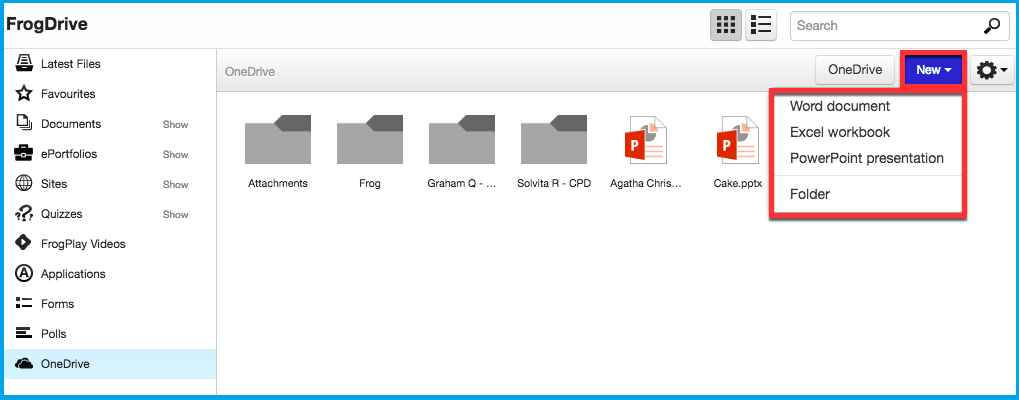
When you create a new file, there won’t be any content to display. To edit your file, select the file and then select the Open in OneDrive button.
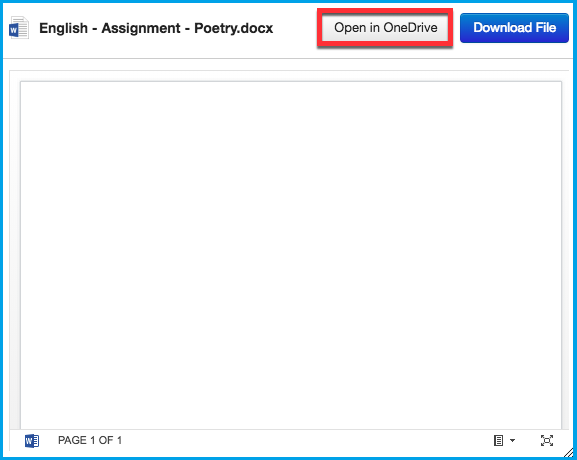
The document will launch in a new tab within your browser allowing you to edit it. As you edit the document, the changes will be saved automatically and will be synchronised to your OneDrive and FrogDrive.
Note: Always check that the document has successfully saved before closing the browser tab. You can identify this easily as the word Saved will appear in the title bar.
You have the ability to download any files within your OneDrive by selecting the 'Download file' button.
Additionally, if you select an Office 365 document from within FrogDrive > OneDrive and navigate to the Actions cog you will be able to complete additional actions such as:
- Use in new site - A new Frog site is created and the Office 365 document is displayed via the OneDrive preview widget
- Add to My documents - A shortcut link to the Office 365 document is placed within FrogDrive > Documents > My documents. You can then access the Office 365 document via either location and any changes are automatically made to the single source of the Office 365 document
- Edit - The selected Office 365 document will launch in a new tab within your browser allowing you to edit your document
- Delete - The selected Office 365 document will be removed from your OneDrive.