












Back to All Guides
GET IN TOUCH
If you would like to get further information about Frog or help in getting it set up in your school please get in touch via the contact details below...
hello@frogeducation.com
To enable the Google integration with FrogLearn some initial steps will need to be configured within the school’s DfE Google tenancy.
Setting Up Google Integration
To enable the Google integration with FrogLearn some initial steps will need to be configured within the school’s DfE Google tenancy.
Note: Please contact edIT for support in doing this.
When setting up Google, please ensure that you have the details below to hand:
- Client secret
- Client ID.
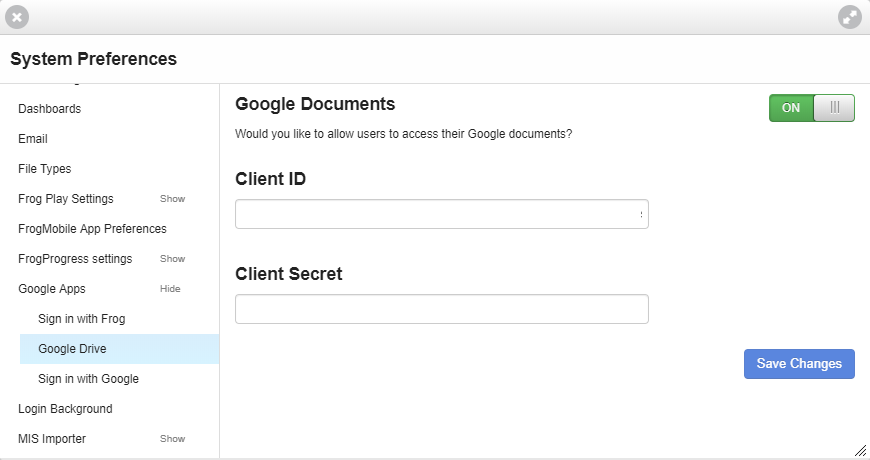
Google in Frog
Once your integration has been set up successfully, you will be able to access your OneDrive via the FrogDrive application.
To access a Google Drive:
- Open FrogDrive
- Users will be prompted in a pop-up Choose an account or Sign into a Google account.
- You’ll then be shown a screen explaining that Frog wants access to your Google account. The pop-up closes and sends you back to FrogDrive.
The Google Drive option will be displayed in the menu on the left within FrogDrive and is a direct window into your Google Drive folders and files. You can create new documents from within here by selecting the New drop down menu button.
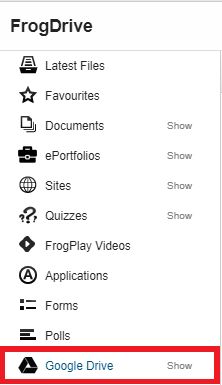
Selecting this will open up the Google Drive for that user.
All files and folders in the respective drives will be displayed to the user. Users can change the view from an Icon view to a List view. It's possible to open the Google Drive on a separate tab by selecting the Google Drive button in the top right hand corner.
Users can create new files by selecting the blue New button, and choosing an option from the drop-down menu.
The document will launch in a new tab within your browser allowing you to edit it. As you edit the document, the changes will be saved automatically and will be synchronised to your Google Drive and FrogDrive.
Note: Always check that the document has successfully saved before closing the browser tab. You can identify this easily as the word Saved will appear in the title bar. You have the ability to download any files within your Google by selecting the Download file button. Additionally, if you select an Google document from within FrogDrive > Google Drive and navigate to the Action cog you will be able to complete additional actions such as:
- Assign - Allows a user to add a Google document to an assignment workflow
- Use in new site - A new Frog site is created and the Google document is displayed via the Google Preview widget
- Add to My documents - A shortcut link to the Google document is placed within FrogDrive > Documents > My documents. You can then access the Google document via either location and any changes are automatically made to the single source of the Google document
- Edit - The selected Google document will launch in a new tab within your browser allowing you to edit your document
- Delete - The selected Google document will be removed from your Google Drive.