












Back to All Guides
GET IN TOUCH
If you would like to get further information about Frog or help in getting it set up in your school please get in touch via the contact details below...
hello@frogeducation.com
Site Menu
Every user logged in to Frog will have a Profile Menu on their Frog Bar which is the last icon on the right. The icon will be the initials of the user who is logged in. If you have any notifications you haven't viewed, a red bell will also be visible on your icon.
The Site Menu
Next to the Frog head on the left hand-side of the Frog bar, some text will be displayed that highlights what application or Frog site you currently have open. This is the Site menu.
If you are visiting a Frog site that you do not have Admin rights to, the name of the Frog site will be displayed. If you have created the Frog site or have Edit and manage or Contribute permission you will have access to:
- Duplicate site
- Data viewer
- Manage timeline
- Print current page.
If you have been shared a Frog site but only have permission to View, the options offered from the Site menu will be only:
- Duplicate site
- Print current page.
Duplicating Sites
Duplicating sites
Site duplication allows you to take a copy of any Frog site you have access to in order to reuse an existing Frog site structure or a Frog sites contents without having to recreate the entire site. It is possible to duplicate any Frog site you have access to.
Duplicate a site while viewing it
To duplicate a Frog site while viewing it select the Site drop down option followed by the Duplicate site option.
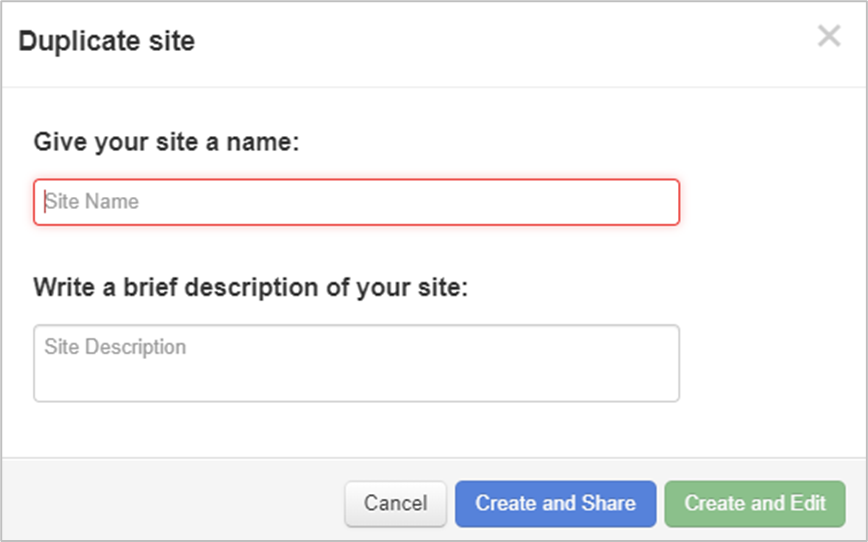
The Duplicate site window will now be displayed and you will be asked to give your duplicated Frog site a name, description and the option to Create and Share or Create and Edit. Any tags, icons and themes applied to the original Frog site will be maintained on the duplicated site.
The Frog site will now be duplicated using the options selected during the duplication process. Your new Frog site will then be presented to you ready for editing.
Data Viewer
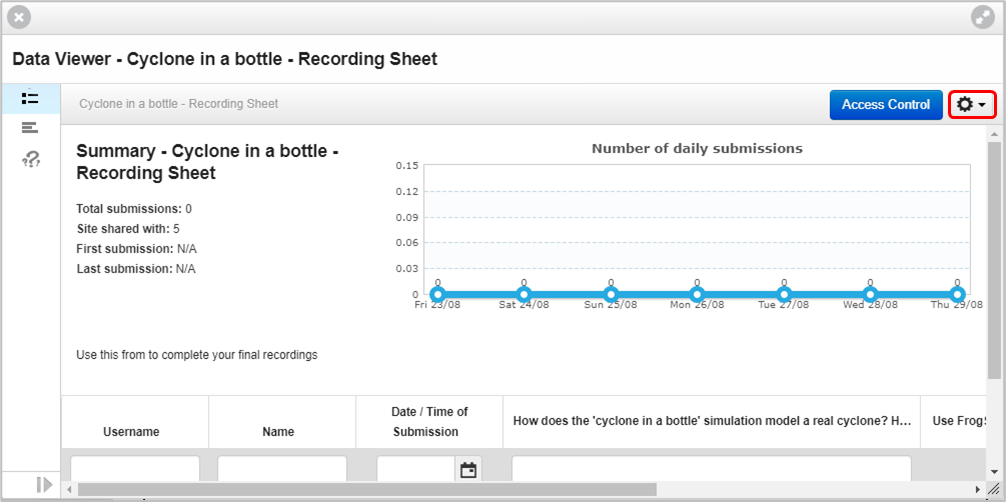
The Data viewer is a tool that is designed to access data collected from the Poll, Form and Quiz applications. It is used on a site by site basis and provides you with the ability to export your results out of the platform if necessary. You also have the option to clear your results, so you can re-use your Frog site to collect new data if necessary.
To access the Data viewer application you can add the Data Viewer Widget to a page or navigate to the application from the Site menu on the Frog bar.
From the vertical menu on the left, you can select whether you want to look at the poll, form or quiz results and an overview of the results are displayed on each page. Within the Action cog drop down menu in the top right hand corner, there is different functionality depending on what type of data you are gathering.
As standard, you have the ability to:
- View the total submissions
- View the first and last submission (date and time)
- View details of who has submitted the information
- Export the results to a CSV
- Sort and filter the results.
Manage Timeline
The Manage timeline feature allows the user to manage the functionality of the timeline of that Frog site. The user can download files and comments, as well as turning comments on and off and whether timeline comments require approval.

Manage Site Assets
The Manage site assets feature allows the user to manage the site assets of that Frog site. The user can:
- search
- delete
- download.
Print Current Page
To print a Frog site, open the site and then load the page you wish to print. When the page has finished loading, select on the Site menu on the top left corner. In the dropdown menu appears Print current page.