












Back to All Guides
GET IN TOUCH
If you would like to get further information about Frog or help in getting it set up in your school please get in touch via the contact details below...
hello@frogeducation.com
Tags & Keywords
All Frog sites on the Frog platform can be tagged, with the exception of Personal dashboards.
It is important to tag Frog sites appropriately so that they can be easily found by users of the platform.
Tagging Frog Sites
All Frog sites on the Frog platform can be tagged, with the exception of Personal dashboards.
It is important to tag Frog sites appropriately so that they can be easily found by users of the platform.
Tagging Frog sites allows you to make them appear in searches from the Global search, be listed in the appropriate categories in FrogDrive and be easily identified by other users.
Adding predefined tags
You can select from a series of predefined tags or add your own custom keyword tags.
Frog sites can be tagged in three places:
- When you are creating a Frog site
- When you are editing a Frog site
- When you are sharing a Frog site.
In each of these places you are presented with a tagging interface.
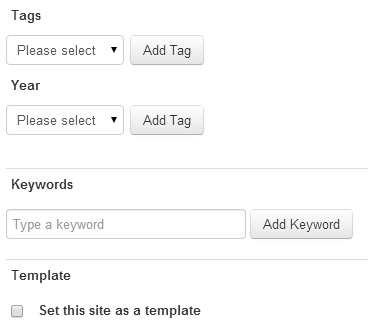 |
Begin tagging a Frog site by first selecting the category relevant to the Frog site. Once you have selected a category a selection of sub-categories will be made available.
Continue to choose sub-categories until your Frog site is tagged appropriately. Select the Add tag button to add the tags to the Frog site.
You do not have to tag your Frog site with every single sub-category, however adding more tags will make your Frog site easier to find and identify.
Adding custom keyword tags
To add a custom keyword tag, enter the text you wish to use as your tag in the Keywords field.
 |
Keyword tags should be entered one at a time. Once you have entered your keyword in the text field, select the Add keyword button to tag the Frog site with the keyword.
To remove a tag or keyword select the x button for that item.
Note: You can edit or remove tags at any time by editing a Frog site and selecting the Settings tab of the Content tray.
Searching for Tagged Frog sites
To search for a Frog site based on a category or keywords, open FrogDrive and select Sites from the left hand menu. The Sites section should now expand to provide the following further options:
- My sites
- Curricular
- Extra-curricular
- Pastoral
- Templates
- Other sites.
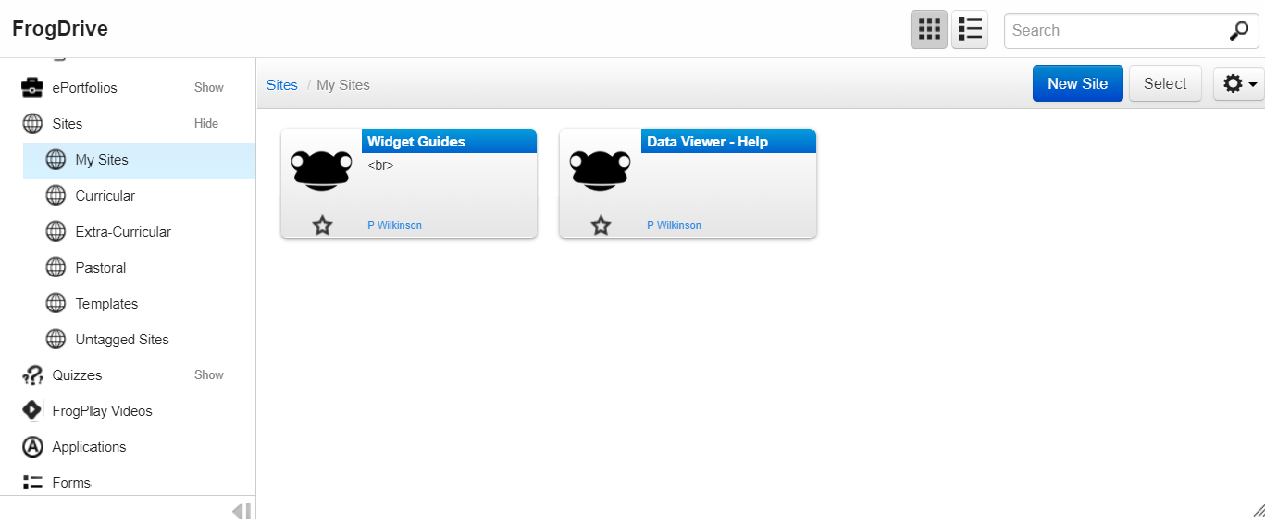
To view Frog sites categorised by subcategory, select a subcategory option, listed as Curricular, Extra-curricular and Pastoral sites. Any subcategories containing Frog sites accessible to the user will then be listed. To open the Frog sites within a subcategory simply select the subcategory icon.
The Other sites option will list any sites that are accessible to you that have not been tagged.
To search for a Frog site you can also enter the keywords in the FrogDrive search field.