












Quiz Widget
Back to All Guides
GET IN TOUCH
If you would like to get further information about Frog or help in getting it set up in your school please get in touch via the contact details below...
hello@frogeducation.com
Quiz Widget
The Quiz widget allows you to import a quiz to be either embedded in the page or used as a link.
Quiz Widget
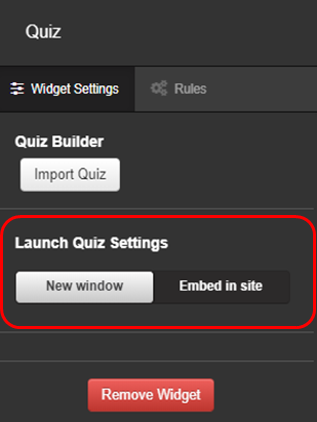
To add a quiz, drag in a Quiz widget. Then in the settings options, select Import quiz.
FrogDrive will then open My quizzes and School quizzes, so you're not only limited to the ones you have created. Using the filters and search options you can quickly identify a quiz to use.
You are able to view the quiz questions and if you want to make a change, when the quiz is highlighted, you can select on the Action cog and make a duplicate. Select the Use button.
From here you add instructions and choose how the quiz will appear. In the Advanced settings, you can choose what questions you would like to appear, set the quiz in exam mode, only allow one attempt and you can also set a time limit.
In the widget settings you have the option to embed the quiz within the page. This keeps the quiz as part of the same Frog site and does not run it full screen. Embedding is useful when you’re adding learning material around the quiz.
Note: With the correct permissions, you can view all submissions or export them by accessing the Data viewer application. The data can also be downloaded to a CSV using the Action cog.