Text Activity Widget
Back to All Guides
GET IN TOUCH
If you would like to get further information about Frog or help in getting it set up in your school please get in touch via the contact details below...
hello@frogeducation.com
Text Activity Widget
The Text activity widget is one activity that can be added to an assignment to be completed by a student.
Text Activity Widget
When creating assignments on the Frog platform activities are used to create interactive elements that students’ can use to submit work for marking. The Text activity widget is one activity that can be added to an assignment to be completed by a student. The widget can be customised to include a question to be posed for the activity. The activity will not become active until it is included in an assignment.
Completing a Text activity
To complete a Text activity that is part of an assignment enter text into the Text input field. You can format the text within the Text activity using the formatting options displayed above the Text input field. Once you have entered your text you can use the Save changes button to save your entry. This will be visible to the user that set the assignment, but will not submit the assignment. Using the Save changes option you can work on your submission several times, saving the changes each time before submitting the completed item.
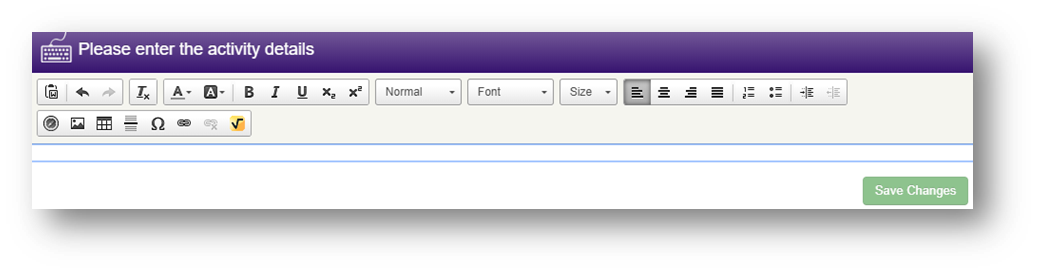
Once you have completed all activities and wish to submit your assignment, select the Hand in assignment option at the bottom of the page.
Marking a Text activity
Once you have assigned a piece of work containing a Text activity you can see the progress of the activity any time a user submits the activity using the Save changes button. If the user has not submitted the assignment itself, the submitted indicator will be grey rather than green.
Select the name of the user to view their submitted work. The Text activity and a summary of the submitted text will be displayed.
Select the text to see the full contents of the submitted Text activity.
Enter the mark for the Text activity in the Activity mark field. You can then save the marking of the assignments by selecting the Save option.
Settings and options
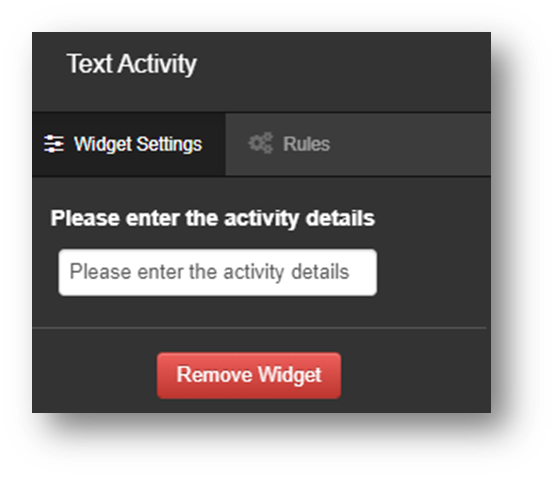
The settings allow you to set a piece of text within the Please enter the activity details field that is visible to students when they view the assignment. You may wish to use this text to specify instructions or provide guidance on what the student should aim to write in the text activity itself. Enter the text you wish to display to the user in the Text input field.
This text will then be displayed in the header of the Text activity widget when it is displayed within a page.