










Back to All Guides
GET IN TOUCH
If you would like to get further information about Frog or help in getting it set up in your school please get in touch via the contact details below...
hello@frogeducation.com
Sharing a Frog Site
In order to allow other users to access a site you have created, you must share the site with them. The act of sharing a site grants access to the site and determines what level of access other users have on the site.
Introduction
There are many ways to share a Frog site and many controls are available to you so different users have different levels of access.
You can:
- Share with groups of users, for example, all students, a roll class or a profile such as 'Staff'
- Share with specific users
- Share in ways that require users to be logged in to Frog to see the site
- Share to audiences without requiring them to have an account in your Frog platform
- Give different users and groups different levels of access.
In all cases, you are only able to share a site if:
- You own the site or,
- Another user owns the site and has given you edit and manage access to the site and/or,
- You belong to the Admin profile.
Learn more by selecting from the menu.
Sharing Sites from FrogDrive
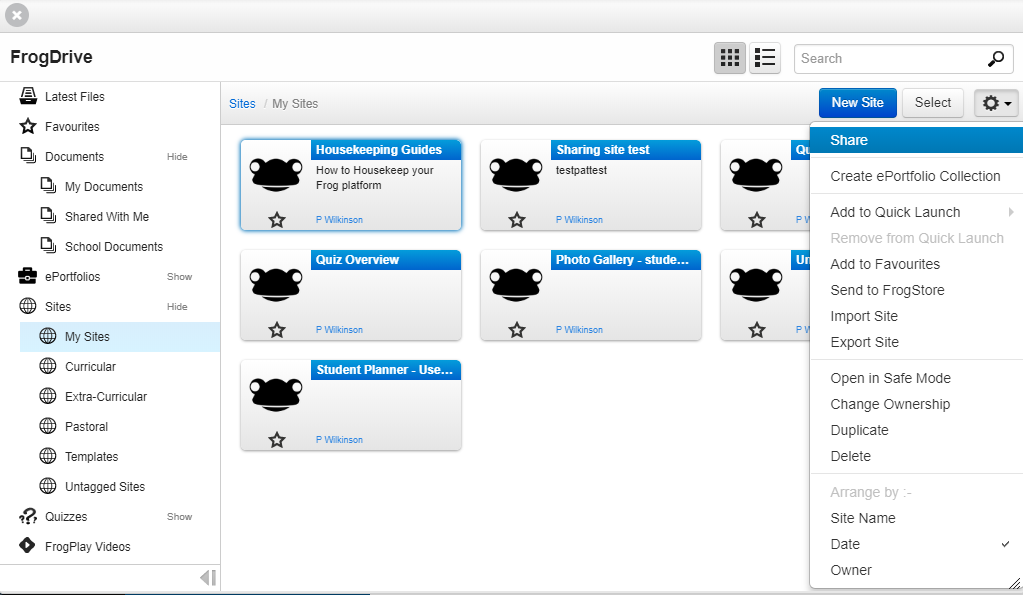
Frog sites that you have created can be found in the My sites area in FrogDrive. To share a Frog site from here, first select on the site and then select Share from the Action cog.
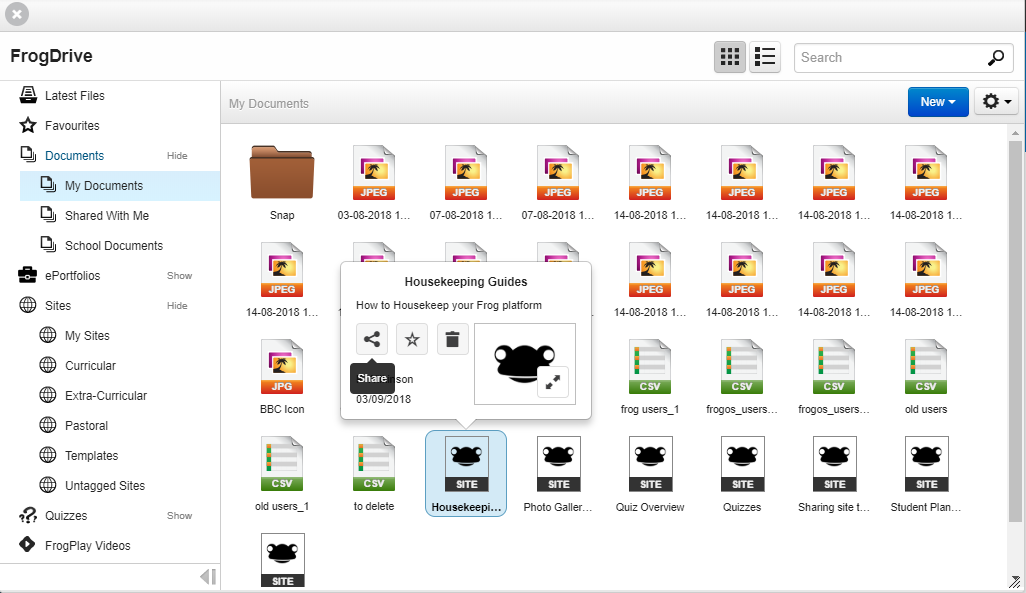
Your Frog site will also appear in your My documents area. To share a Frog site from here, first select the Frog site and then select the Share.
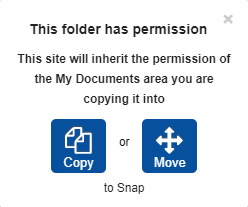
You can also share a Frog site by dragging the site into a shared folder.
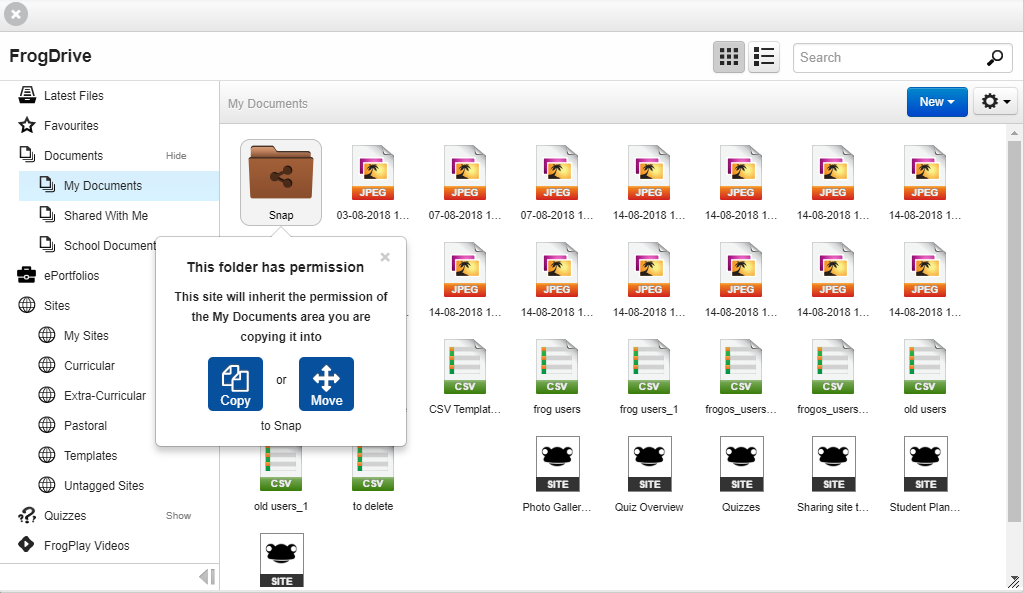
Frog sites shared this way:
- will inherit the sharing permissions of the shared folder
- will be shared with the users the folder is shared with
- will have existing sharing permissions removed. After dragging the Frog site into the shared folder, you will prompted if you would like to make a copy of the Frog site, leaving the original where it was unchanged, or move the Frog site. Select the icon to make your choice or select the x to cancel the operation.
Sharing from within the Site
Opened Frog sites can be shared by selecting the Share option from the Frog bar.
Note: Frog sites cannot be shared while they are being edited. To share a Frog site ensure that the Content tray is closed.
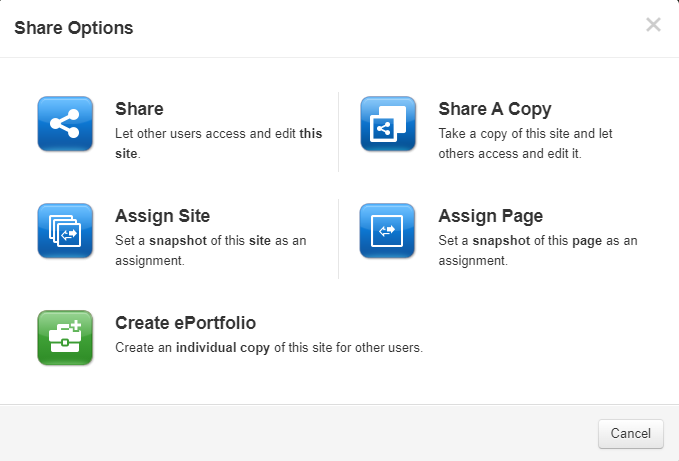
By selecting Share you have several options:
- Share - Select this option to provide access and level of permission for other uses. When sharing a Frog site you can grant the following levels of access:
- Edit and manage
- Contribute
- View
- Share a copy - This allows you to share a copy of your Frog site for others to use. Any changes made to the site will not effect the original site
- Assign Site/Page - Allows you to assign a Frog site or a page from within a Frog site as an activity or assessment to be completed by students
- Create ePortfolio - Allows you to assign individual editable copies of a Frog site to a group of users in Frog.
Tagging a Frog Site
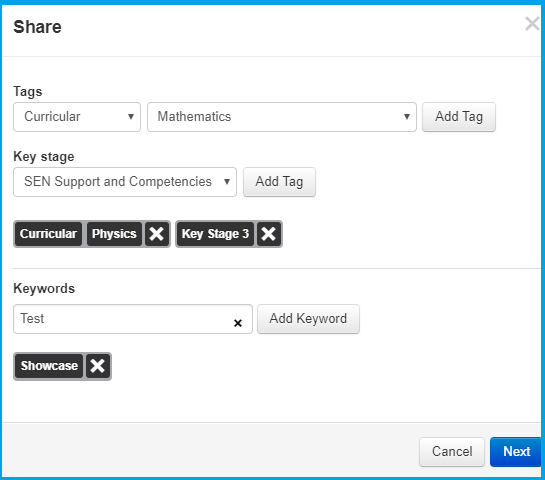
If you haven't tagged your Frog site already or if you need to amend the tags on your Frog site, this can be done during the Sharing process. At this stage you can also set your Frog site as Template.
Granting Access
The Who has access page of the Sharing process allows you to determine who can access your Frog site as well as what level of access they have.
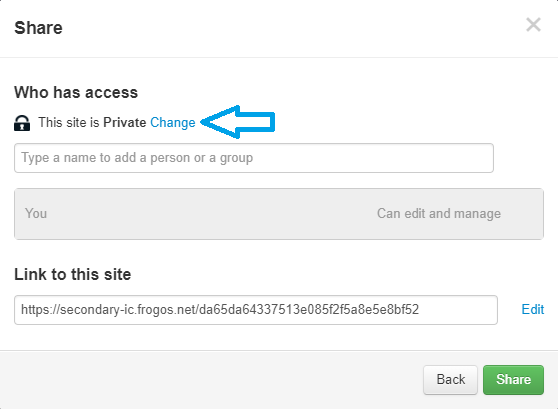
The first item displays the Frog sites privacy level, by default this will be Private.
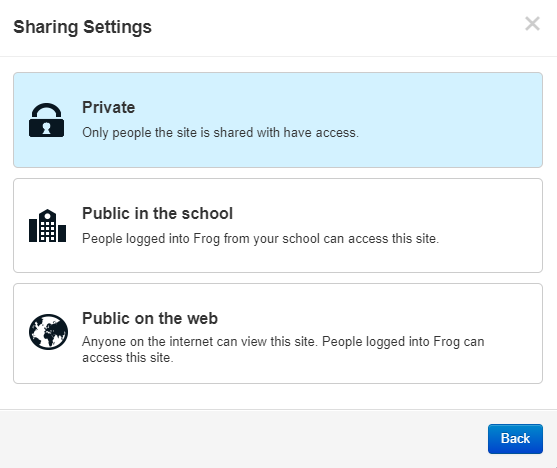

A Frog site can be use one of three privacy settings:
- Private - A Private site can only be accessed by users that are specifically given access to the page. This may be as an individual or as part of a group or profile. Each user of a groups access level can be configured individually. A Private Frog site may be for a specific group or collaboration within the school
- Public in the school - A Public in the school Frog site can be accessed by any logged in user of your platform. Specific users and groups can be given higher levels of access if named explicitly. A public in the school Frog site may be a departmental site or school notice board site
- Public on the web - A Public in the web Frog site can be accessed by anyone, including users that have not logged into your platform. Specific users and groups can be given higher levels of access if named explicitly. A public on the web site might be the preschool or schools website.
To change the privacy level of your Frog site:
- Select the Change button
- Select the privacy level you desire for your site.
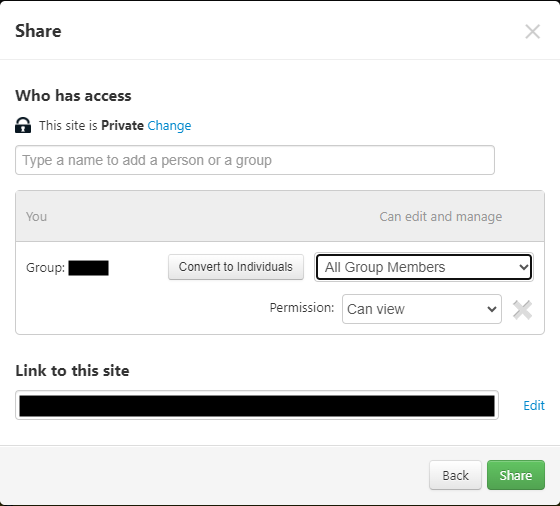
Below the Site privacy level option, you can specify named users or groups which can access your Frog site as well as altering the level of access that is available to them. There are three levels of access to a Frog site:
- Can view - Users with this privacy permission have read only access to the Frog site and can view the content but make no changes to this site
- Can contribute - Users with this privacy permission have the ability to view the Frog site and contribute towards certain widgets which allow for the manual input of information from users. Examples of this include the File drop widget, Wall widget and Forum widget
- Can Edit & manage - Users with this privacy permission have read and write access to the Frog site, can view the content, make changes and also share the site.
To give a user or group specific access to your Frog site:
- Enter the name of the user or group in the Search bar

- Select the user from the results returned

- Select the blue i button to reveal the user’s unique username and profile type. This is particularly useful when there is more than one user with the same name within the school
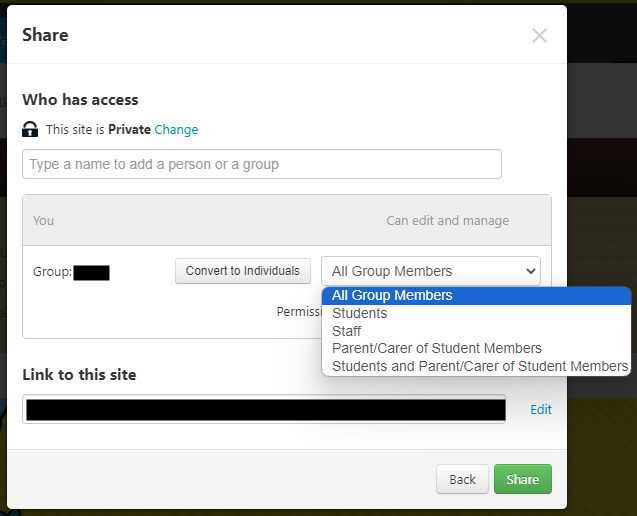
- Select which set of users you wish to share the site with by clicking on the 'All group members' drop down
- 5 options will be displayed, select the required members option
- Select the level of access you wish to grant the user or group from the drop down menu displayed next to the user in the access list.
Member sharing options
- All group members - All users in the group you've selected (this depends on the group, but excludes parents profile users)
- Students - only users in the group that belong to the student profile
- Staff - only users in the group that belong to the staff profile
- Parent/Carer of student member - Parent profile users that have an established relationship in Frog with any students users in the group
- Students and parent/carer of student member - A combination of Students and Parent/Carer of student member users.
If a group is added, you can break the group down into individual users by selecting the Convert to individuals button.
You will then be prompted to confirm this action.
All members of the groups will then be given individual entries in the sharing dialog.
If you wish to remove any users from this area you can select the small x to the right of each user or group. You will be asked to confirm whether you wish to remove this row from the permissions area. Please be aware that you cannot edit or remove the top user from this area as it lists the site creator.
Once you are happy with these settings, select the blue share button at the bottom right of this window to confirm your settings.