












Back to All Guides
GET IN TOUCH
If you would like to get further information about Frog or help in getting it set up in your school please get in touch via the contact details below...
hello@frogeducation.com
Quick Launch
The Quick launch menu is a customisable application tray that can have links added to access any content you might find useful.
Quick Launch Menu
When you open any application or Frog site not already added to the Quick launch menu, it will be temporarily added and a white dot will appear next to the title which highlights that this is open and in use. The white dot is primarily used to highlight items that were already in the Quick launch menu that are now open. Only when you close the window will this disappear from the menu and the white dot will be removed. You can also right click on any open item from within the menu to close it or launch a new window.
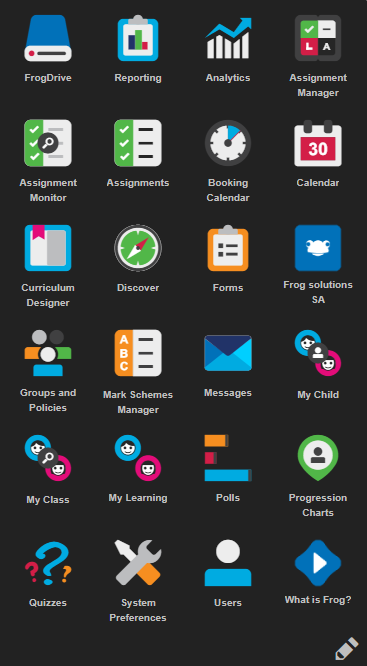
Items are temporarily added so you can quickly switch between any Frog sites or applications you are using. Application thumbnails are used and if a Frog site has an Icon, this will be displayed, otherwise it will simply be a black Frog head.
Editing Quick Launch Menu
There are two ways to edit the Quick launch menu. You can change items from within FrogDrive and you can also remove menu items from the Quick launch menu itself.
Adding items via FrogDrive
Adding an item to the Quick launch menu takes seconds and can allow you faster access to an app or Frog site you use regularly. Only apps and Frog sites can be added to the Quick launch menu.
To add any item to the Quick launch via FrogDrive:
- Open FrogDrive
- Browse to the category of FrogDrive containing the item to be added
- Select the item
- Open the Actions menu
- Select the Add to Quick launch option.
Note: If you have the Manage global Quick launch role enabled, select whether you wish this item to appear for:
- Yourself only - Personal
- Everyone with access to the item - Global.
If you select Global, all users that can access the app or Frog site will have this item added to their Quick launch menu.
Adding items via Quick launch menu
You can also add items via the Quick launch menu although you are slightly more limited to what you can add. When open, there is a pencil in the bottom right hand corner. Selecting this will enter you into Edit mode. The red cross over items means you can also delete items from here. At the bottom, you should see the plus button which will allow you to add items. You then have the option to add a Web link to the Quick launch menu or add a Frog application.
Editing items
Editing any items that have already been added to the Quick launch menu can be carried out through FrogDrive. Editing an item allows you to adjust whether it is in your personal Quick launch or, if you have the Manage global Quick launch role enabled, whether or not it appears in the Global category and is displayed to all users with access to the item.
Removing items using FrogDrive
If you want to remove an item from your Quick launch menu:
- Locate and select the item within the FrogDrive
- Choose the Actions menu
- Select the Remove from Quick launch option.
If you cannot find the item that you wish to remove from the Quick launch menu it may have been made global by an administrator.
Removing items using the Quick launch menu
To remove an item from using the Quick launch menu itself:
- Open the Quick launch menu
- Select the Edit button located on the Quick launch menu
- Locate the item you wish to remove and select the red and white delete button.
This item will now be removed from the Quick launch menu. Items that do not have the delete button have been made global by an administrator or cannot be removed.