












Back to All Guides
GET IN TOUCH
If you would like to get further information about Frog or help in getting it set up in your school please get in touch via the contact details below...
hello@frogeducation.com
Discover
Discover allows you to search for images and videos to use in your Frog sites and dashboards.
Searching for Content
Discover can be accessed from several widgets within the Frog platform. These include the Media widget, Link to file widget and the Link to website widget. Discover can also be accessed in Quick launch. Discover allows you to search for images and videos to use in your Frog sites and dashboards.
To begin a search in Discover, type a term in the Search bar.
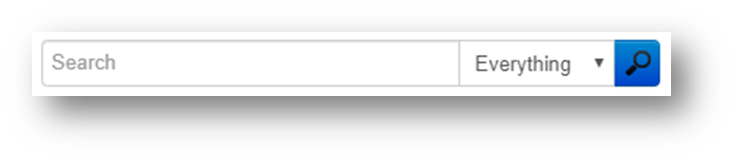
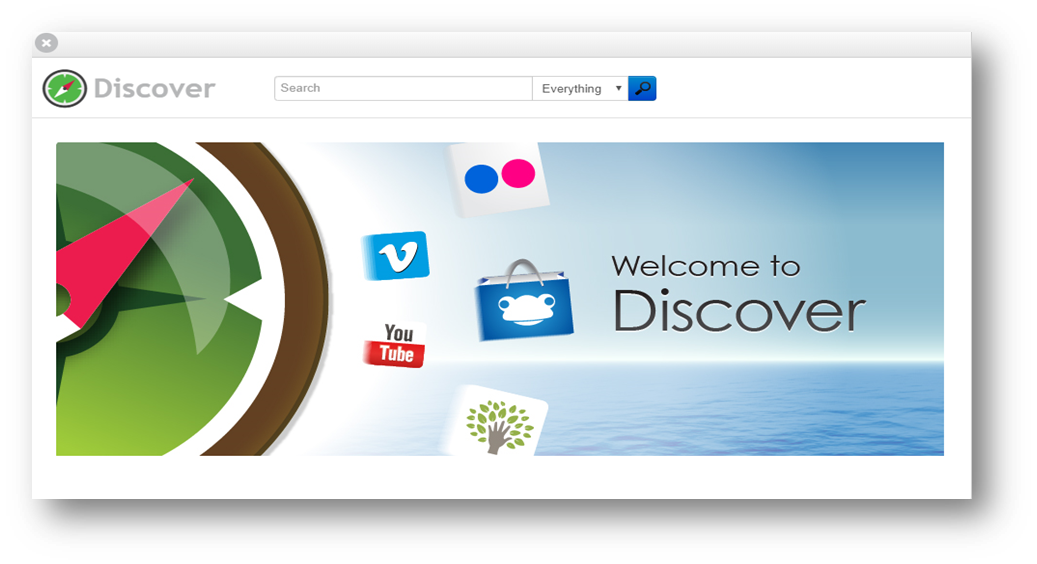
Beside this to the right is a dropdown menu that allows you to filter between searching for everything, images and videos. After entering a search term select the blue magnifying glass icon to undertake the search.
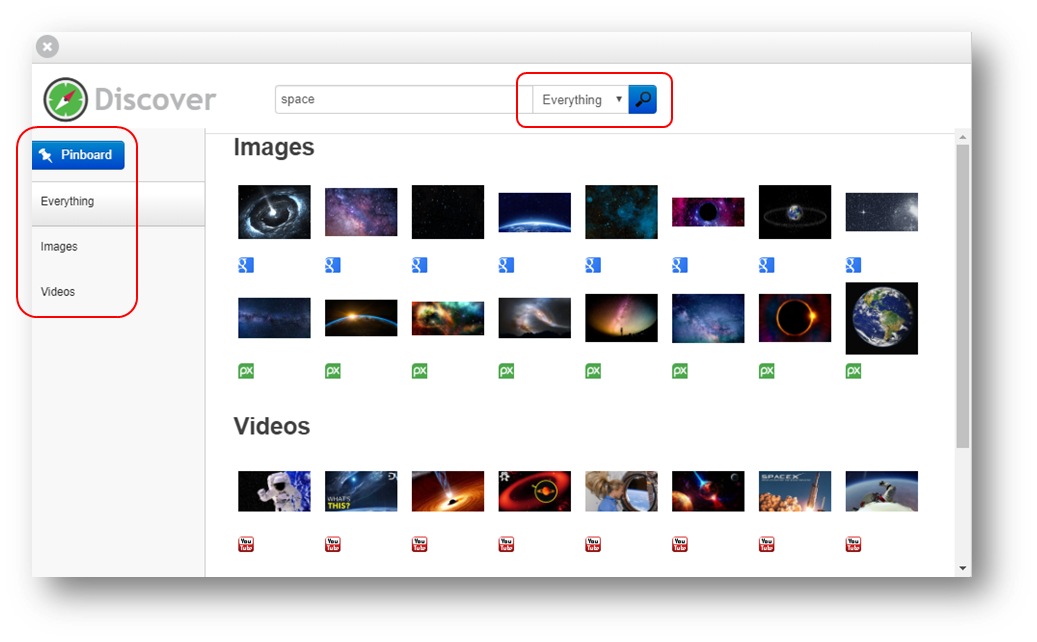
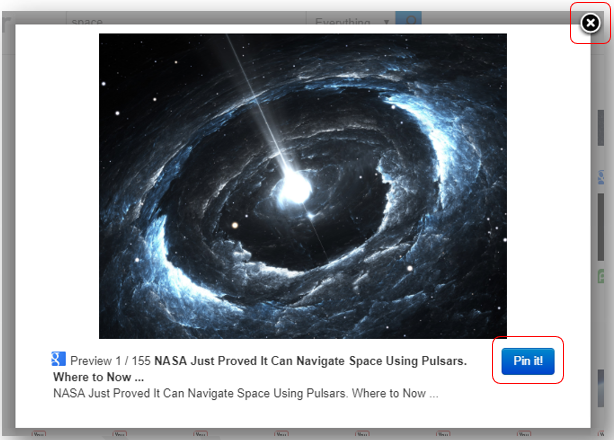
Hovering over resources expands them out of the page so they can be seen in more detail. Listed here will be the resource name along with the options Pin it and Preview. If you select Preview or the small preview image or title then a resource specific window appears. This window displays the item in more detail along with the name of the resource and a description. Videos in this location can be watched as the player will be activated.
If you wish to use this resource on your site at a later date, you can select the Pin it blue button to send this to your pin board. You will then see a brief notification of the addition of this resource to your pin board, in the top right corner of your screen inside a black notification box. To come out of the resource preview simply select the small black cross at the top right of the resource.
The Pinboard
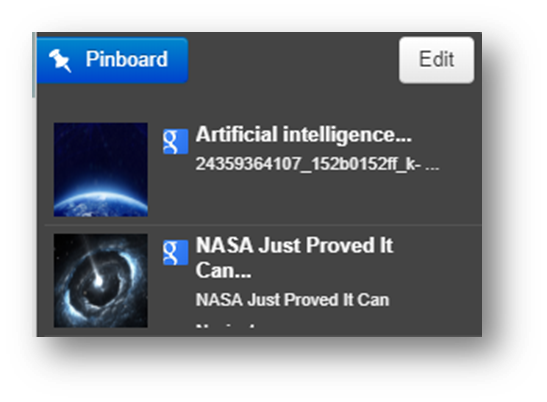
The Pinboard will always be present when you are viewing Discover. The Pinboard essentially allows you to select different resources, send them to this area then when finished searching select which resources to bring into the platform. You can open and close the Pinboard at any time when using Discover by selecting the Pinboard blue button at the top left of this window.
In order to approve or decline resources, select the Edit button which adds a checkbox to the right of each resource and enables three further options;
- Clear selected - If this button is selected any resources currently with ticks in their checkboxes will be removed from your Pinboard
- Clear all - If this button is selected this will clear your Pinboard of all its current contents
- Done - This takes you back to the Pinboard list without the ability to remove the resources.