












Back to All Guides
GET IN TOUCH
If you would like to get further information about Frog or help in getting it set up in your school please get in touch via the contact details below...
hello@frogeducation.com
Assignment Monitor
The Assignment monitor application provides a visual display over all assignment data.
How to View Assignments
The Assignment monitor provides an overview of all the work being set on the platform. The app provides information on who has set work to students as well as showing you the work returned by students and any comments and marks made by staff. This app is only available to Admin users by default but others users can be given the rights to view this app through the Groups & policies application.
When first opening the Assignment monitor, you will see the Homework report page where all assignment information will be displayed in a graph. There are also some useful filtering and display tools you can use here.
In the top right hand corner of the Homework report page, there is a blue View assignments button.
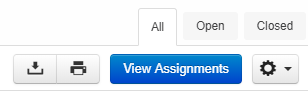
Selecting this button will display all assignments in a list view. The default view will be a list of open assignments, sorted by issue date, with the most recently issued assignments listed first.
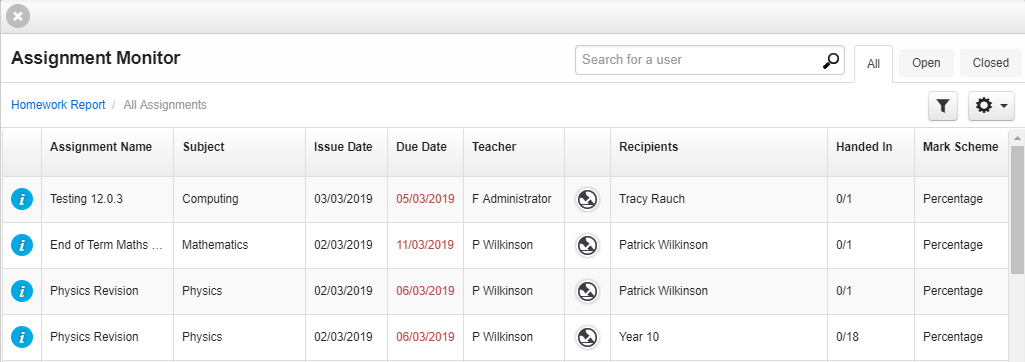
This list view allows you to change the sorting order by selecting the column headers.
You are also able to search for any user using the search option at the top of the window.

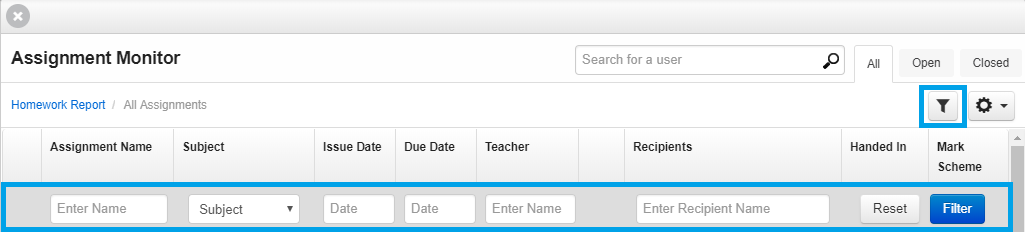
You can also filter the assignments by:
- Assignment name
- Subject
- Issue date
- Due date
- Teacher name.
To view the filters select the Filter button.
To view just open or closed assignments rather than all assignments, select the appropriate tab. In the top right hand corner.
To view further details of an assignment, select the assignment's row in the list. The app will now update to display the assignment's details. You can then open the assignment by selecting the blue Open assignment button.
To view more detailed information on a particular student within the assignment, select the students name from the Recipients list. The view will now update to display the details relevant to that student.
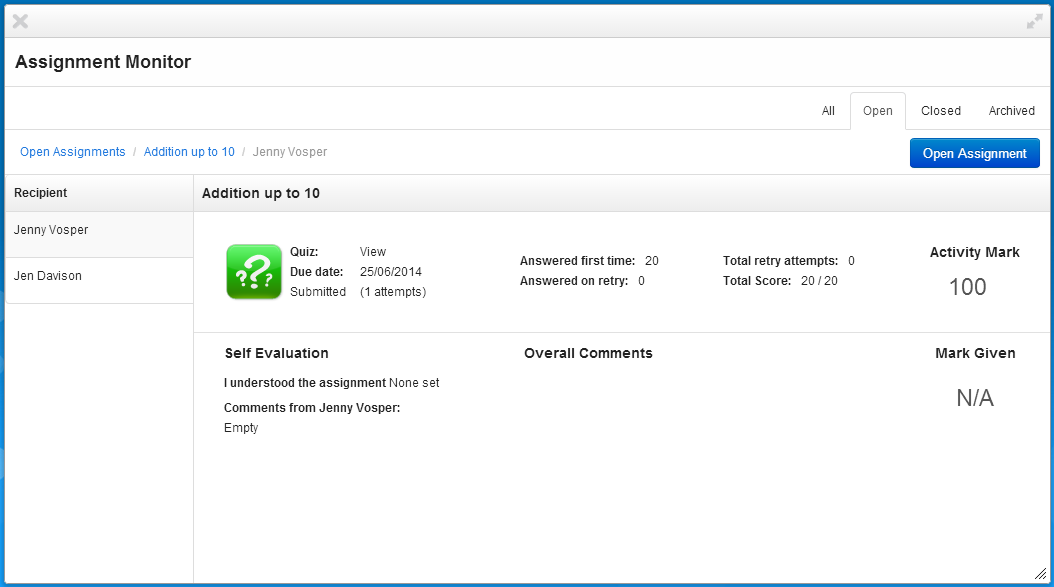
The student details view allows you to see the work submitted by the student, and any comments and marks given by the teacher.
How to export a CSV files
In some circumstances you may wish to export a CSV file of the assignment information for further analysis.
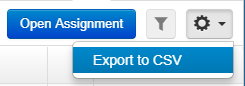
To export a CSV file, select an assignment to view its details. Now select the Actions cog and choose the Export to CSV option.
Opening and Exporting
When viewing the information of an assignment, you may want to open it to recap on what has been set to the students. To do this, simply select an assignment and you will be taken into the assignment information where all recipients are displayed. In the top right hand corner is a blue Open assignment button.
This opens the original assignment for you to view. This view is the same view the student sees when they open it only you will see information on how many students have submitted their work.
You can export all assignment information to a CSV using the Action cog within the Assignment monitor application. When viewing the assignments in a list view, you can export all the information associated with the results. This means you can export assignments set by particular teachers, a whole year, and even all assignments that have been set on the platform. This function is available for both open and closed assignments.
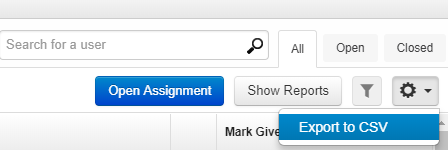
In some circumstances you may wish to export a CSV file of a particular assignment for further analysis. To export a CSV file, select an assignment to view its details. Now select the Actions cog and choose the Export to CSV option.
Homework Reports Data
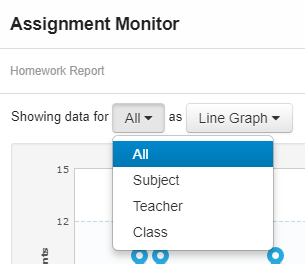
When first opening the Assignment monitor, you will see the Homework report page where all assignment information will be displayed in a graph. To the right, there are some useful filtering and display tools you can use to display specific information.. You can use the drop down menu to choose what data you want to display in the graph.
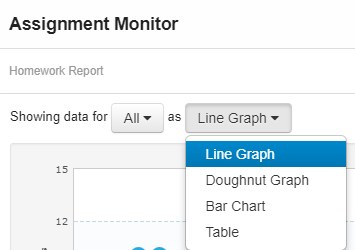
You can also choose what type of graph you would like to display this information.
Filtering the homework report
To the right of graph are lists of assignment information that you can search and filter. The entries with blue dots next to them highlight that the week, teacher, subject or class has assignment information stored in the Homework report.
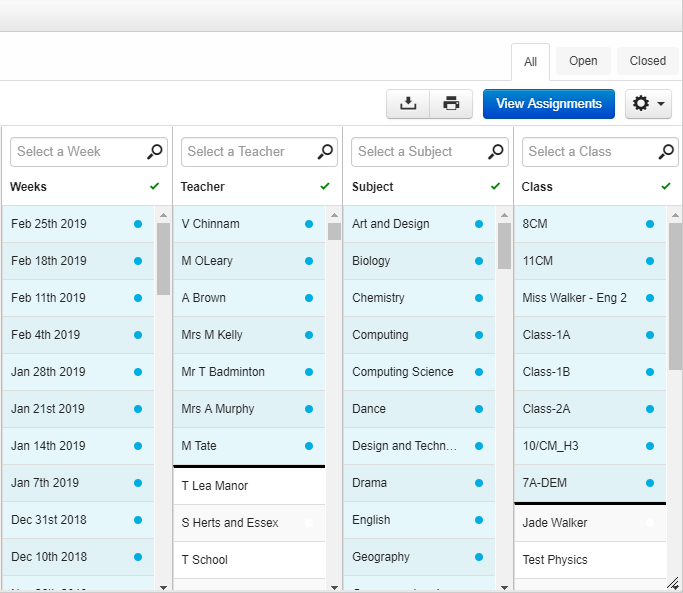
You can use the search bars at the top of the columns to find assignment information. Selecting any of the results will set the charts on the left to only display this information. This means you can display all assignments set to specific classes by one or multiple teachers during specific dates. The chosen filters will be displayed underneath the graph.
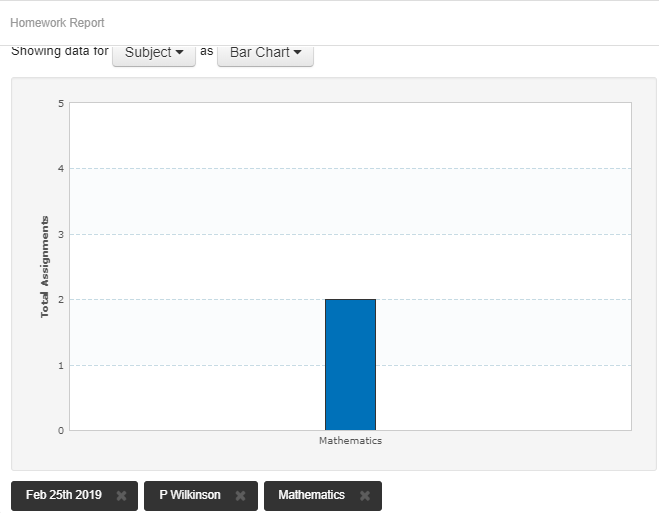
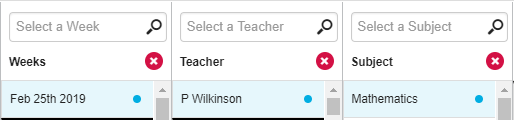
You can clear the filters by selecting the x to the right of each. You can also clear all the filters on a specific column by selecting the red x at the top.
Selecting the blue Open assignment button will display any filtered information in a list view.
Exporting Homework Reports
You can quickly download a Homework report graph to a PDF by selecting the download button from the Homework report page. This button is visible on all tabs within the homework report.
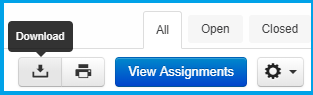
This will download an image of the graph with any filters applied. Alternatively, you have the ability to use the 'Copy graph' function within the Action cog. This will copy the graph directly to your clipboard allowing you to paste the image into any documentation or applications.
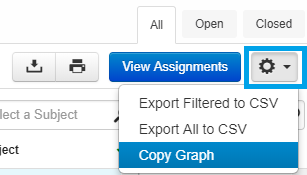
You can export Homework reports to a CSV file by using the Action cog and choosing one of the options. You can export all data or just your filtered results.
You can also export your assignment information when navigating to the View assignments page.
Printing homework reports
To print a report directly from Frog, simply select the print button.
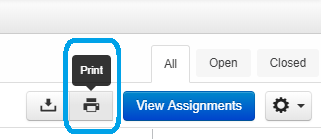
This will open the graph as a .pdf in a new tab on your browser. From here, you have the option to rotate the image, download it or print it.