












Back to All Guides
GET IN TOUCH
If you would like to get further information about Frog or help in getting it set up in your school please get in touch via the contact details below...
hello@frogeducation.com
ePortfolio Collections
If you have built or are wanting to build an ePortfolio that is custom and specific to your needs, you will need to build a Frog site that you can then share.
ePortfolios
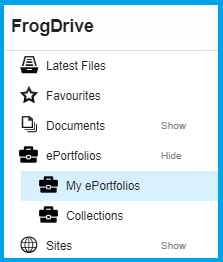
Within FrogDrive you will find the ePortfolios section in the vertical menu on the left hand side. As a member of staff, selecting this option will open the ePortfolio area and two sub-menus will appear to the left:
- My ePortfolios
- Collections.
As a student you will see your own ePortfolios and as a parent, you would see a My child's ePortfolios.
My ePortfolios
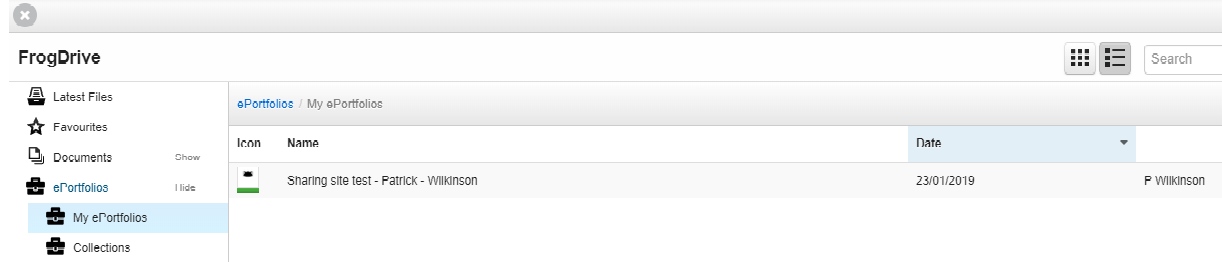
Selecting ePortfolios from the menu in FrogDrive opens the 'My ePortfolios' area by default. This area displays any ePortfolios that have been created for that user. For example, a student might have subject-specific project work, professional development for staff or learning journal ePortfolios within this area.
Collections
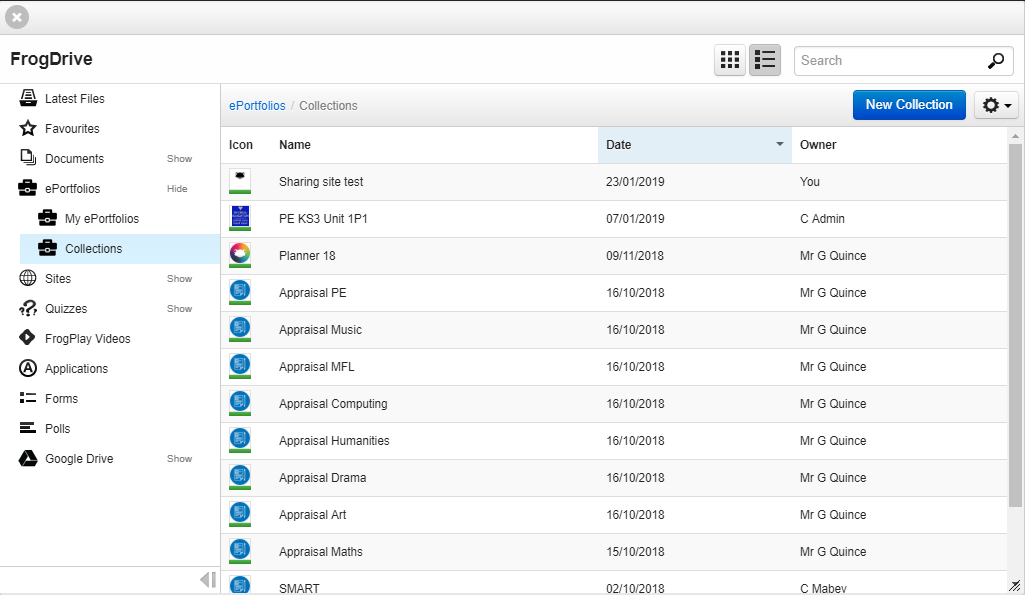
The Collections area of ePortfolios will display any collections that you have created or have access to. You can create a new collection from within this area and as an Admin user you can:
- Edit
- Delete
- Change the ownership of a collection.
These actions can be performed from the Action cog drop down menu. Selecting a collection will show you all the recipients this ePortfolio has been shared with.
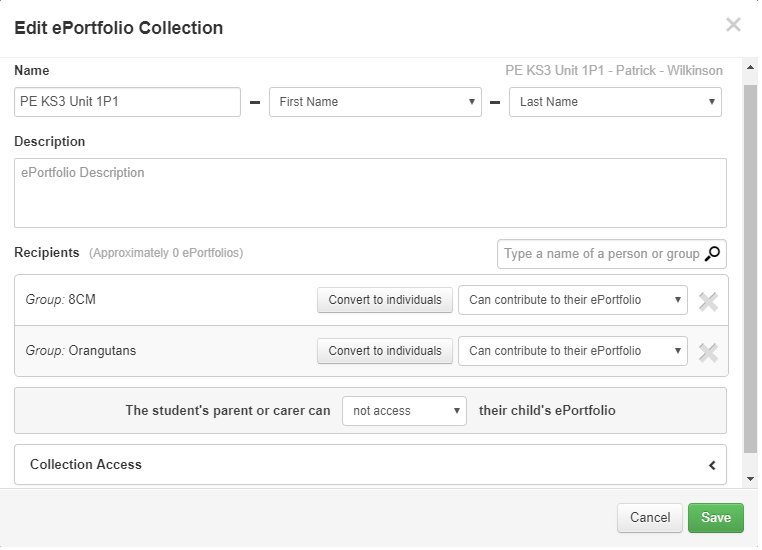
When editing an ePortfolio, you can change the:
- Name
- Description
- Recipients
- Parents/Caregiver access to the ePortfolio.
Who has access to this collection can also be managed when editing a collection.
New Collection - FrogDrive
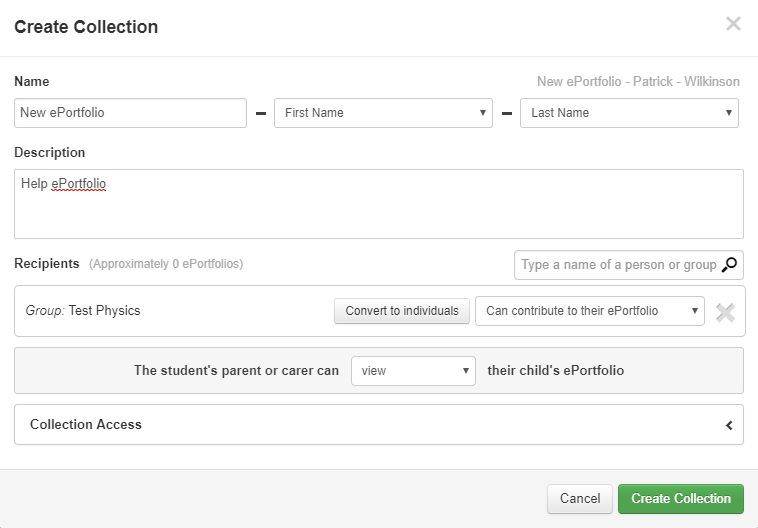
To create an ePortfolio collection via FrogDrive, go into the Collections area of ePortfolios and select New collection button.
This will open the Create collection window ready for you to start inputting the Collection details. Once you're happy with the information, selecting the Create collection button will create a default ePortfolio for all the recipients. This ePortfolio will be a blank canvas with the default Frog site theme, without any widgets, pages or information.
New Collection - Share
If you have built or are wanting to build an ePortfolio that is custom and specific to your needs, you will need to build a Frog site that you can then share.
Note: Sharing a Frog site as an ePortfolio duplicates the site for all recipients and is a standalone site. Any changes made to the original Frog site/ePortfolio template will not be reflected in the recipients ePortfolios.
Once you're happy with the Frog site, you can create ePortfolios by selecting the Share button from the Frog bar. You will then need to select the Create ePortfolio option from within the Share options window. You are then taken to the Create collection window where you can start adding information.
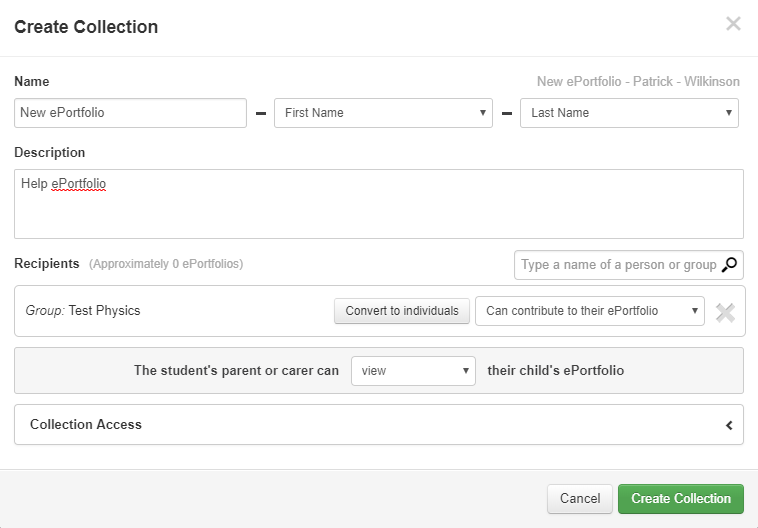
Selecting the Create collection button once happy will create an ePortfolio for all recipients and will be added to your Collections section with FrogDrive.