Back to All Guides
GET IN TOUCH
If you would like to get further information about Frog or help in getting it set up in your school please get in touch via the contact details below...
hello@frogeducation.com
Booking Calendar
The Booking calendar allows users to create and manage bookings for resources or rooms.
About Booking Calendar
The Booking calendar allows you to create bookings for resources or rooms. These items can be created by administrators which can then be booked by administrators and teachers.
If you are an administrator of the Frog platform, you can create new booking items which teachers and other administrators can then use to book a room or resource.
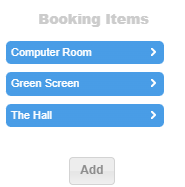
To create a new Booking item, select the Add button from the Booking item list.
The Create booking Item dialog will now be presented. Enter a name, description and choose an item type before selecting the Create booking item button to create the Booking item.
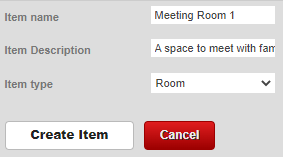
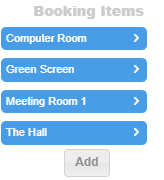
The Booking item name will be displayed in the Booking items list as well as in the New booking dialog when a user creates a booking.
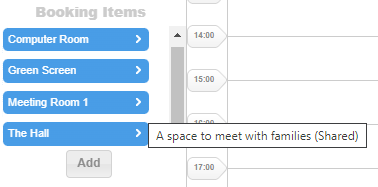
The Booking item description is displayed when a user hovers over the Booking item name in the Booking item list. The description can be used to give further details of the item to teachers that may be useful when they are considering which room or resource to book.
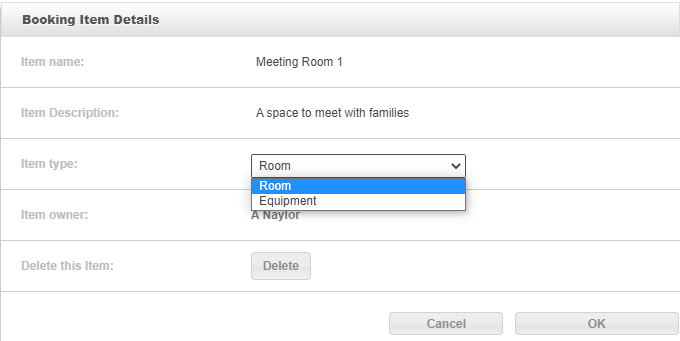
The Booking item type can be set to either Room or Equipment. This option sets the default colour of a Booking item when created.
Once a Booking item has been created, you can edit it’s settings by selecting the menu from the name of the Booking item.
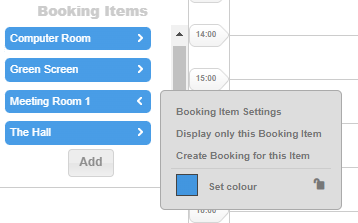
The following options will then be presented:
- Booking item settings - Displays the settings for this item in the main calendar area. Only Administrators will be able to edit Booking item settings
- Display only this booking item - This will only display the selected calendars entries on your calendar
- Create booking for this item - Allows you to create an item for this item
- Set colour - Allows you to set the colour of the booking item as it will appear in the calendar.
Select Booking item settings to edit the settings for a booking item.
To edit the name and description of the Booking item, select the existing text to edit these items inline.
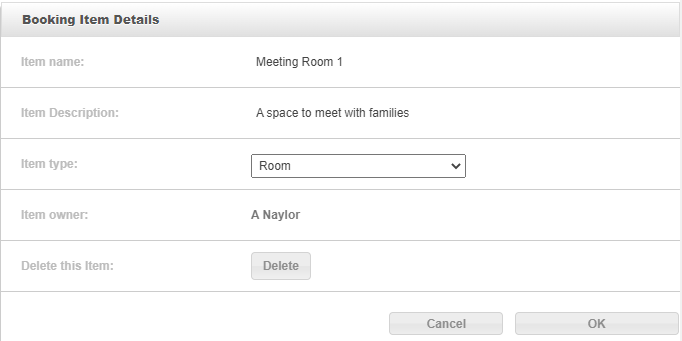
To change the Booking item type select from the options available in the drop down menu.
To delete the Booking item and all of its entries, select the Delete button. You will be prompted to complete this action.
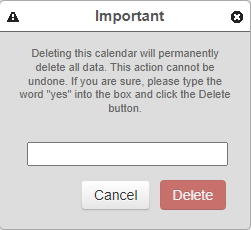
Deleting a Booking Item will delete all entries booked against this item. These entries cannot be restored if the Booking item is deleted.
Creating a Booking
You can create a new booking in any of the Booking items available to you by selecting the New button at the top left of the calendar.

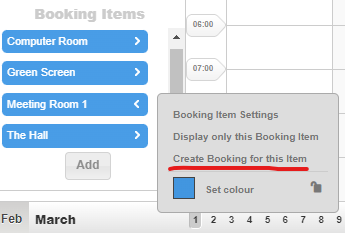
Selecting the Booking item menu from the booking items list and then selecting the Create booking for this item option.
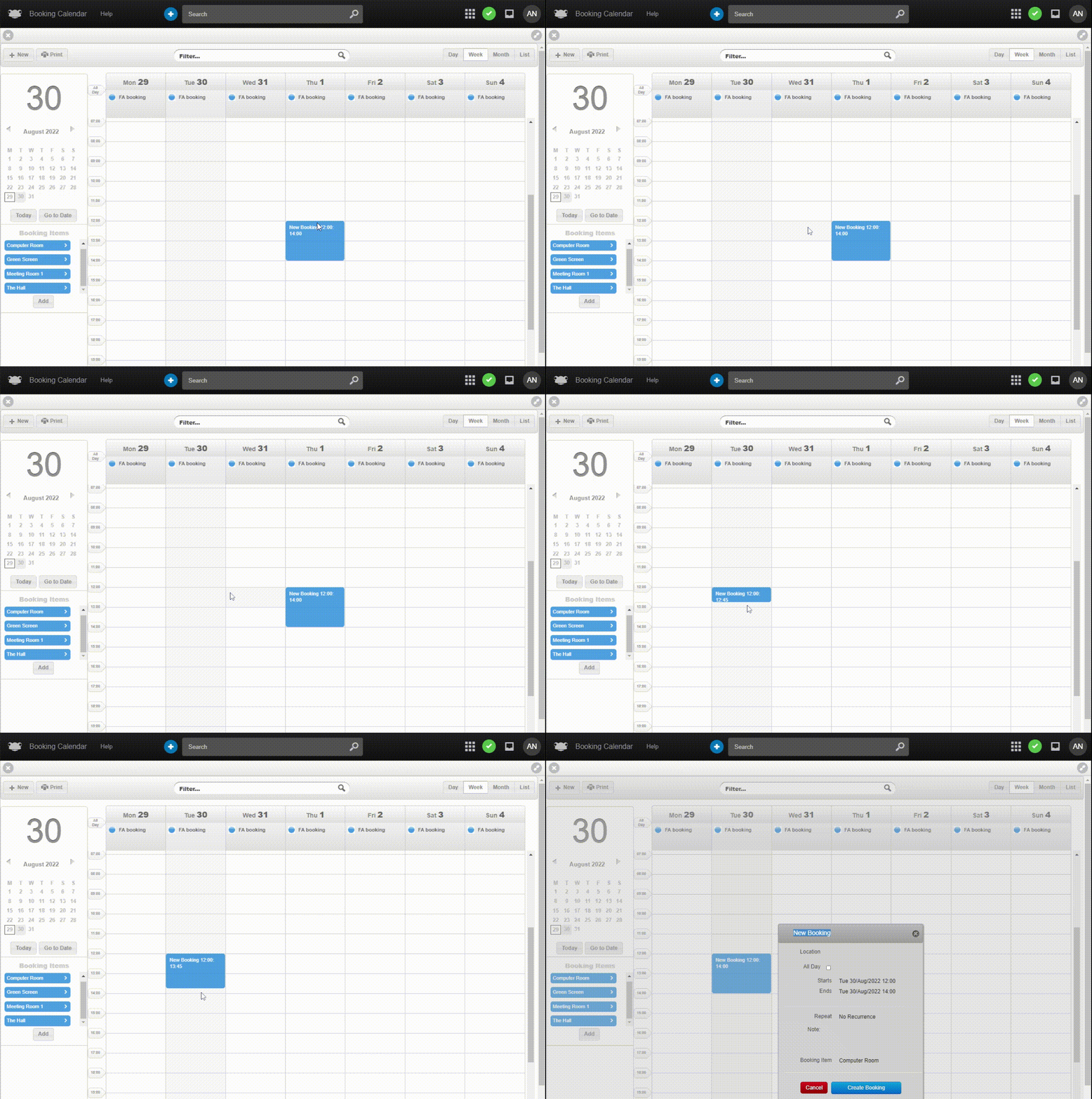
You can also create a new booking by clicking and dragging down a time period in the calendar view.
When you carry out any of these actions the New booking dialog will be displayed.
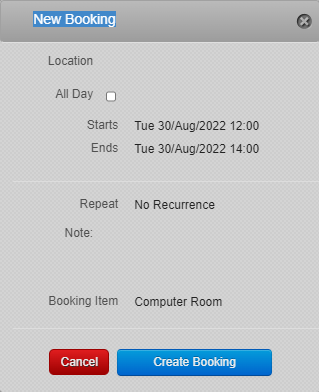
The settings available for entry are as follows:
- Title - Select 'New booking on the darker popup heading to enter a desired booking title
- Location - Here is a text box for you to enter a location for this event
- All day - Here is a checkbox you can tick for an all day event
- Start & end time - By selecting this area, the popup window will slide to the right and you can select a specific start and end for both the date and time of this new booking. Select OK at the bottom of this screen to return to the main create booking view
- Repeat - By selecting this area, the popup window will slide to the right and you can select a period of time that this booking will re-occur on. Select OK at the bottom of this screen to return to the main Create event view.
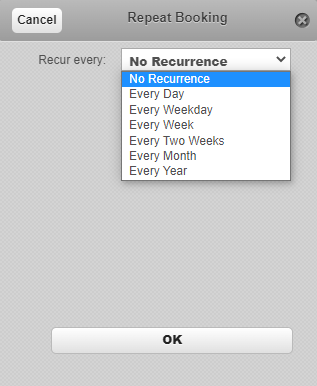
The options available are for a booking to recur:
- No recurrence - It does not recur at all
- Every day - Repeats the event once a day
- Every week - Repeats the event weekly
- Every two weeks - Repeats the event once every two weeks
- Every month - Repeats the event once a month
- Every year - Repeats the event once a year
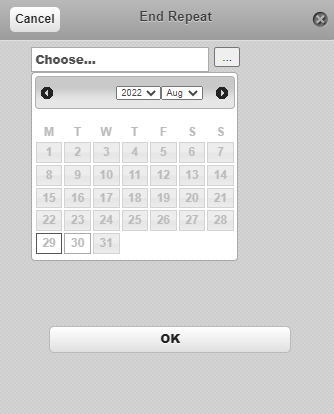
- End repeat - This option will appear if a repeat option is chosen. By selecting this area, the popup window will slide to the right and you can select a specific date for the recurring booking to stop on. Any date after the selected date will not display the previously recurring event. Select OK at the bottom of this screen to return to the main Create booking view. (Note: You can enter a note into the text area provided. This note will display underneath the booking name when viewing the Booking calendar)
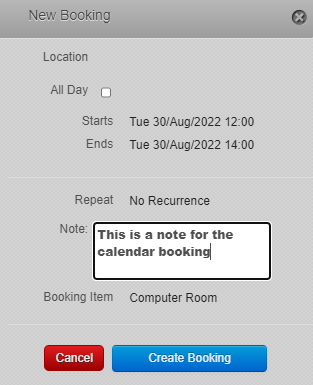
- Booking item - By selecting this area, the popup window will slide to the right and you can select a Booking item to create this event in by selecting this from the dropdown menu. Only Booking items where you are the owner or have admin access to are shown on this list. Select OK at the bottom of this screen to return to the main Create booking view.
To cancel the booking process select either the X button or the Cancel option. If you have started entering the details of a booking you will be prompted to confirm cancelling the booking.
Once you are happy with the above settings select the Create booking button at the bottom middle of this popup window to create the event.
At any point you can select the cross at the top right of this create booking box or select the red cancel button at the bottom of this screen to return to the booking calendar view.
Editing a Booking
Once you have made a booking you can edit its details if required. You can only edit bookings that you have created yourself. Administrators of the Frog platform can edit any booking.
To edit a booking select it in the calendar. The calendar entry dialog will now be displayed.
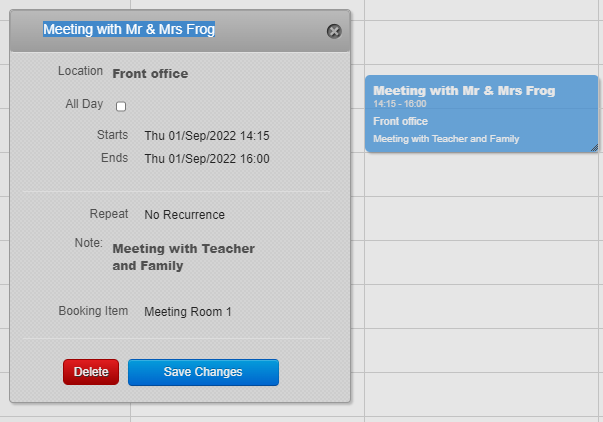
To edit an item of the entry, select it and amend the details as required.
To save any changes you have made, select the Save changes button.
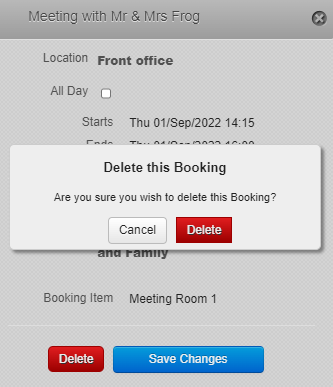
To delete your entry select the Delete button. You will be prompted to confirm this action.
Overlapping Bookings
When creating a booking for a room or equipment, if the times overlap on the calendar, a warning message will be shown to the user when they select Create booking.
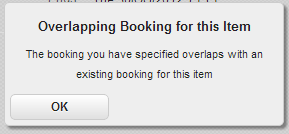
Selecting the OK button will take you back to the create booking item and you will be required to change the date or time to prevent an overlapping booking.
Repeating a Booking
Some bookings on the calendar may need to be booked in at a set time for more than one occurrence. If this is the case what you can do is book in recurring bookings. You can choose to book recurring events when creating or editing a booking after the initially booking. Whether you are setting this option on a new booking or an existing booking, the options on the popup menu are the same.
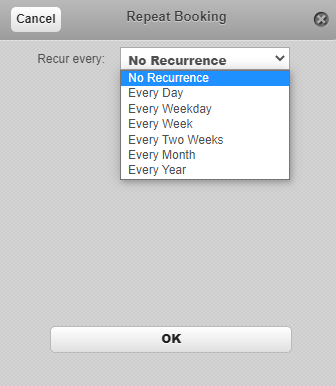
- Recurring event - By selecting this area, the popup window will slide to the right and you can select a period of time for this booking to occur on. Select OK at the bottom of this screen to return to the main create booking view. The options available are for a booking to recur:
- No recurrence
- Every day
- Every week
- Every two weeks
- Every month
- Every year
- End repeat - By selecting this area, the popup window will slide to the right and you can select a specific date for the recurring booking to stop on. Any date after the selected date will not display the previously recurring booking. Select OK at the bottom of this screen to return to the main create booking view.