












Back to All Guides
GET IN TOUCH
If you would like to get further information about Frog or help in getting it set up in your school please get in touch via the contact details below...
hello@frogeducation.com
Polls
The Frog platform allows you to quickly and easily create simple web polls so that you can canvas users of the platform for their opinions.
Creating a Poll
The Frog platform allows you to quickly and easily create simple web polls so that you can canvas users of the platform for their opinions. This might be to poll a class for their opinion of a particular activity or to poll the entire school on a change in school policy. Polls can be reset and re-used if needed and can also have the data they have collected exported to a CSV file. Polls are created using the Poll builder which can be accessed from FrogDrive or from a Poll widget within a page. If a poll is created from within a widget, the poll is stored against the site, if it is created within FrogDrive it is stored in FrogDrive for use in other sites.
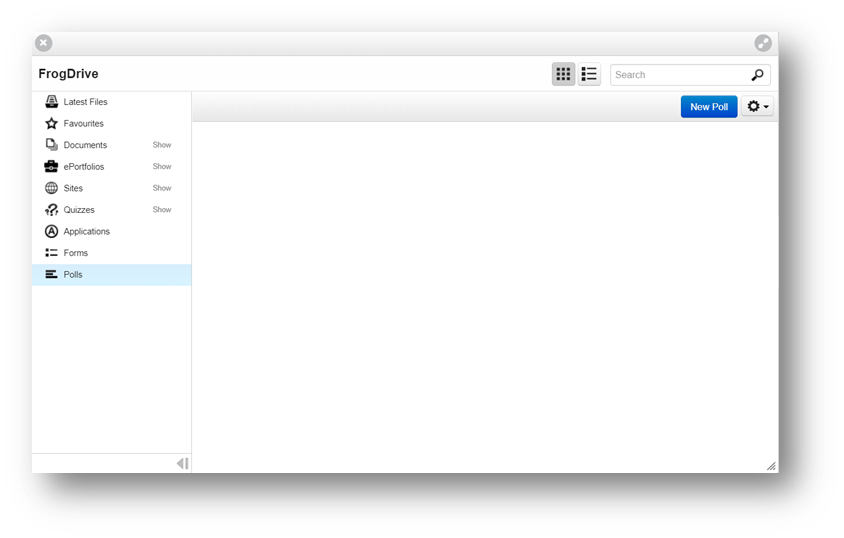
Polls can be created in two ways. The first is through FrogDrive, the second is through a Poll widget in a page. To create a poll and launch the Poll builder through FrogDrive, select the Polls category.
Editing the Question
The Poll builder is made up of two areas. The left hand panel contains Poll settings while the right hand panel contains the Poll canvas.
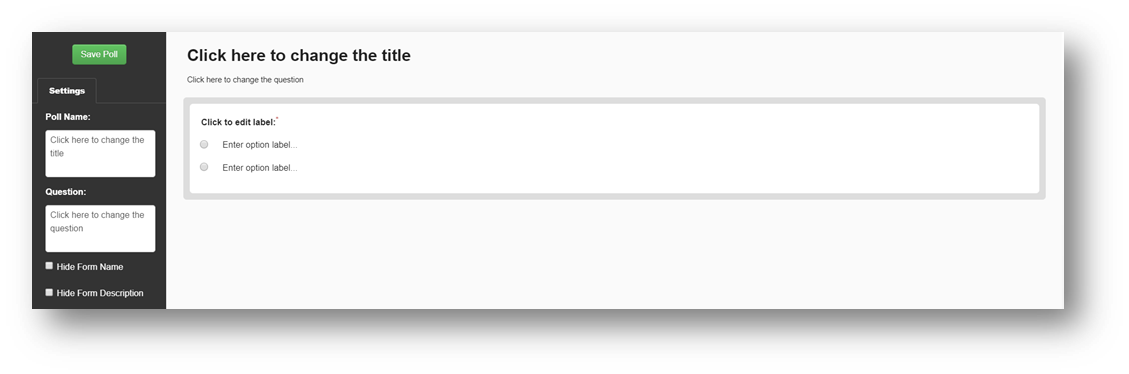
Once the Poll builder has launched the Poll canvas will contain a single multiple choice question. No further question types can be added to the poll.
The Poll settings panel allows you to edit the name of the poll and the question that will be asked. To edit either of these items select the appropriate field and then update the text within the field.
The Question field dictates the question that will appear above the answers in the Poll widget.
You can also choose to hide the form name and form description by ticking the adjacent box.

A poll consists of a single multiple choice question. Only one answer can be chosen by the user completing the poll. By default a blank poll question will contain two answer fields.
To add further options, select the Add a new option button to create another answer field. To edit an option simply select the appropriate answer field and edit the text displayed.
To delete an option, select the X button located to the right of the option.
To reorder the answer fields, drag the answer fields using the move handle located to the right of the answer field.
Sharing a Poll
To share a poll, select the Poll widget in your page and select the Settings tab. From the options in the Settings tab select the Import poll button to attach a poll you have already created, or use the New poll button to create a new poll.
To share the poll you must now share the site it is attached to. Users that you wish to complete the poll must be given Contribute access to the site. Sharing options allow you to give this level of access on a group or individual basis allowing you to easily choose who can complete the poll.
To share your site select the Share option from the Frog bar while viewing your site.
Completing a Poll
Sites may be shared with you that contain polls. To complete a poll in a site you must have Contribute access to the site. If you have View access you cannot complete any polls within the site. Complete any fields that the poll contains and then select the Submit button to submit your form entry. You can only complete a poll once. If you are running a poll you can reset the poll allowing users to complete it again. The act of resetting the poll will remove all results from the original poll.
Resetting and Editing
Resetting a Poll
To reset a poll, first open the Data viewer and then select the Polls category. Select the poll you wish to reset and then choose the Clear results option from the Action cog menu. This will clear all data collected by the poll. This action cannot be reversed.
Editing a Poll
Existing polls can be edited by using the Poll builder to make changes or by selecting the Edit poll button when viewing a Poll widget’s settings. Fields that are already present in the poll can be changed or removed and new fields can be added. If a field is added, this field will appear in the results of the poll as a new column. If a field is deleted the data captured by this field will remain in the results of the poll but the option will no longer be selectable to users completing the poll. If a field is relabelled two columns will be presented in the results. The first will contain the data captured by the original label, the second containing data for the relabelled item.
Viewing Results
All poll results are held within the Data viewer. The Data viewer application can be launched from Site settings, or the Data viewer widget can be embedded onto a page.