Back to All Guides
GET IN TOUCH
If you would like to get further information about Frog or help in getting it set up in your school please get in touch via the contact details below...
hello@frogeducation.com
Embedding Widgets
A widget is a piece of functionality that can be dragged and dropped into a Frog site a user has Edit & manage rights over.
Widgets
A widget is a component that can be placed on a Frog site or dashboard that gives you further functionality or allows you to access a service. Each widgets has its own editable functionality. The Frog platform provides a variety of widgets, ranging from simple items allowing you to place text on a page to more sophisticated components, such as notice boards, embedding external websites and other functionality.
Embedding Widgets
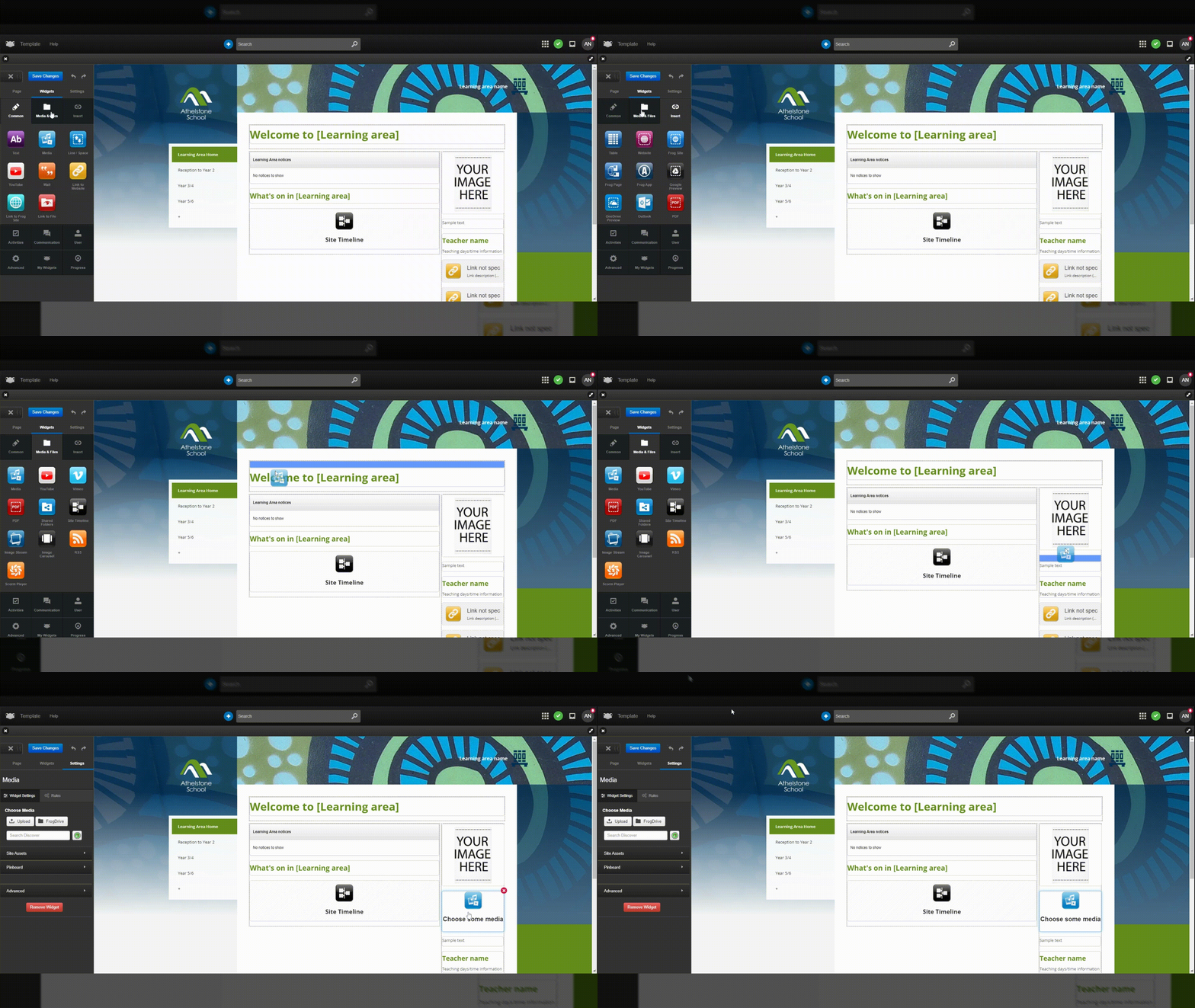
Providing you have permission to Edit a site, you will see the black edit button towards the top left of the screen labelled Edit in white. Once selected, the Content tray will open on the left. There are three tabs within the widget panel, the second of which is the Widget tab. In this area you can choose the layout of your page.
The widget tab is split into categories. Each category is populated with widgets that serve a particular function within Frog:
- Common - Common widgets are the most used and have been placed together for convenience. In the Edit panel you will see the widget catalogue: Common, and from there you have a number of options when wanting to embed text, media and resources
- Media & files - Media & files widgets are designed to allow you to quickly add documents, images, videos and audio files. In the Edit panel you will see the widget catalogue: Media & files, and from there you have a number of options when wanting a file to be displayed
- Insert - Insert widgets are designed to allow you to quickly insert websites, tables, documents and links within Frog. In the Edit panel you will see the widget catalogue: Insert, and from there you have a number of options when wanting to insert a resource into your Frog site
- Activities - Activities widgets are designed to allow you to quickly enhance sites by adding interactivity. In the Edit panel you will see the widget catalogue: Activities, and from there you have a number of options when wanting to add interactivity to your Frog site
- Communication - Communication widgets are designed to allow you to quickly communicate messages, events, and collate information. In the Edit panel you will see the widget catalogue: Communication, and from there you have a number of options when wanting to communicate with users
- User - User widgets are designed to allow you to quickly navigate to your favourite aspects of Frog and supports you in managing timetables and calendars. In the Edit panel you will see the widget catalogue: User, and from there you have a number of options when wanting to improve navigation and manage schedules
- Advanced - Advanced widgets are designed to allow you to create a more sophisticated Frog site by analysing interactivity of widgets and scaffolding access to documents, resources and Frog sites. In the Edit panel you will see the widget catalogue: Advanced, and from there you have a number of options when wanting to increase the sophistication of your Frog sites
- My widgets - My widgets are designed to personalise your Frog sites. In the Edit panel you will see the widget catalogue: My Widgets, from there you can add a time and Random name widget to add personalisation
- Progress - Progress widgets are designed to work in conjunction with Frog progress. In the Edit panel you will see the widget catalogue: Progress, from there you can add a Cycle picker widget.
To use a widget, select the widget you would like to embed into your Frog site and drag it onto the page. Hover the widget over the layout box you would like the widget to be placed and when it turns blue, release.