












Back to All Guides
GET IN TOUCH
If you would like to get further information about Frog or help in getting it set up in your school please get in touch via the contact details below...
hello@frogeducation.com
Frog Bar
The Frog bar provides you quick access to a number of features without having to navigate through multiple menus. The Frog bar can always be found at the top of the current view and cannot be hidden or minimised.
About the Frog Bar
The Frog bar provides you quick access to a number of features without having to navigate through multiple menus. The Frog bar can always be found at the top of the current view and cannot be hidden or minimised.

Next to the Frog head on the left hand-side of the Frog bar, some text will be displayed that highlights what application or Frog site you currently have open. If you are visiting a Frog site that you do not have admin rights to, the name of the Frog site will be displayed. If you do have admin rights to a Frog site, this will change to a drop down Site menu button and a Share button will be displayed.
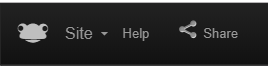
Within the drop down menu, there are various options available to admin users.
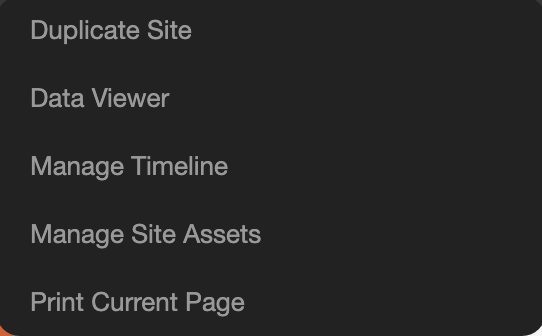
Duplicate site
Selecting this option will produce a copy of the entire site. Once selected, you will be prompted to rename the site and add an optional description for the duplicate Frog site. You will then be presented with two options:
- Create and share - Select if you're ready to share the duplicate Frog site with others
- Create and edit - Use if you'd like to open your new Frog site and make changes before sharing it with others.
Data viewer
Selecting this option will display any data submitted by users of a Frog site who complete a quiz, poll or form.
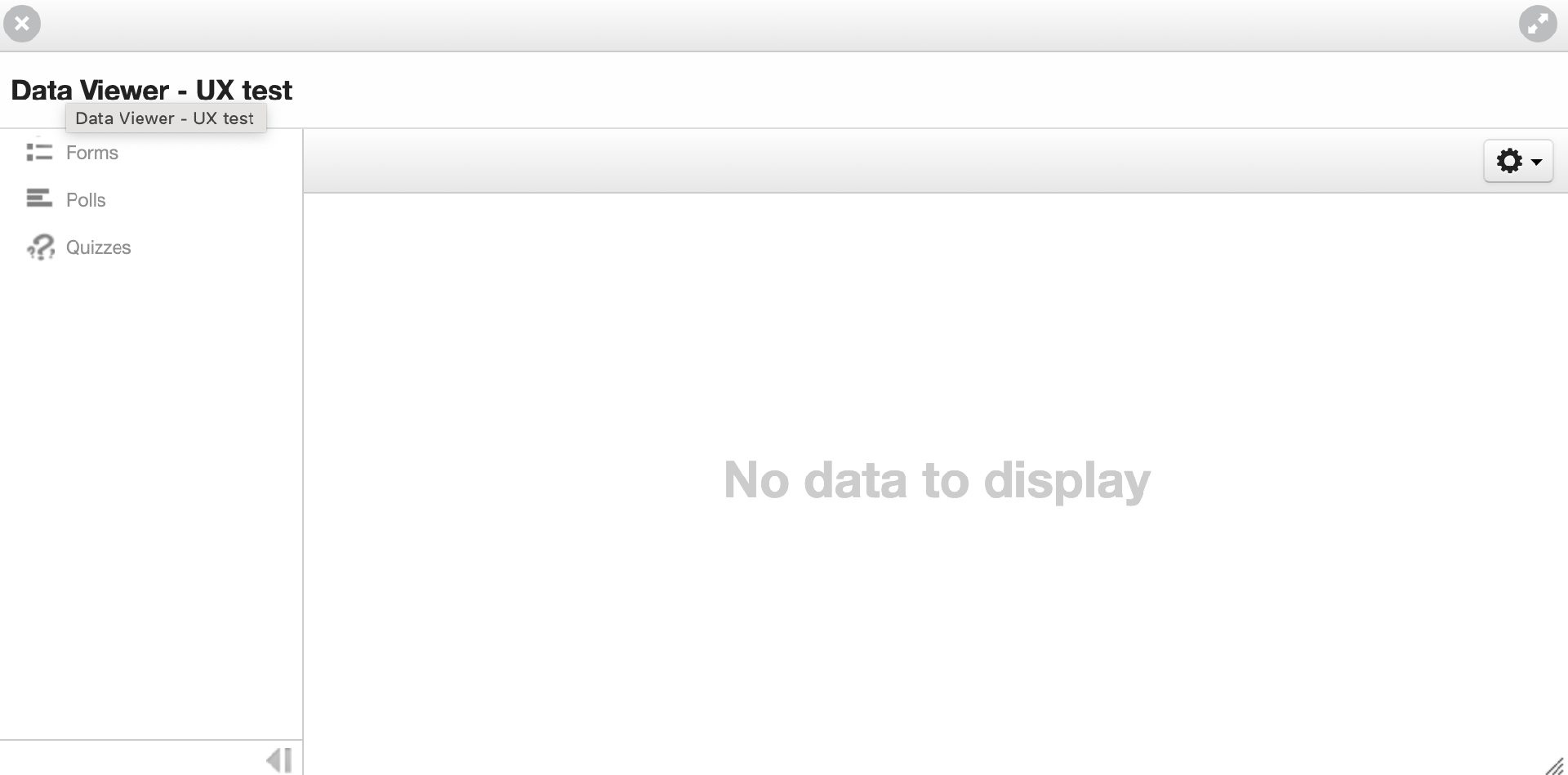
You can browse the various data sources by selecting on each of the three options in the vertical menu on the left had site. Any data submitted by users of the Frog site will be displayed. If there are multiple forms, quizzes or polls, you can select each one and the responses will be displayed. You can filter the responses and view a summary of the responses for each poll, quiz or form embedded in your Frog site.
Manage timeline
The Manage timeline window shows the activity of your Frog site organised in chronological order, with the most recent activity displayed at the top. Any comments posted in communication widgets, such as a Wall widget, will be displayed here, as well as any files uploaded to the Frog site, such as when users interact with a File drop widget.
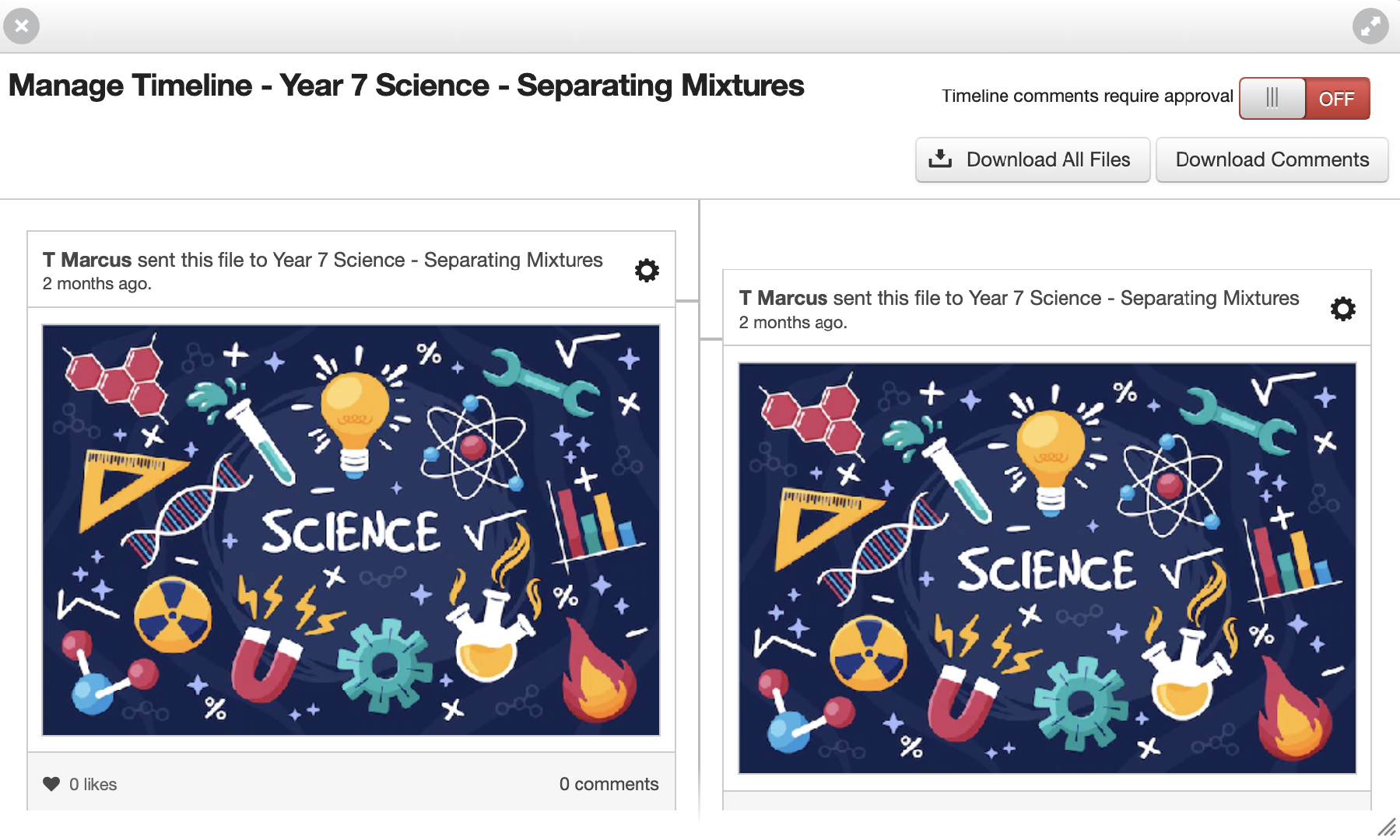
You have the following options available:
- Timeline comments require approval - This enables the Frog site owner to prevent any timeline posts being automatically displayed to any user who has access to the Frog site. You will be prompted to approve every post before they are displayed
- Download all files - Selecting this button will download all files uploaded to the Frog site
- Download comments - Selecting this button will download all comments made on the Frog site as a text file for archiving or analysis
- Manage site assets - Selecting this option displays any assets uploaded to your Frog site. Various widgets (such as a PDF widget or Media widget have the option to directly upload a file into the page. The Frog site assets window will display all the media uploaded to your Frog site as you've been creating and editing it.
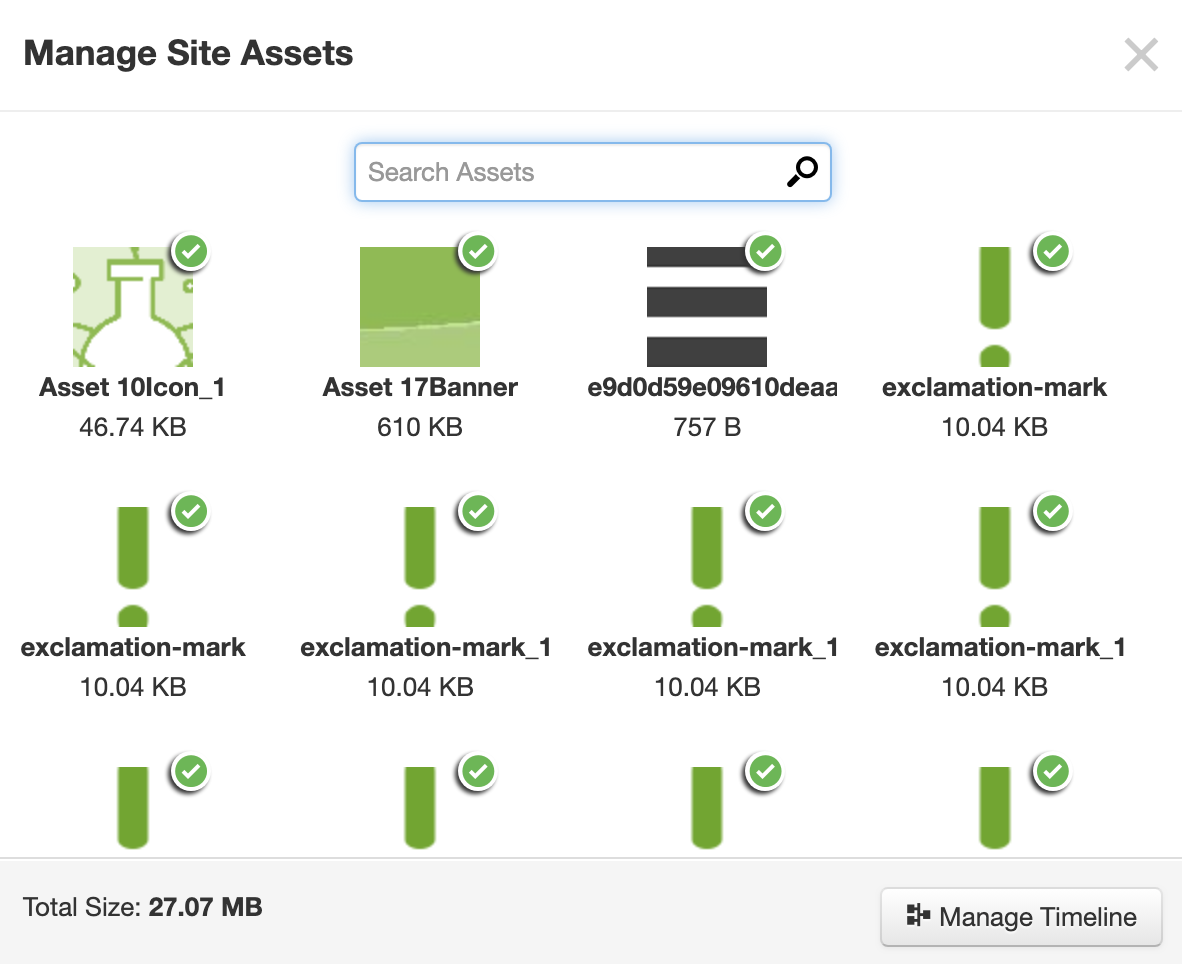
You can select on each asset to preview it, zoom or rotate the asset, download it or change its file properties (such as name and description).
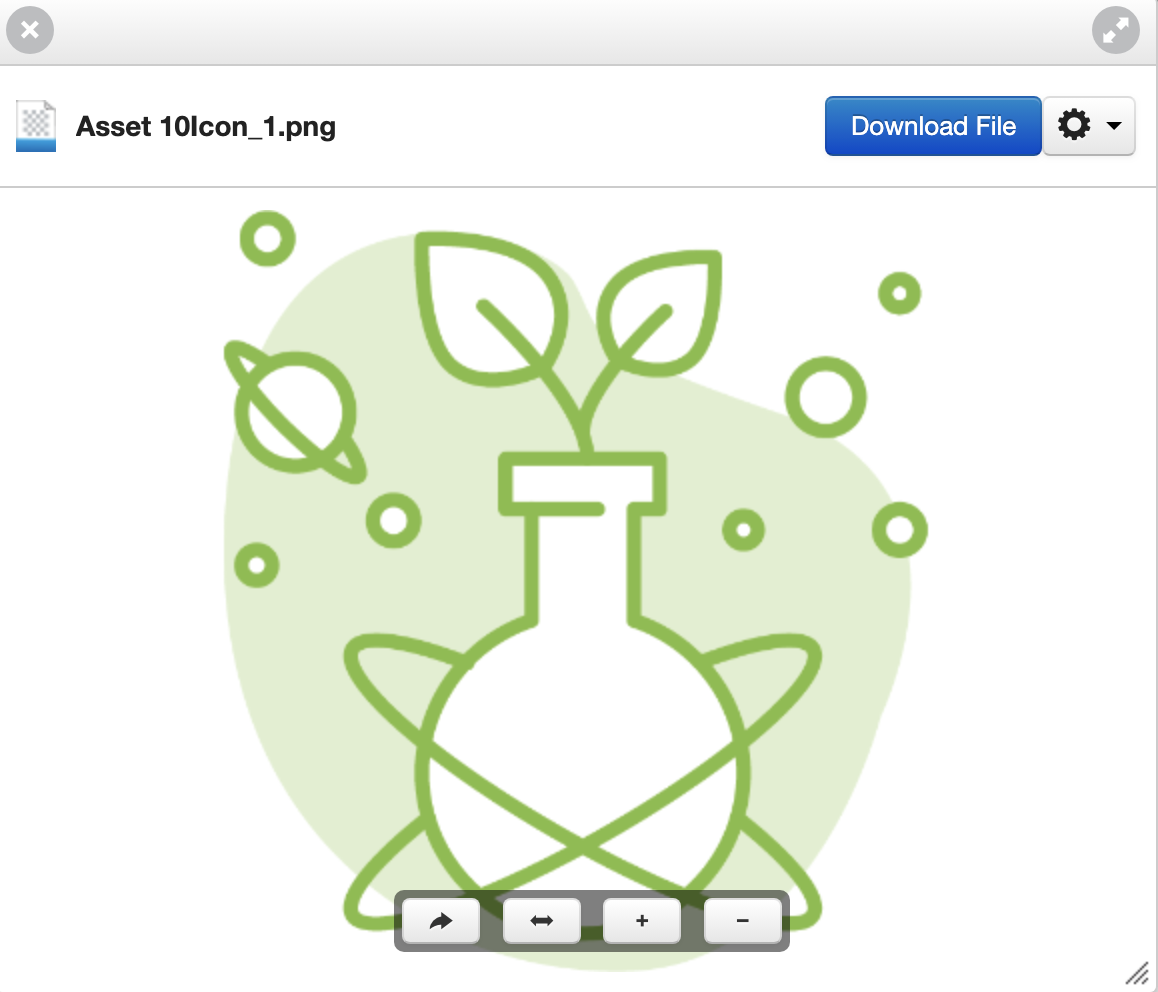
In the Frog site asset window, you will be present with the following options:
- Search assets - This enables you to search the file names of the assets uploaded to your Frog site while in Edit mode. This can be useful if you are trying to find an asset you have used in the past
- Manage timeline - Selecting this button will take you to the Manage timeline option, which enables you to remove or download any comments or files sent to a Frog site by a user
- Print current page - Produces a printable PDF copy of the page and opens a print window to print the current page.
The Dashboard Button
If you are viewing any of your personal dashboards, you can press the Frog head dashboard button, which can be found on the far left of the Frog bar. This will allow you to select to view any of your dashboards.
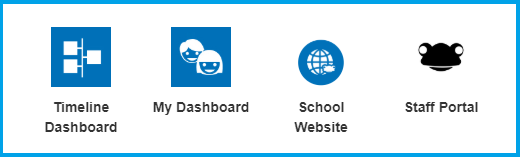
Dashboard selector
When viewing your dashboards, you can also switch between them by using the Dashboard selector. The selector is the black modal with white dots found at the bottom of the page on any dashboard screen.
Help
The Help option will displayed at all times no matter where you are in the platform. Selecting Help will open a new window where you can search through over 300+ articles written by Support personnel from Frog education UK.
Note: Some articles are not applicable to Frog in South Australia.
Create a New Button
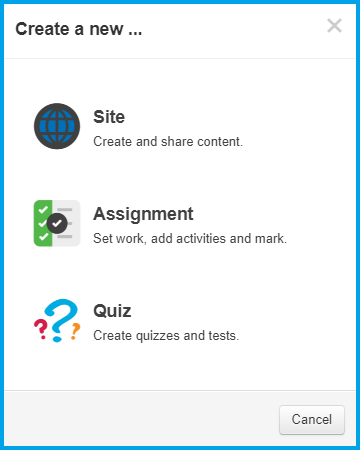
Wherever you are within the platform, you will be able to see the Create a New button on the Frog bar. This is a shortcut that quickly allows users to start creating a new Site, Assignment or Quiz. This removes the need to navigate through the FrogDrive to start creating content.
Selecting the Create a New button will open a new window.
Global Search
Searching for a term in this search box will return results based on your search term from across the platform. You can search for anything that you have access to within the platform. If you are using an application, results related to this application will be displayed first, followed by results from across the platform.
Further results can be seen by selecting the 'More' button. Results will only be returned for items that you have permission to access. By default the search will return results from:
- Sites
- Application names
- Calendar events.
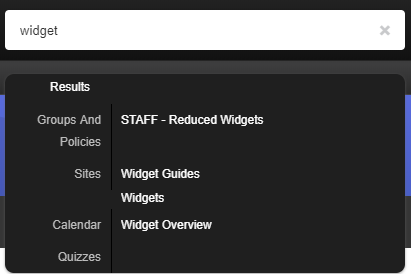
The Global search bar will remember the last 10 searches a user has made and make them visible for re-use.
The Quick Launch Menu
From the Quick launch menu you can access a number of applications and areas of the platform quickly and easily. These applications include Assignments, Calendar and the Discover app. You can also access Frog sites such as your dashboard. Other items are also displayed in the Quick launch menu for ease of access.
The Quick launch menu also acts as an application tray so you can quickly switch between applications and sites within Frog. When you open any application or Frog site, it will temporarily be added to your Quick launch menu and a white dot will appear next to the title, which highlights that this is open and in use. Only when you close the window will this disappear from the menu. You can also right click on any open item from within the menu to close it or launch a new window.
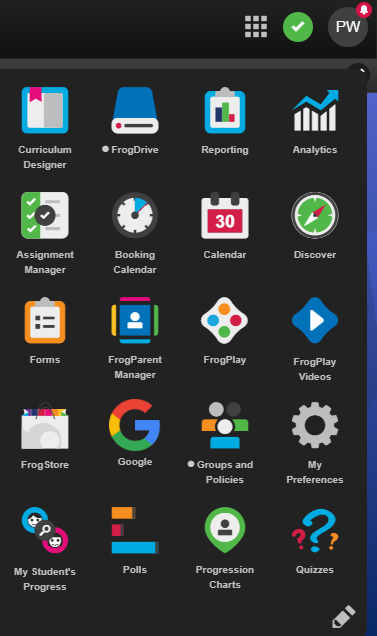
The Quick launch menu is always accessible from the Frog bar allowing you to navigate to the core areas of the platform easily from any other location in the platform.
My Frog
Within the Frog bar is the My Frog menu which is the second to last icon on the right. Depending on what profile you are logged in as, the display will be slightly different but this is where you can quickly view all assignments and your calendar events.
My Frog - Staff and Admin
When logged in as a member of staff, the My Frog icon will highlight how many assignments that user has open.
 |
Selecting the icon will open My Frog and this is a quick way to see what is open and when it is due. This window also displays how many users have submitted their work.
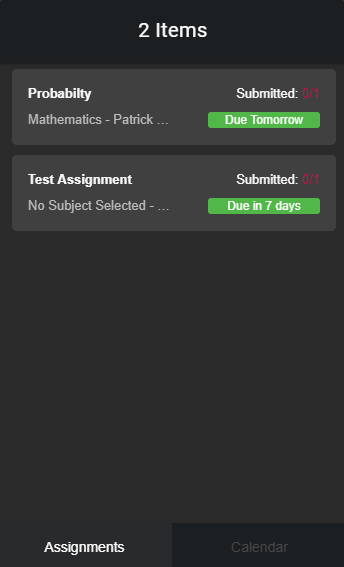
Selecting on Calendar at the bottom will highlight the assignments' due date and any scheduled meetings the member of staff has.
My Frog - Students and Parents
Students and parents will have the same view when they are logged into Frog. Their My Frog icon will change colour and the number within the icon will also change depending on the amount of assignments that are yet to be completed and how close the student is to the deadline date of handing them in.
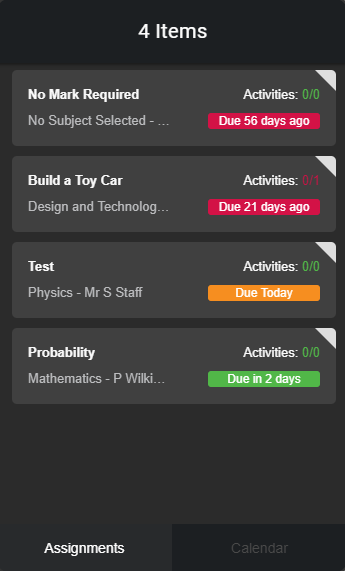
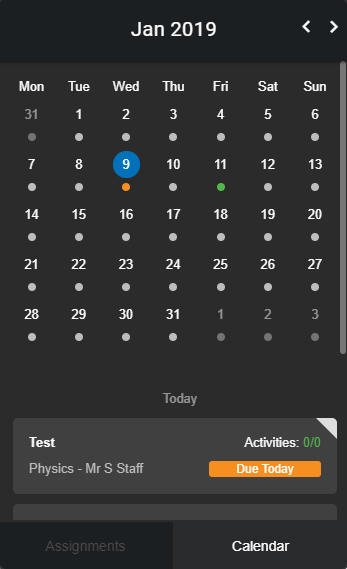
You can see all the assignments spread out on a calendar view, showing what is due and when.
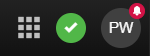
If all assignments are completed, the icon will be a green tick.
Profile Menu
Every user logged in to Frog will have a Profile menu on their Frog bar which is the last icon on the right. The icon will be the initials of the user who is logged in.
If you have any notifications you haven't viewed, a red bell will also be visible on your icon.
Selecting your Profile menu will open up the following options:
- My Documents - This will open your My documents area within FrogDrive
- My Preferences - This will open your preferences
- Notifications - This will open your notifications
- System Preferences (Available to Admin only) - Allows you to make system wide changes
- Log Out - Log out of Frog.