Noticeboard Widget
Back to All Guides
GET IN TOUCH
If you would like to get further information about Frog or help in getting it set up in your school please get in touch via the contact details below...
hello@frogeducation.com
Noticeboard Widget
The notice board on the Frog dashboard is where you can view important messages, communications, alerts and links.
Noticeboard Widget
The Notice board widget allows you to add a notice board to a Frog site that can be used by anyone with edit and manage access to the site.
Users with View access can see the notices but cannot create or interact with them.
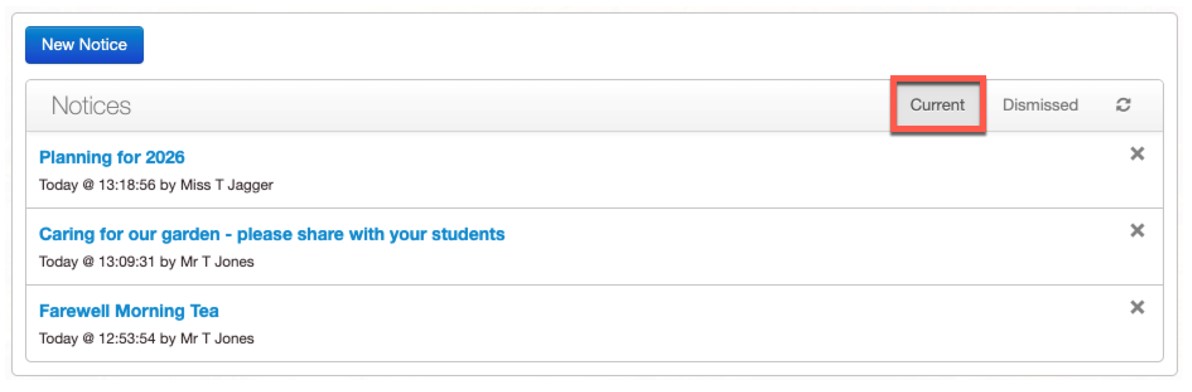
For Staff, Student and Parent profiles, they will see two tabs, "Current" and "Dismissed" at the top of the widget.
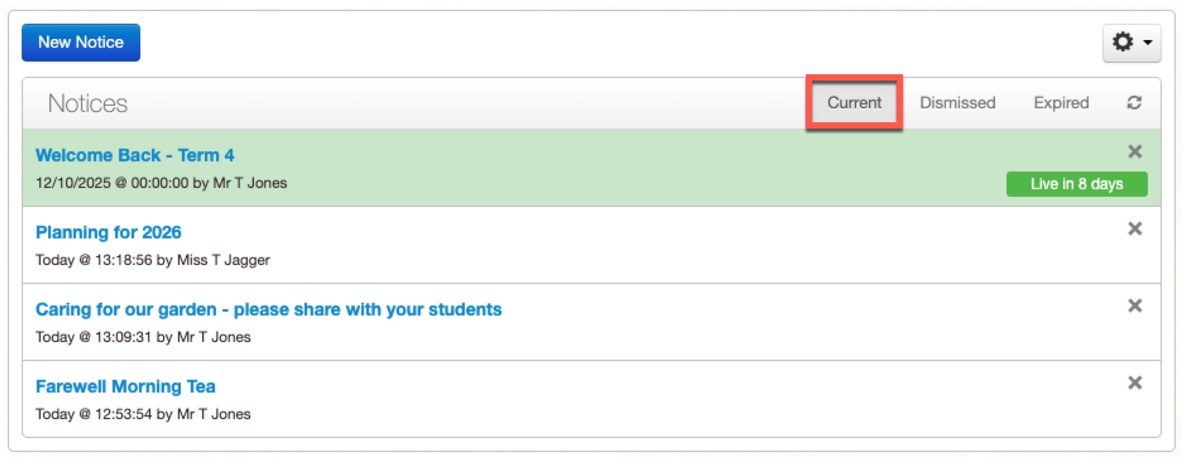
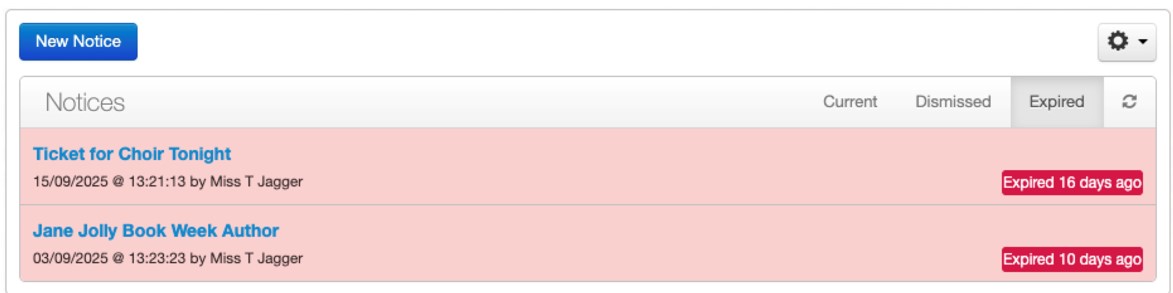
For Admin profiles, they will see three tabs, "Current", "Dismissed" and 'Expired", at the top of the widget.
By default, users will land on the Current tab when viewing the widget, ensuring key updates are seen promptly.
Example of a teacher view with the Current tab selected:
Once a user has viewed a notice board entry, they can manually choose to move it to their Dismissed view.
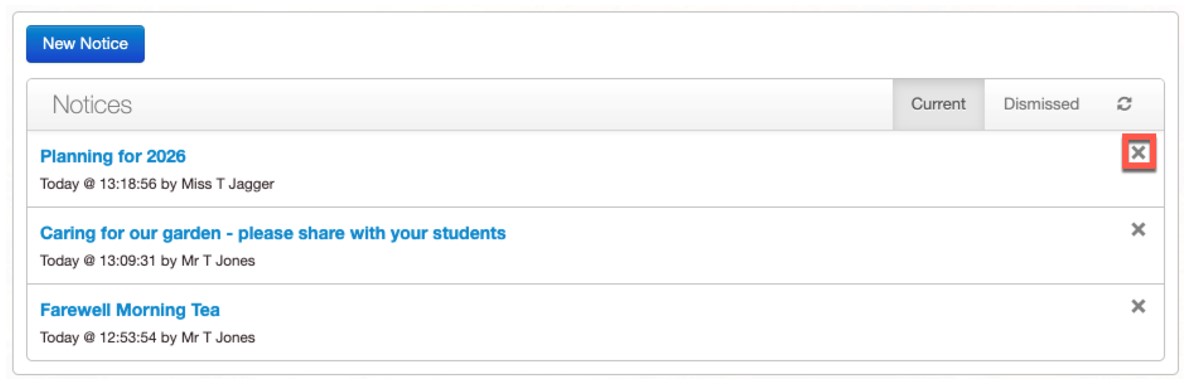
There are two ways to remove an entry from the Current view:
- Click the x icon directly on the overview page (list of entries).
- While viewing the entry details, click the x icon in the top right corner.
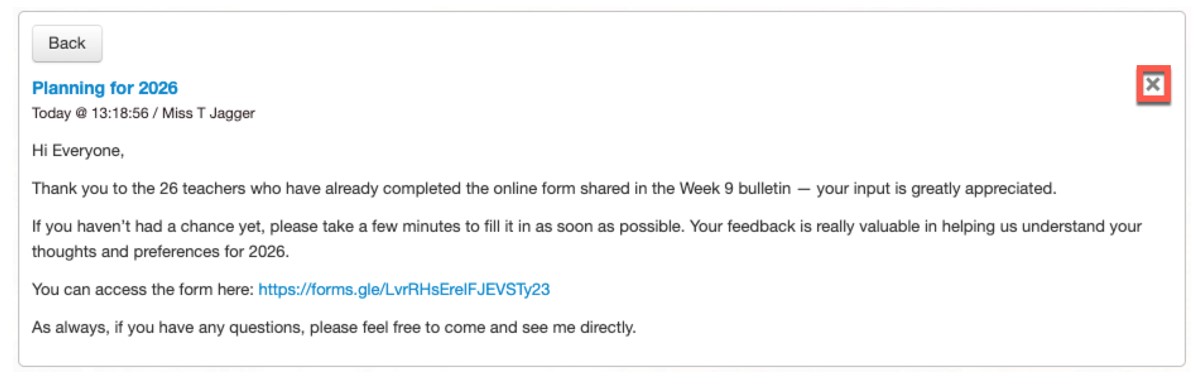
After a user selects the x icon on a notice board entry, the entry will be automatically removed from the Current view.To view notice board entries you have previously dismissed, select the Dismissed tab.
Dismissed entries will appear with a slightly opaque appearance, visually distinguishing them from active entries.

For any dismissed notice board entries, users can choose to restore them to their Current view. There are two ways to do this.
- Click the restore icon directly on the overview page (list of notice board entries).

- While viewing the entry details, click the restore icon in the top corner.
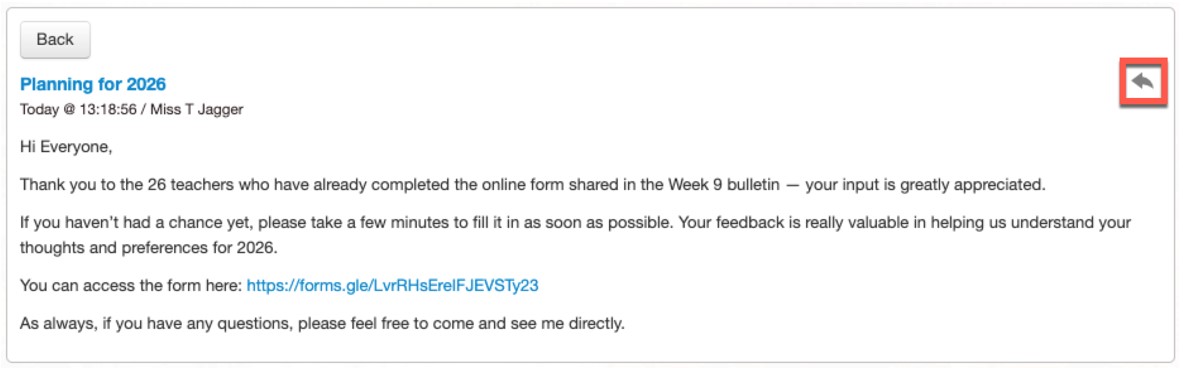
Once the restore icon is selected, the entry will be automatically removed from the Dismissed view and reappear in the current view.
Just like staff or student profiles, When the admin clicks on a message to see the detail and then navigates back to the Notice Board widget their entry will be moved into the Read tab. This will include notices that are yet to be published, as indicated by the green background and green tag. As this notice is not yet visible to staff, parent or student profiles, they will only see this notice in the 'unread' tab once the notice meets the conditions set when composing the notice. More on this in the next section.
Admins have access to an additional tab, Expired, within the Notice Board widget. This tab displays all notice board entries that have passed their expiry date. Example of an admin view with the Expired tab selected:
When an Admin views either the Current or Dismissed tabs, they will also see any notice board entries that are scheduled to be displayed in the future.
Example of an Admin view of the Notice Board with the Current tab selected, showing an entry scheduled for a future date: