












Shared Folders Widget
Back to All Guides
GET IN TOUCH
If you would like to get further information about Frog or help in getting it set up in your school please get in touch via the contact details below...
hello@frogeducation.com
Shared Folders Widget
The Shared folders widget allows you to embed a shared Frog folder allowing access and/or management.
Shared Folders Widget
The Shared folders widget allows you to embed a shared Frog folder allowing access and/or management.
This widget does not store documents itself, but instead points to a folder in FrogDrive. To use the widget drag it onto your page to embed.
Note: You cannot create a folder via the widget, so you need to set up a folder in FrogDrive. You will also need to share that folder from within FrogDrive.
Advanced settings

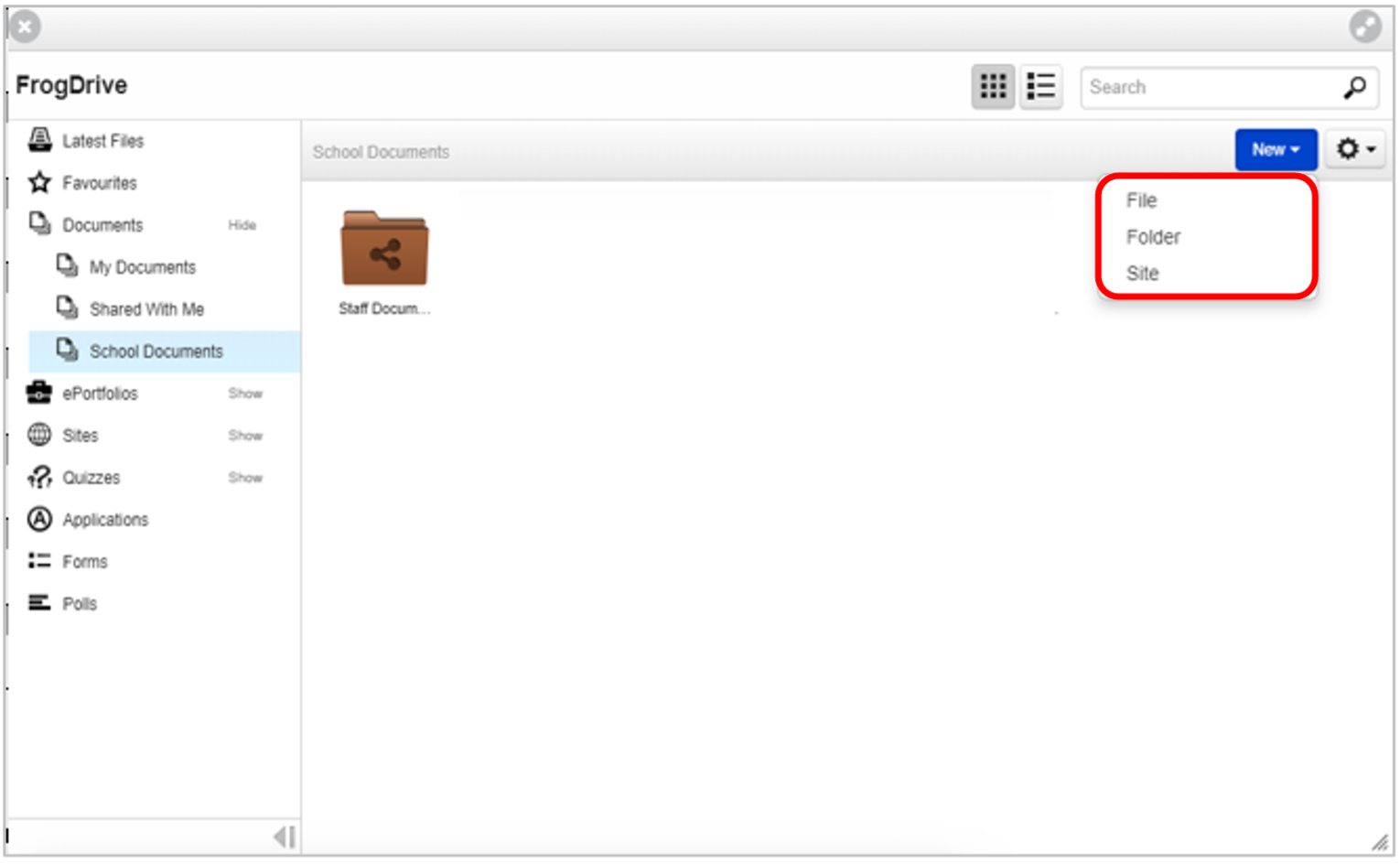
To create a folder, navigate to FrogDrive and select the Shared documents drive. Select the New button and choose Folder.
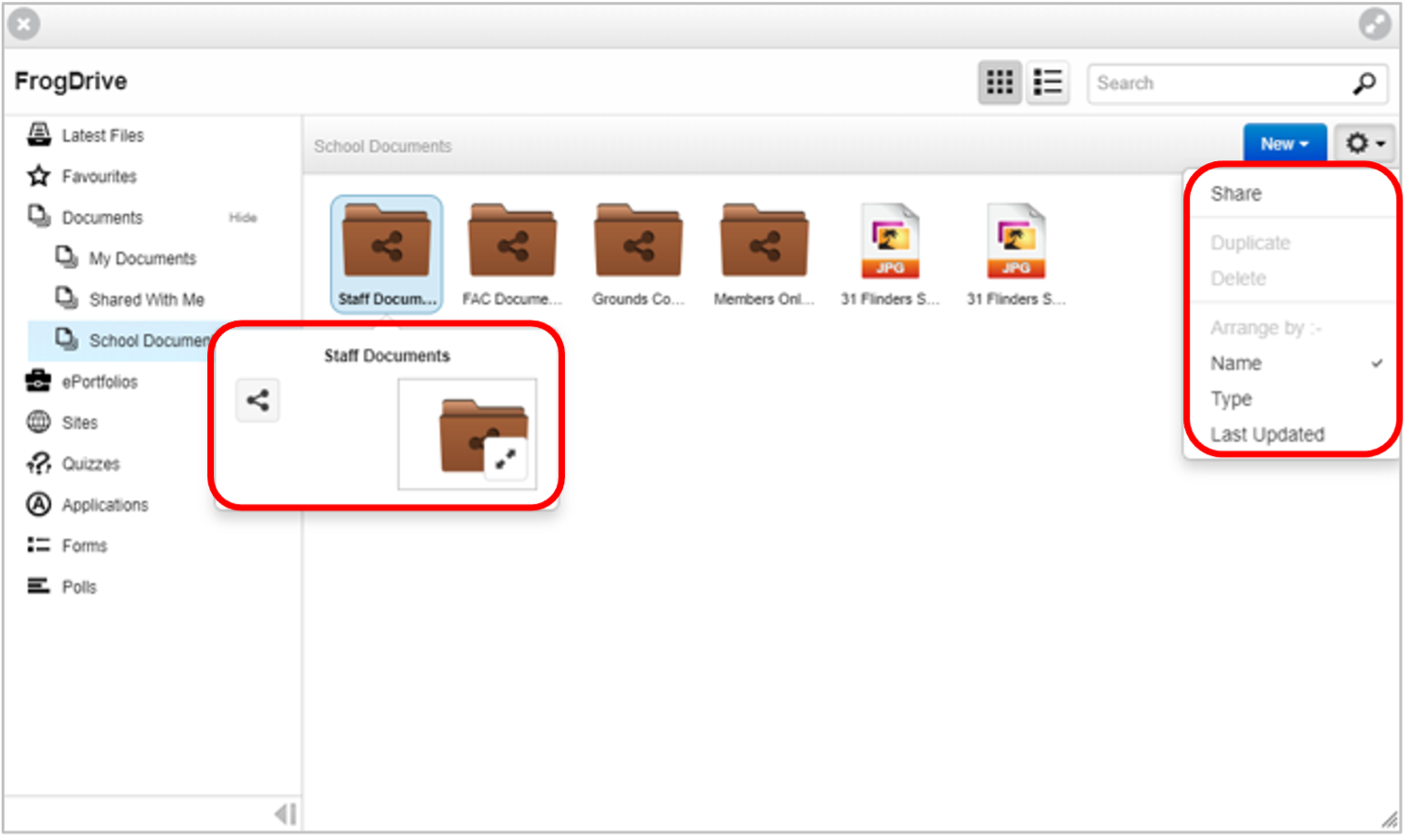
To share, select the folder and then select the Action cog at the top right of the window. Select the Share button. Next, choose the person or group you would like to share the folder with.
To edit the widget, select the Edit button and then select the widget. The panel will open for that widget and you can:
- Change the title of the widget
- Set the default view to be a list, which is useful when you have long filenames. It’s worth mentioning that users can switch between icon and list view, but this option sets how the files display on loading
- Allow Open in FrogDrive turns on the ability to open the shared folder outside the Frog site.