












Form Widget
Back to All Guides
GET IN TOUCH
If you would like to get further information about Frog or help in getting it set up in your school please get in touch via the contact details below...
hello@frogeducation.com
Form Widget
The Form widget allows you to add forms to gather data from a site.
Create a Form
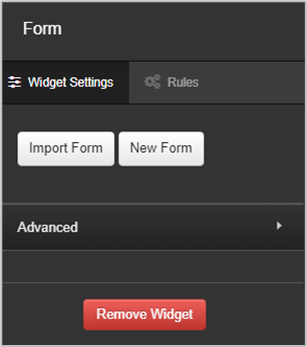
Currently, to create a form you only intend to use once, drag the form widget onto a page and select the New form option. This will create a form that can only be used within this particular site and cannot be used anywhere else within the platform.
If you plan to use your form on more than one Frog site, you can create a form using the Forms application, which can then be accessed time and time again. When you add a form from FrogDrive to a Frog site, it creates a copy of the form and any changes made will not be reflected in the original form. This is useful if you want to reuse the same layout but change some of the details.
You have the ability to change the Submit button and you can also add text to be displayed when the user has submitted a form. You can send a notification that the form has been completed to an email address or multiple email addresses, using a comma to separate them.
You can choose whether to receive a notification when someone submits the form by selecting the Notify on submit option.
When users are logged in, all their profile information will be collected when they have submitted a form. You can use forms on a public Frog site, but the submissions will have an anonymous profile.
Note: With the correct permissions, you can view all submissions or export them by accessing the Data viewer application. The data can also be downloaded to a CSV using the Action cog.