












Calendar Widget
Back to All Guides
GET IN TOUCH
If you would like to get further information about Frog or help in getting it set up in your school please get in touch via the contact details below...
hello@frogeducation.com
Calendar Widget
The Calendar widget can be placed on a Frog site or your dashboard and will display upcoming events in your calendar.
Calendar Widget
The Calendar widget can be placed on a Frog site or your dashboard and will display upcoming events in your calendar. This will include events you have been invited to by other members in the Frog platform.
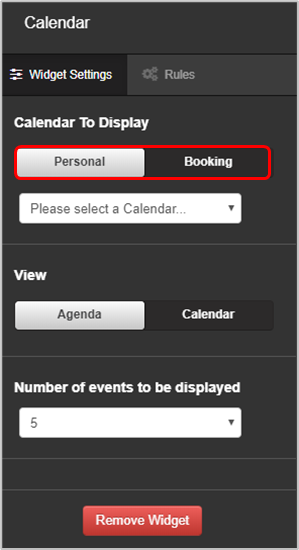
In the widget settings you can choose what type of calendar to display – Personal or Booking.
By default this will be on Personal which means it is pointing to the Calendar application. If you select Booking this will change the widget to look at the Booking calendar.
Once you have selected the calendar type you wish to display, you need to select the specific calendar item you want to display by choosing it from the drop down menu.
To create a personal calendar that can be selected from the drop down menu, use the Calendar application found in your Quick launch. The same applies for using the Booking view. Create a Booking calendar from the application in your Quick launch and then select the calendar from the drop down menu.
You can choose the agenda view which displays the next 5, 10 or 15 events or the calendar view. You can set a height in the Calendar view. This shrinks the space the calendar takes up, but does not shrink the text. If you set a short height, such as 300 pixels, you can only see a few hours into the day.
In the Calendar view, selecting an event will highlight additional information for the event.
The Calendar widget also works with the Create event widget which enables you to create event directly into a calendar or booking calendar.