












Network Files Widget
Back to All Guides
GET IN TOUCH
If you would like to get further information about Frog or help in getting it set up in your school please get in touch via the contact details below...
hello@frogeducation.com
Network Files Widget
The Network Files widget allows you to add access to a network share to a site.
Network Files Widget
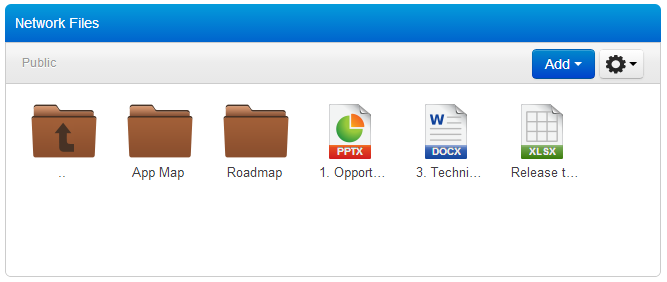
The Shared folder is displayed in the widget and can be browsed and interacted with through this widget.
A user's access to the contents of the share are determined by the permissions their account on the network holds.
Advanced settings
Choose a Network drive option allows you to specify a folder below the share to be displayed through the Network files widget.
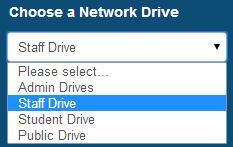
Use the drop down menu to select the share that you wish to display to users.
Choose a folder.
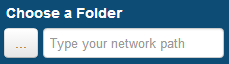
For example, the root of a share may contain several subfolders that are not appropriate to all users. Using the Choose a folder option, the Network files widget in question could be configured to show only the contents of a subfolder with no way of navigating back up the folder structure.
If you wish to replace the title that is displayed in the Network files widget with a heading of your own choice, enter it here.

Show File actions option allows you to decide whether or not the menu bar is displayed when a user views the Network files widget in a page.