Wall Widget
Back to All Guides
GET IN TOUCH
If you would like to get further information about Frog or help in getting it set up in your school please get in touch via the contact details below...
hello@frogeducation.com
Wall Widget
The Wall widget allows you to place a wall on a page within a Frog site to allow users with contribute access to post short messages to the site.
Wall Widget
This widget allows you to place a wall on a page within a Frog site to allow users with contribute access to post short messages to the site.
If a user has contribute access to a Frog site they will see the text input field and Post button. To enter a post, enter the text you wish to post to the wall and select Post.
Once a post has been created, other users with contribute access can comment on the post using the Reply hyperlink.
Users with administrative access to the Frog site can delete and hide posts also.
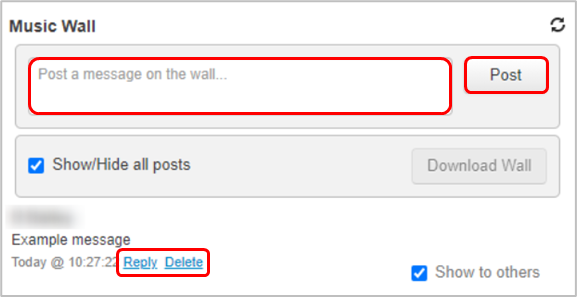
If an admin user wishes to review the content of a wall, selecting the Download wall button will trigger an in browser download in CSV format containing all entries that have been posted to the wall, including any deleted and hidden posts.
Note: the downloaded log will contain all entries that have been posted in the wall’s lifetime however, if a Wall widget is removed from a Frog site, all content from within the widget is deleted so it is not possible to retrieve content logs for walls that have been removed.
Moderation
Walls provide the ability for admin users and those with Frog site editing permissions to moderate content contributed by other users.
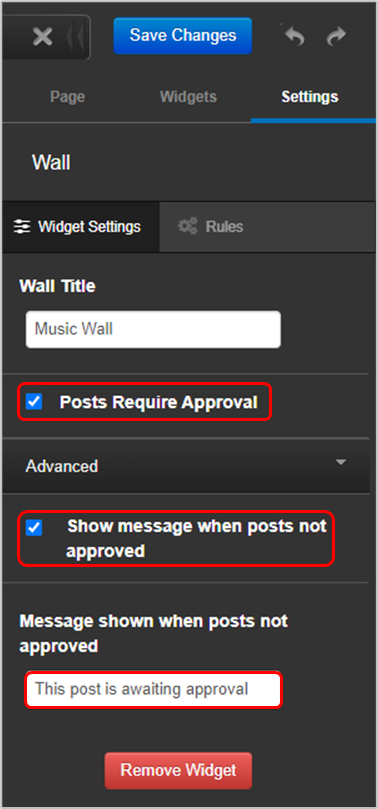
By default, all walls begin with moderation turned off. This can be changed in the widget settings.
When enabled, any posts submitted to the wall will be not be visible to any users with the exception of the author of the post, admins, the site author and any users with edit/manage access to the Frog site.
Posts will remain hidden until a user with the appropriate permissions ticks the Show to others box. A message can be displayed where a post is not yet approved.