












Create Event Widget
Back to All Guides
GET IN TOUCH
If you would like to get further information about Frog or help in getting it set up in your school please get in touch via the contact details below...
hello@frogeducation.com
Create Event Widget
The Create event widget allows a user to choose a calendar which they want to create events for, in the same way you would for the Calendar widget.
Create Event Widget
There are two choices – either Personal, which points to the Calendar application, or Booking, which points to the Booking Calendar application.
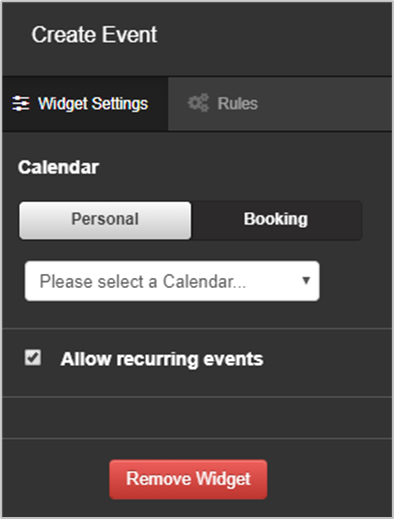
Once you’ve chosen which calendar type you want to use, you then need to select from the drop down list which calendar item you wish the Create event widget to point to. You also have the ability to allow recurring events or not when using this widget.
Everyone will be able to see the Create event widget, unless you use rules to hide it. Permission to add events is handled by the calendars themselves. You will have to set up these permissions in the applications, otherwise users will receive an error message.
Once you have finished setting the Create event widget’s settings, it’s worth adding a Calendar widget below the Create event widget and set it to point to the same calendar.
Combining these two widgets like this is a constructive way to use them, as it means the user adding the event or booking can see it added to the calendar straight away.
If you need to edit and manage any existing events or bookings on the calendar, you will need to do this via the Calendar or Booking calendar applications.