












Site Timeline Widget
Back to All Guides
GET IN TOUCH
If you would like to get further information about Frog or help in getting it set up in your school please get in touch via the contact details below...
hello@frogeducation.com
Site Timeline Widget
Site timelines allows users to see a series of events (photos, documents) in chronological order and comment on them.
Site Timeline Widget
The Site timeline widget allow you to share photos and documents with students, staff and parents.
Users can view items on the timeline as a series of events (photos, documents) in chronological order and comment on them. This feature can be used for preschool and/or school trips, local sports day events, class exercise or even as a blog.
Adding content
To upload content to the timeline ensure the Edit panel is closed. select Upload on the Site timeline widget on your dashboard.

Use the File uploader to drag and drop the required files to the timeline, or select Choose files to choose files from your file explorer. Multiple files can be added simultaneously. Select Done.
The selected files will display on the timeline as shown below.
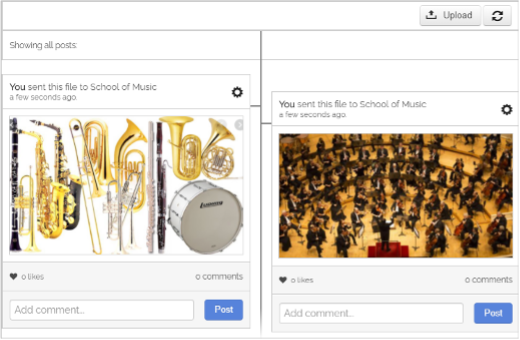
Settings and Options
Each file added to the timeline will display an Action cog.
Depending on your access you can choose to:
- Hide timeline - Hide the file from the timeline (can be undone)
- Send copy to... - Send a copy to members of a specified profile, group or to individual users
- Edit - Edit the file's name, description and/or tags
- Delete - Delete the file from the timeline (can't be undone).
Tags
When the Site timeline widget is added to a Frog site and selected, you will be able to add tags via the Edit panel. These tags will restrict the events that can be displayed on the timeline. It is not mandatory to enter a tag, so if no tags are added, then anything sent to the Site timeline will be displayed.
To add a tag, enter in your keyword and then select Add. The keyword will display below. You can add as many tags as required. Should a Frog site have more than one tag associated when an event is added, it must contain at least one of the tags listed in order for the event to be displayed.
To remove a tag associated with a Site timeline select the x button to the tag. If tags are not added, then no restrictions will be in place and all events will be displayed to users.