












Text Widget
Back to All Guides
GET IN TOUCH
If you would like to get further information about Frog or help in getting it set up in your school please get in touch via the contact details below...
hello@frogeducation.com
Text Widget
With the Text widget you can add an editable area of text to the page.
Text Widget
Once a text widget is added to a page, the rich text editor located in the black content tray can be used to format text with the text itself being entered directly into the widget in the page. You can have several pieces of text with different formatting in the same text widget.
Text formatting
The Text widget has a number of formatting options which are located in the Text Editor in the Content Tray.
You can make text bold, italic and underlined.

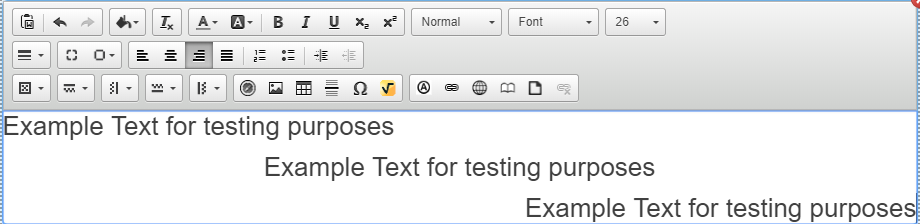
Text can be aligned to the left, centre or right as well as justified.
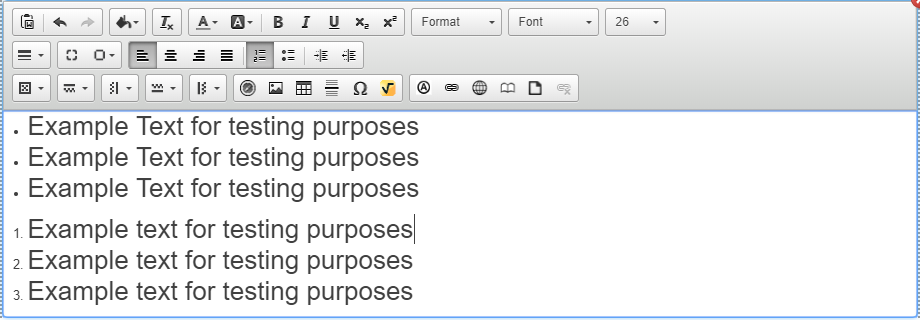
Text can be arranged into numbered or bullet point lists.
Text can be coloured using the colour picker. Select the colour picker option to view available colours.

Text can be highlighted with a background colour.

The text widget can have a background colour applied.
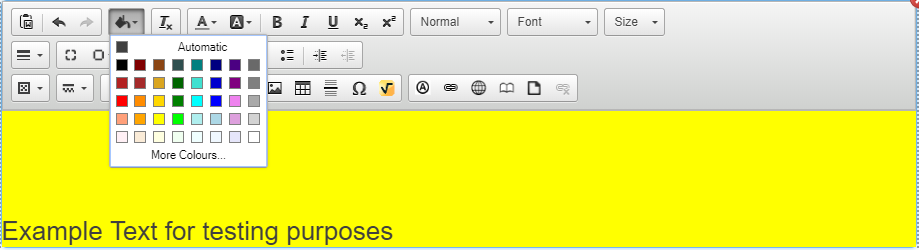
For more advanced colour picker options select the "More Colours..." option.

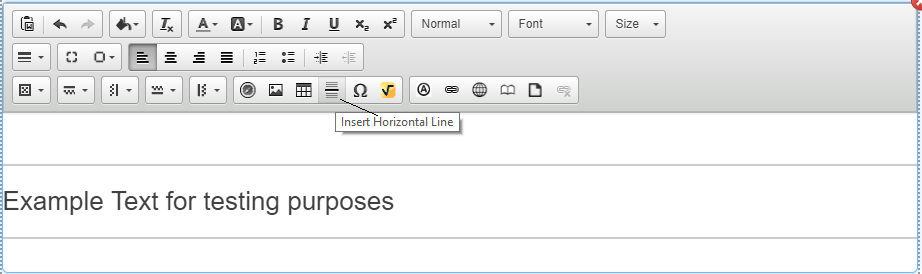
Horizontal Rules can be inserted.
Any formatting applied to text can be stripped.

A number of fonts can also be applied to your text to further customise its appearance using the Fonts option. A full list of the available fonts is available at the bottom of this section
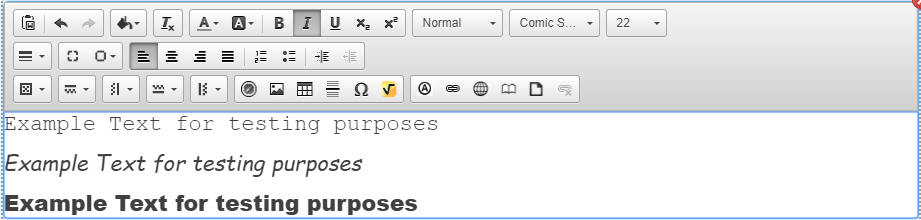
Text can be highlighted to act as a link to other content within Frog and on the internet

Links can be created directly to external URLs
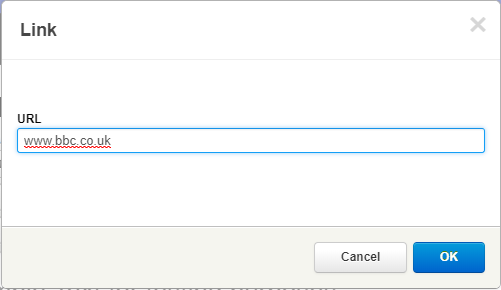
Links can also be created for internal sites, selecting this option will take you to the FrogDrive where you can select which site to use. If you do not highlight any text the site name will automatically populate where the cursor is to act as the link.

Links can also be created to pages within the site itself, selecting this option will bring up the link to page menu where you can select the page you wish to link to.

Links can also be made to documents hosted within Frog. These are selected through the FrogDrive or uploading a new document.

To remove a link from your text box, simply highlight the text and click the 'remove link' button.

The WIRIS Equation Editor The WIRIS Equation Editor allows you to insert mathematical questions into a piece of text. To open the editor select the Equation Editor option.

A pop-up window will now be displayed containing the Equation Editor. Create your equation using the symbols and options within the editor.
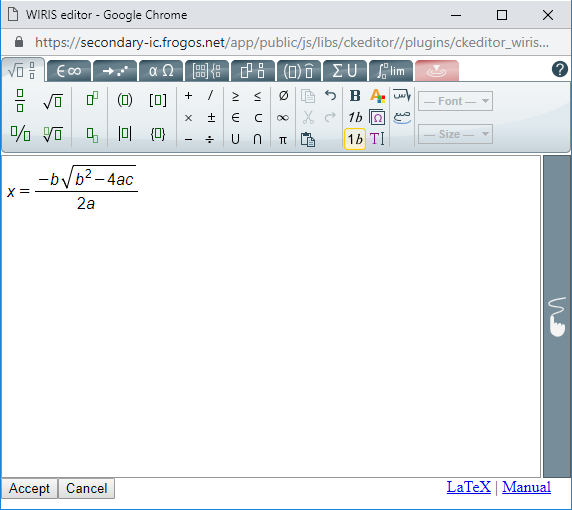
When you are happy with the equation you have created select the Accept button to insert it into your text.
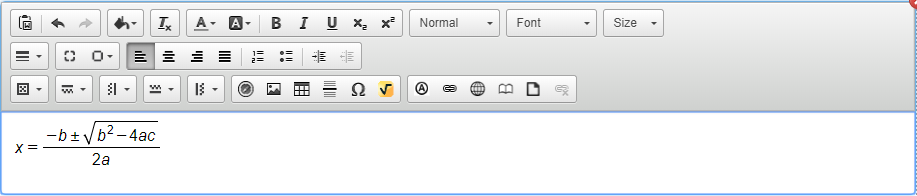
For further information on the Equation Editor select the Manual option from within the editor. A completed equation can be deleted from your text by selecting it and pressing the backspace or delete keys. Any formatting of the text of the equation should be carried out from within the Equation Editor.
Fonts available include:
- Arial
- Arial Black
- Book Antiqua
- Charcoal
- Comic Sans
- MS Courier
- Courier New
- Cursive
- Gadget
- Geneva
- Georgia
- Helvetica
- Impact
- Lucida Console
- Lucida Grande
- Lucida Sans
- Monaco
- Monospace
- MS Sans Serif
- MS Serif
- New York
- Palatino
- Sans-Serif
- Serif
- Symbol
- Tahoma
- Times
- Times New Roman
- Trebuchet MS
- Verdana
- Webdings
- Wingdings
- Zapf
- Dingbats