












Back to All Guides
GET IN TOUCH
If you would like to get further information about Frog or help in getting it set up in your school please get in touch via the contact details below...
hello@frogeducation.com
Managing CES security groups for Frog
A user in CES is assigned to one or many Security groups. CES Security groups have been created based on the different roles within a site and when a user is initially provisioned access to a preschool or school in CES.
Managing CES Security Groups
A user in CES is assigned to one or many Security groups. CES Security groups have been created based on the different roles within a site and when a user is initially provisioned access to a preschool or school in CES, the Security group assigned is based on the user’s job title in the HR system. Site leaders can then add the user to additional CES Security groups on a case-by-case basis.
It's worth noting that each permission can be used in more than one CES Security group. In the case of Frog, there are two related permissions:
- Frog
- Frog Administrator.
The following table lists the status of each Frog permission in each CES Security group. If a user is a member of any CES Security group that has a ‘Yes’ in the Access to Frog column, then that user will have a profile of ‘Staff’ in Frog. To add a user to a Frog Security group, follow the instructions below on this page.
Note: To provision a user as Frog Admin in a site's Frog environment, they must have the Security setting Frog Administrator set.
| CES Security group | Frog administration | Access to Frog |
| Site leader | No | Yes |
| Site leader - Schools | No | Yes |
| Site system administrator | No | Yes |
| Site leadership team | No | Yes |
| Business leader | No | No |
| Finance support | No | No |
| Finance officer | No | No |
| Finance receipting officer | No | No |
| Finance requisitions | No | No |
| Finance purchasing officer | No | No |
| Site administration | No | Yes |
| Timetabler operations | No | No |
| Events daily operations | No | No |
| Site teacher | No | Yes |
| Site support staff | No | Yes |
| Relief teacher | No | No |
| Other | No | No |
| Staff with IT admin responsibilities | No | No |
| Attendance | No | No |
| ECW admin | No | Yes |
| ECW child | No | Yes |
| Pastoral | No | No |
| IESP | No | No |
| Frog | No | Yes |
| EdSmart | No | No |
| Auditor | No | No |
| Frog admin | Yes | Yes |
| CP admin | No | No |
| Transport | No | No |
Access security groups
To adjust the security access of staff go to Settings > School > Security Settings.
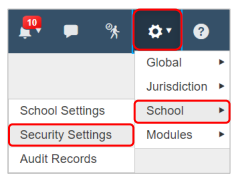
Select Security settings and search for Frog.
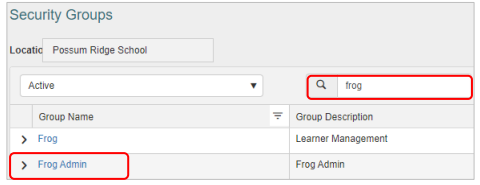
The Security groups grid displays. Locate the required security group within the grid. Select the Group Name hyperlink to open the record.
Add a user to a Frog security group
Open either the Frog or Frog Admin from the Security group grid. Select Edit in the top right hand corner of the screen.
Scroll down the page to Available users. Select the required user within the Available users table. Select the Move selected arrow to transfer the user across to Selected users.
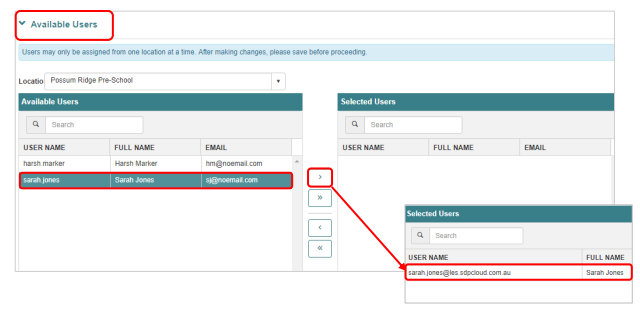
Scroll back up the page and select Save in the top right hand corner of the screen.
Note: The impacted user will need to log out and log back in to EMS to refresh their security access.
Remove a user from a Frog security group
Open either the Frog or Frog Admin from the Security group grid. Select Edit in the top right hand corner of the screen.
Scroll down the page to Available users. Select the required user within the Available users table. Select the Move selected arrow to transfer the user across to Selected users.
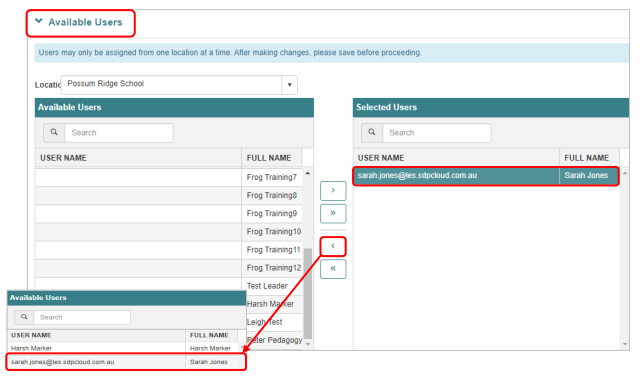
Scroll back up the page and select Save in the top right hand corner of the screen.
Note: The impacted user will need to log out and log back in to EMS to refresh their security access.