












Back to All Guides
GET IN TOUCH
If you would like to get further information about Frog or help in getting it set up in your school please get in touch via the contact details below...
hello@frogeducation.com
OneDrive
Administrators from sites can request to integrate their preschool or school's Frog platform with their DfE O365 account. Enabling this feature requires a request to be made in edIT.
Setting up OneDrive integration
To enable the Office 365 OneDrive integration with FrogLearn some initial steps will need to be configured within the school’s Office 365 tenancy. This will include the generation of a client secret.
Note: Please contact edIT for support in doing this.
When setting up Office 365, please ensure that you have the details below to hand:
- Client secret
- Client ID - Also known as Application ID in the App registration page
- Tenant ID.
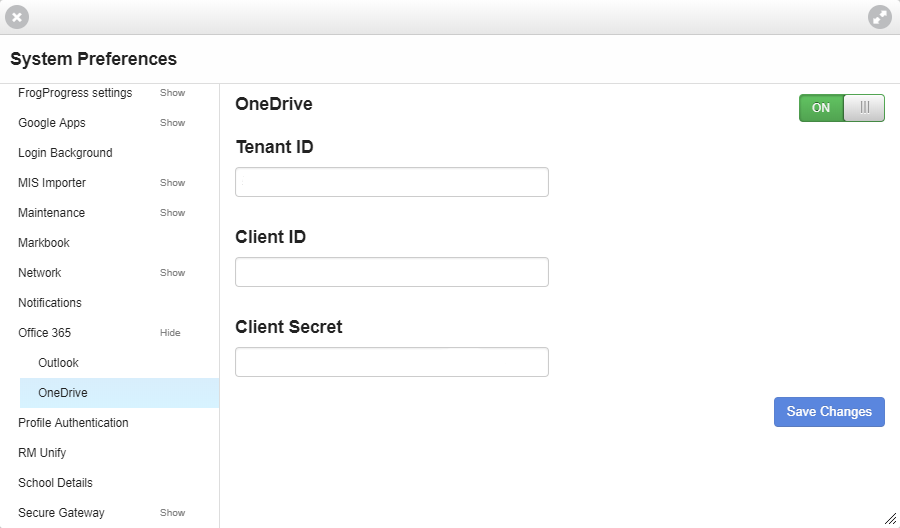
OneDrive in Frog
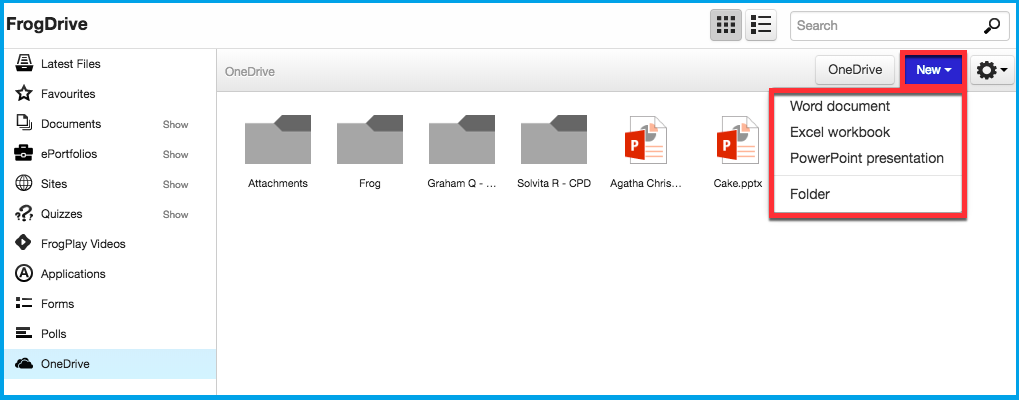
Once your integration has been set up successfully, you will be able to access your OneDrive via the FrogDrive application.
When you navigate to the FrogDrive, a pop up window may appear asking you to disable your pop up blocker depending on what browser you are using. You will need to disable the pop up blocker and then select Confirm. This will then allow a Microsoft pop-up window to appear asking you to enter your Office 365 username/email address.
You need to follow the rest of the instructions and ensure you select Accept when asked for permission for OneDrive and FrogLearn to communicate. The OneDrive option will be displayed in the menu on the left within FrogDrive and is a direct window into your OneDrive folders and files. You can create new documents from within here by selecting the New drop down menu button.
 |
When you create a new file, there won’t be any content to display. To edit your file, select it, then select the Open in OneDrive button.
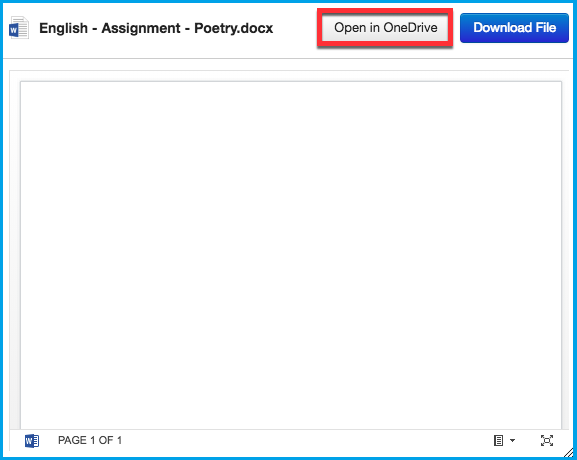
The document will launch in a new tab within your browser allowing you to edit it. As you edit the document, the changes will be saved automatically and will be synchronised to your OneDrive and FrogDrive.
Note: Always check that the document has successfully saved before closing the browser tab. You can identify this easily as the word Saved will appear in the title bar. You have the ability to download any files within your OneDrive by selecting the Download file button. Additionally, if you select an Office 365 document from within FrogDrive > OneDrive and navigate to the Action cog you will be able to complete additional actions such as:
- Use in new site - A new Frog site is created and the Office 365 document is displayed via the OneDrive preview widget
- Add to My documents - A shortcut link to the Office 365 document is placed within FrogDrive > Documents > My documents. You can then access the Office 365 document via either location and any changes are automatically made to the single source of the Office 365 document
- Edit - The selected Office 365 document will launch in a new tab within your browser allowing you to edit your document
- Delete - The selected Office 365 document will be removed from your OneDrive.