












Back to All Guides
GET IN TOUCH
If you would like to get further information about Frog or help in getting it set up in your school please get in touch via the contact details below...
hello@frogeducation.com
Local Account in Frog
How to...? guide on how to set up local accounts in Frog (for example for TRT access).
Setting up a Local Account in Frog
In some cases, it's useful to have a generic or local Frog account for users to log into Frog and bypass the EdPass authentication step. This is useful in the following contexts:
- A new staff member needs access immediately to Frog before the overnight EMS sync has occurred.
- Staff members who have yet to commence a contract at your site but need access to Frog to prepare for their new contract
- Temporary relieving teachers need to access Frog as part of their lesson activities but may not have access to the EMS as a more regular TRT at your site.
Setting up a new account in Frog
To set up local Frog accounts, start by opening the Users application as a Profile: Admin user.
- Log into Frog as a Profile: Admin user
- Open Quick launch
- Select the Users application
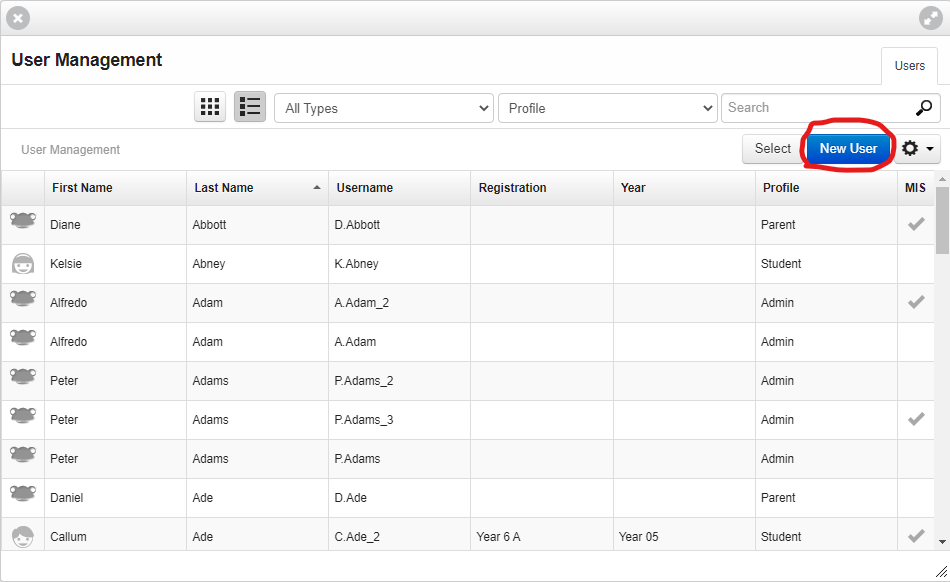
- Select the blue 'New user' button.
Entering the Frog account details
Enter the information about the new user you're creating. The only mandatory fields that are required are:
- Last name
- What profile the account belongs to
- The authentication method, username and password.
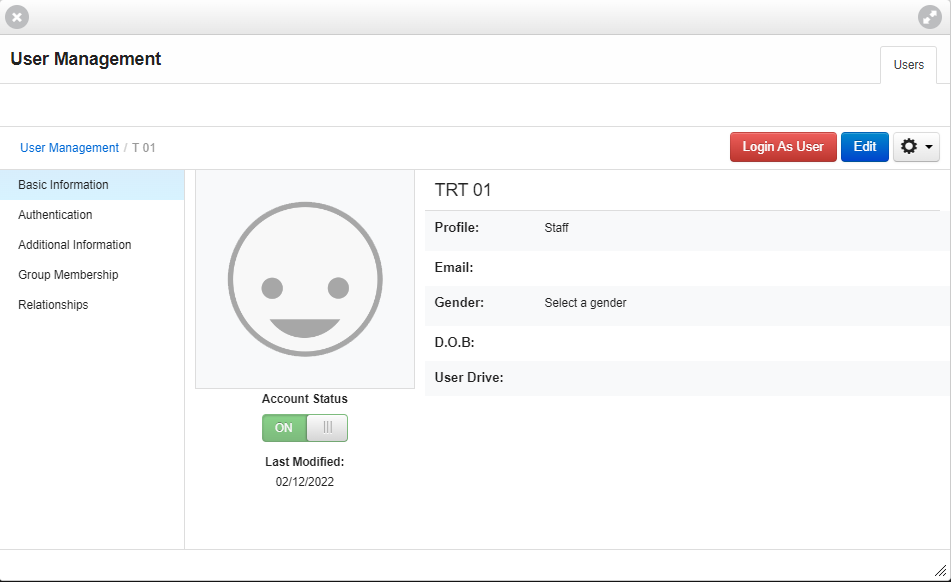
In the example below, an account has been set up for a Temporary Relief Teacher (TRT). The account details that have been entered are as follows:
- First name - TRT
- Last name - 01
- Profile - Staff.
Setting authentication method
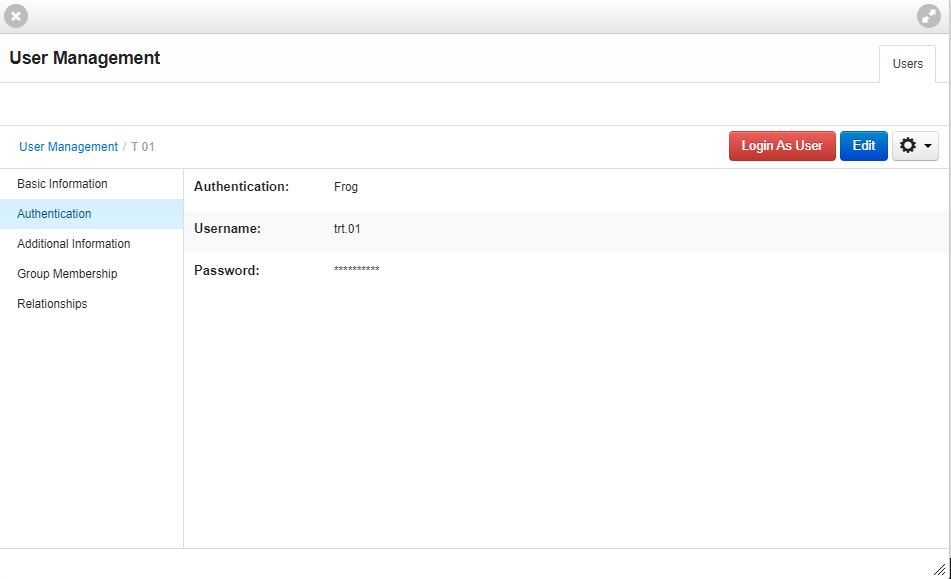
The final step is to set the username and password for the local account. In the user details, choose the authentication section in the vertical menu on the left-hand side.
- Choose authentication method: 'Frog'
- Set a username and password
- Uncheck 'force user to reset password on first login' - this will mean the username and password you set will be fixed for this account
- Select save.
Good cybersecurity pracitices
If you are creating as local account in Frog, it is critical you practice safe password practices to protect data.
A complex password includes:
- upper and lowercase letters
- numbers
- symbols, eg @, !, or $ (if the system allows).
Using all these elements will help make your password harder to guess than simple passwords like 'kittens123' or 'fred000'.
It is also important to regularly change your passwords to keep your Frog environment secure.
Finally, it's worth spending some time each year reviewing any local accounts you've created and archiving any accounts that you no longer use.
Logging in using the local account
Logging into the account you've set up is different to the standard way of logging into Frog.
Normally you would authenticate into Frog through EdPass > EMS > Learning management
The URL for your site's Frog environment would look something like this: https://abc-1234.frog.civica.education/app/os#
To log in locally to Frog, provide the user with this URL (note the change at the end of the URL) https://abc-1234.frog.civica.education/app/login?local
Remember, that the above URL is an example, the URL you must use is your site's Frog URL, just change the "os#" part to "login?local"
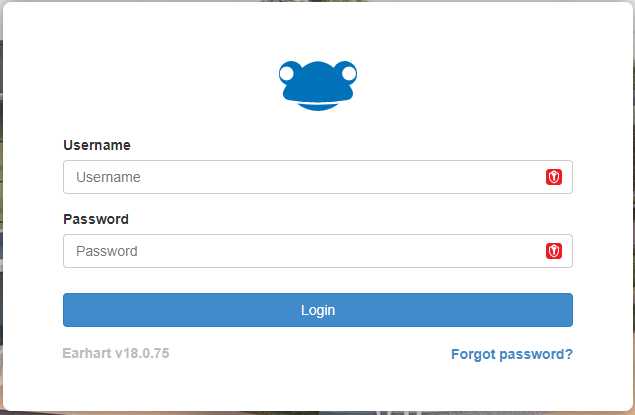
The user will be directed to an authentication screen. They should enter the username and password of the local account that has been set up. The user will now be logged into your Frog environment as the local account.
Note: If you are testing this authentication method yourself, you must sign out of Frog before attempting to log in locally.