










Back to All Guides
GET IN TOUCH
If you would like to get further information about Frog or help in getting it set up in your school please get in touch via the contact details below...
hello@frogeducation.com
Managing TRTs in Frog
How to...? guide on how to ensure TRTs can access your Frog environment.
Managing TRTs in Frog
If your site is using Frog to manage staff and students, a common question is how to support Temporary Relief Teachers (TRTs) to access the same information. They may need to access information in Frog such as;
- relief instructions
- curriculum and learning content
- general information about the school (such as key processes or people TRTs should know about)
- yard duty information,
- and much more.
As outlined in other sections, there is an overnight delay getting staff into Frog. This can cause issues with new TRT staff who need to access Frog for the day they've been called in. The following page recommends several ways you can configure Frog to support the work of TRTs at your site.
Before you progress, please familiarise yourself with the process for managing teacher absences in the EMS (Note: this link works for Department for Education staff only).
This process allows you to:
- record teacher absences
- assign relief teachers to cover absent staff (and give them access to the EMS to mark attendance)
- record work notes for each lesson the TRT is covering (This step is optional and you may wish to record TRT lesson notes in Frog as an alternative. Read on for how to ensure TRTs can access Frog).
Once-off or irregular TRT staff
In many cases, you may need to call in a TRT that has never attended your site before. This often happens the day of a reported absence of a staff member so there is no time to wait for an overnight sync to ensure the TRT has access to Frog. In this situation, it is recommended that you use a local Frog account to ensure the TRT can log into Frog immediately. To read about how to create a local Frog account, select here.
Sites may wish to use this method for all TRTs, which is acceptable, but there are a few important points to note when using this method.
- If not managed carefully, local accounts in Frog can pose a security risk if the account is shared among multiple users. It is good practice to change the password to any local account regularly.
- Any activity by this account is recorded in the Frog system, but if the account is shared among different staff, it can be difficult for you to identify which person is completing certain activities in Frog. This could create minor issues if you're troubleshooting a problem. You may wish to create and use multiple local accounts that you use on a rotation to mitigate the risk of issues described.
Regular TRTs
If a TRT is regularly attending your site for staff absences, it's best to support them to use their own account to access Frog. This is done by following the Managing teacher absences fact sheet (Note: this link works for Department for Education staff only).
If this has been completed at least once before, the TRT should be able to access Frog using their own account. Just like other staff, a TRT will be able to access Frog using their @schools credentials if:
- they have been given access to your EMS environment before
- they have been assigned the correct Security groups in EMS
- they have logged into EMS at your site at least once before
- one overnight sync has occurred between the Civica education suite (CES) and Frog before they attempt to access Frog.
Setting up Frog to support new staff to your site
Ideally, the best way for TRTs to access your Frog environment is as a staff member. They will have the same level of access as other teachers, which will allow them to access any previously shared sites with the Profile: Staff. This is the easiest way to ensure that TRTs have the same Frog experience as your staff and requires the least additional configuration for your environment. You may wish to include information on your staff dashboard for TRTs to refer to such as:
- daily operations and routines
- instructions on how to mark the roll
- key people and responsibilities for TRTs to identify if they need support
- information about yard duties they may need to complete.
There is a moderate risk when giving TRTs the same level of access to Frog as a staff member. TRTs may be able to edit some sites, if sites have been shared with the Profile: Staff with 'Can edit and manage' permissions. This is something you must manage at your site. Alternatively, TRTs can be given different levels of access by using another profile.
When following the Setting up local accounts in Frog guide, you can select different profiles that the account belongs to. One such profile is Profile: Other. By setting up TRT accounts under this profile, you can have a finer level of control over what TRTs can access and what permissions they can have within your Frog environment. This does require some additional configuration within your environment. Any sites you wish TRTs to access will need to be shared with the Profile: Other on top of Profile: Staff. The advantage is that you can set different permission levels for this profile compared to the staff profile. For example, you may wish a digital classroom site to be accessible by a group of students, all staff and TRTs. The screenshot below shows how you can control the sharing settings to give different levels of access to TRTs.
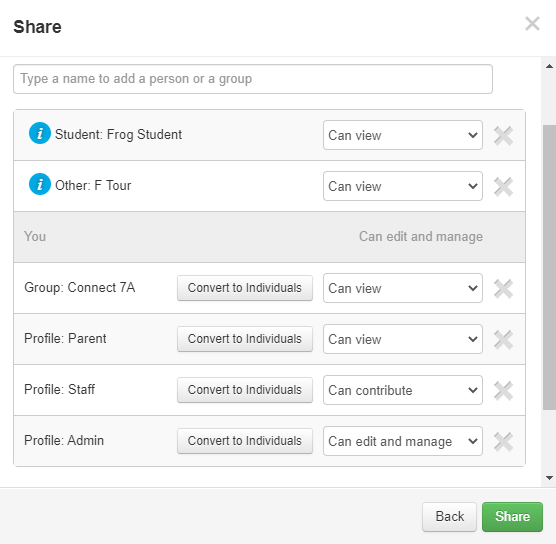 |
In the example above, a Frog site has been shared with many different profiles with different levels of access. The site has been shared with:
- a group of students (Connect 7A)
- Profile: Staff (All staff at the school)
- Profile: Admin (Frog administrators at the school)
- Profile: Parent (All parents and caregivers at the school).
Managing TRTs in the CES vs Frog
As shown above, you can enter work notes for a TRT in CES. But some sites may choose to use Frog as the space to communicate lesson instructions to students, families and other staff (such as TRTs). If there is a practise at your site that lesson notes are entered for daily classes at your site, it may be more efficient to enter TRT notes directly into Frog instead of in the CES. This ensures that all users (not just staff at the site) have visibility of what's going on in classes during the day.
Access for TRTs who work across multiple sites
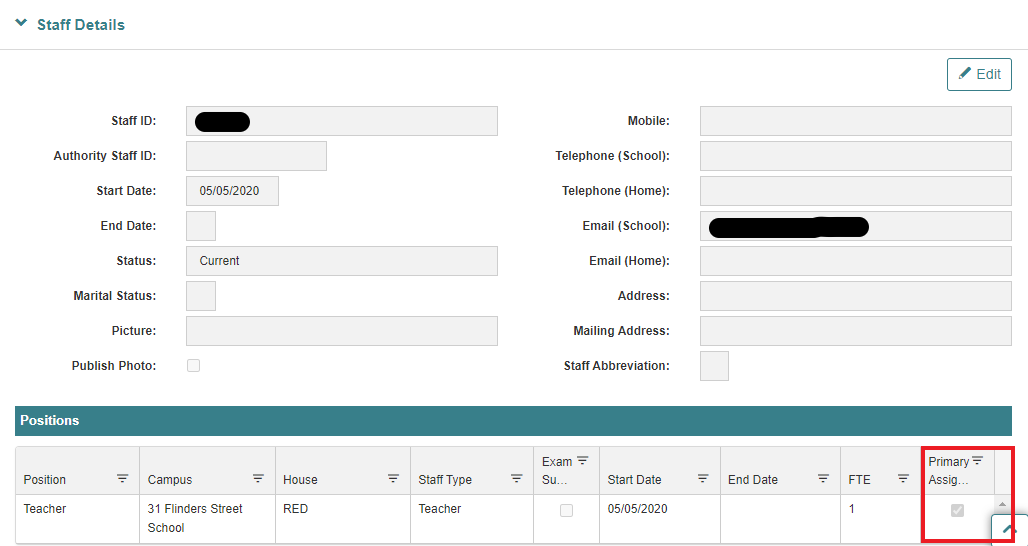
Currently, staff can only access a Frog environment when their appointment at your school is considered their 'Primary assignment'. This can cause a problem when a staff member works across multiple sites. The current features of the EMS only allow a staff member to have one Primary assignment and therefore can only access one Frog environment using their own account. This will be fixed in a future release of the EMS but for now, please use Setting up a local Frog account if TRTs experience this issue at your site.