Back to All Guides
GET IN TOUCH
If you would like to get further information about Frog or help in getting it set up in your school please get in touch via the contact details below...
hello@frogeducation.com
School Dashboard
The School Dashboard is visible to all users of the Frog platform and is the default dashboard for new Frog users. The School Dashboard may be a good place to make announcements and pass on school notices and other information.
About Dashboards
Each time you log into Frog or refresh the page, Frog is designed to direct the user to a dashboard. Think of a dashboard like a home page for your Frog platform. You can set up and configure a dashboard for each profile within Frog. This way you can ensure each profile gets content and information that is relevant to that audience. Most schools and preschools will set up a separate dashboard for staff and parents/caregivers, for example.
A dashboard is visible to all users in a profile in your Frog platform. When your environment is first set up for you you will be provided with a default dashboard for the profiles:
- Staff
- Parent/Caregivers
- Students.
These dashboards are a good place to make announcements and pass on school notices and other information to each profile. By default, only users that are Profile: Admin can edit dashboards.
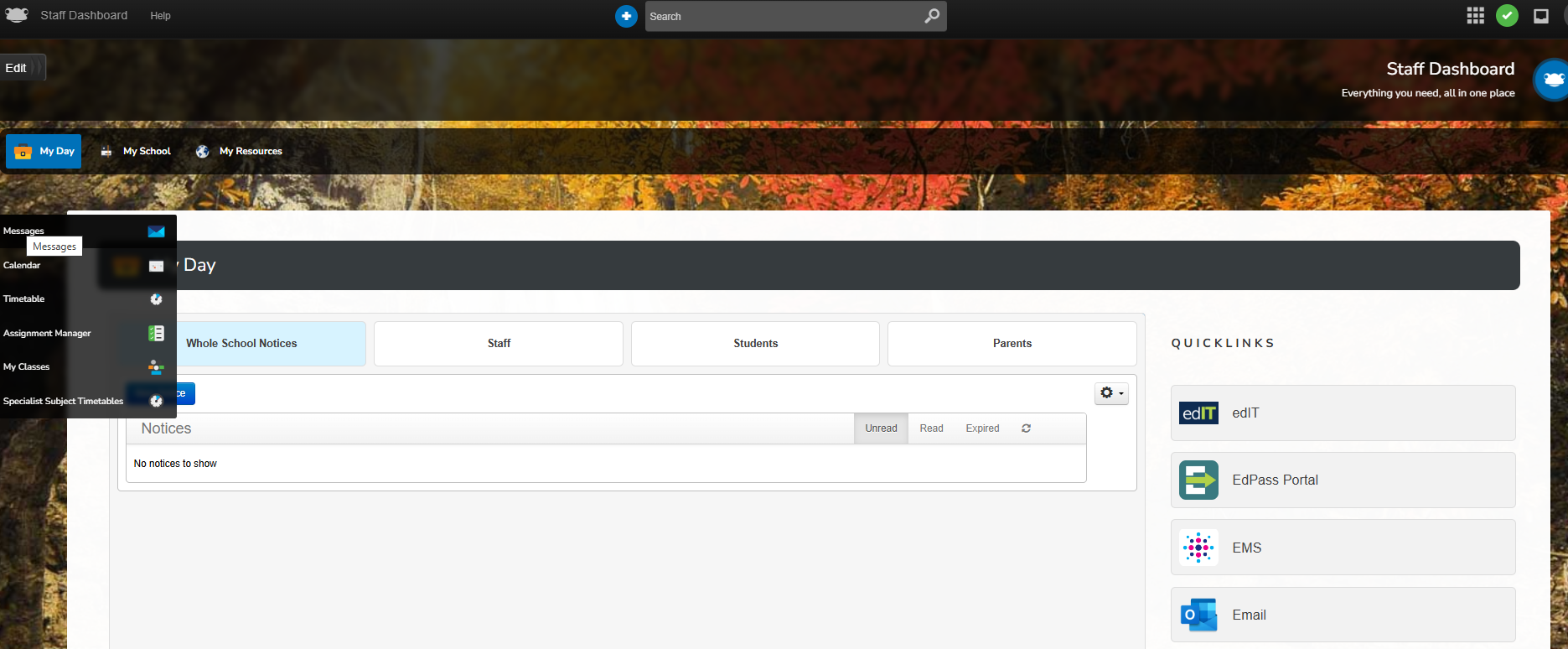
An example of a default dashboard for a school
Note: Administrators have the ability to change this to a custom dashboard from within System preferences. You can switch between your dashboard and any other dashboards your administrator has set up by using the Dashboard selector.
The dashboard selector will appear in the bottom centre of your screen when viewing a dashboard
Note: the dashboard selector will not be displayed if the profile you belong to is only able to access one dashboard.
You can access your School dashboard at anytime on the platform by selecting the Frog icon from the Frog bar. This will return you to the dashboard view showing the last dashboard you were viewing.Selecting the Frog head whilst viewing a dashboard will open up a window that allows you to select another dashboard.
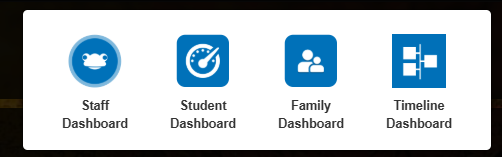
After clicking on the Frog head, dashboards you have access to will be displayed in a selector
To edit your dashboard site, select the Edit button.
The Content tray will now be displayed. The same options that are available when editing sites are available when editing your dashboard, with the exception of tagging and some widgets. You can change the theme and layout of the dashboard, as well as adding more pages to the dashboard site in the same way as when editing a site.
Editing Dashboards
By default, only Admin profile users can edit dashboards. If you wish to grant this ability to other users or profiles. This can be managed in the Groups and Policies app. Alternatively, you can promote certain key staff in your school or preschool to the admin profile. You can read about how to do that here.
To edit your dashboard site, select the Edit button.
The Content tray will now be displayed. The same options that are available when editing sites are available when editing your dashboard, with the exception of tagging and some widgets. You can change the theme and layout of the dashboard, as well as adding more pages to the dashboard site in the same way as when editing a site.
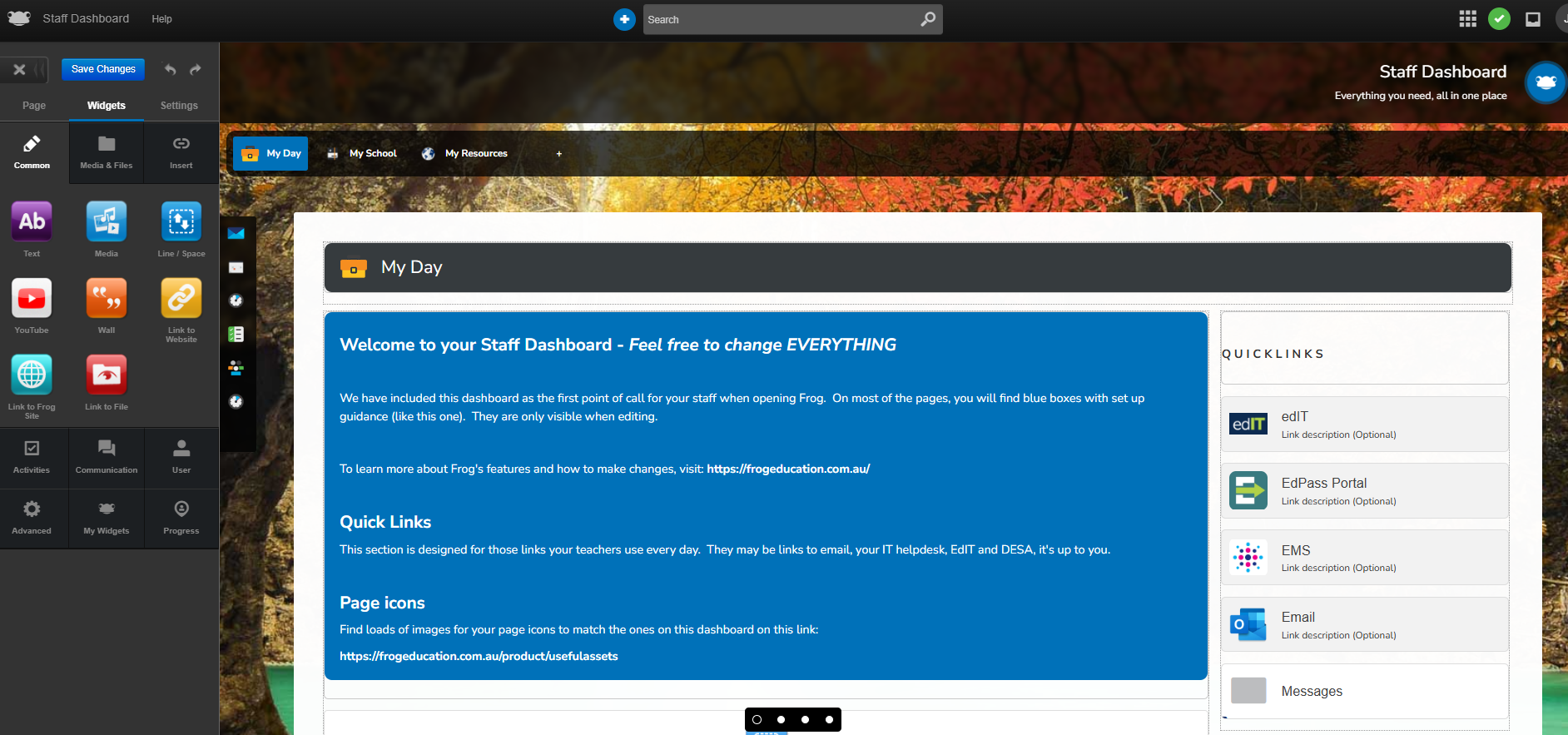
Options for editing a dashboard
You may like to make small changes to your existing dashboard(s) or do a complete redesign. In that case, follow the relevant steps below.
Making small changes
Edit the dashboard directly by clicking on the edit button, making the necessary changes then saving and closing the content tray. This is the recommended method if you're:
- adding one or two widgets to a page
- changing widget settings of existing widgets on a page
- adding another page to your dashboard
- rearranging content on a page or pages in the page menu
- changing images or other graphics
- changing the theme of your dashboard
- other small edits.
The next time a user logs in or refreshes the page, the changes you've made will be displayed to users in the relevant profile the dashboard has been assigned to.
Note: if multiple people are editing the dashboard at the same time, try to avoid working on the same page together and ensure you save and refresh frequently to see the changes made by others.
Redesigning your dashboard
There may be times when you want to make large changes to your dashboard such as:
- Reorganising the content on all or many pages
- Redesigning from the ground up
- Making revisions to your dashboard over time that would disrupt school operations during the revision process.
In these cases it's better to keep your existing dashboard operational and design a new one in the background. To do this:
- Create a new site
- Design this site as your new dashboard
- Reassign the correct profiles to this new site as the new dashboard using System Preferences.
To the users in the profile you wish to swap dashboards for, they will not notice any difference until you assign the new site as the dashboard for that profile of users.
Dashboards Tips
When you're using multiple dashboards
When your school is operating with Frog with multiple profiles, for example Staff, students and families, it's best to think strategically about how you set up your dashboards to work smarter, not harder. Consider the following examples below.
Multiple noticeboards across dashboards
For example, if you had a noticeboard widget on each of your student, parent/caregiver and student dashboards, if you wished to send out a notice to all of these profiles you would have to copy and paste the same notice content into each dashboard individually.
Whole-school information or resources
School maps, booking calendars or library/resource centre information may need to be shared to all dashboards or profiles in your school. You could design each dashboard to have a page containing these resources or information, but if you wanted to edit or update these, you would have to change each page on every dashboard. Additionally, your resource centre staff would not necessarily be able to edit the dashboards as they may or may not belong to the admin profile.
In the examples above, these issues can be solved by setting up these resources on a single site and embedding this into each dashboard using the Insert Frog Page or Frog Site Widgets. This will allow you to ensure that the people that require edit access to these resources can be granted this access by sharing the frog site with them and it creates one place for these staff to go to manage communications or information that can be easily distributed to the dashboards you require.
A Dashboard with the Insert Frog Site Widget
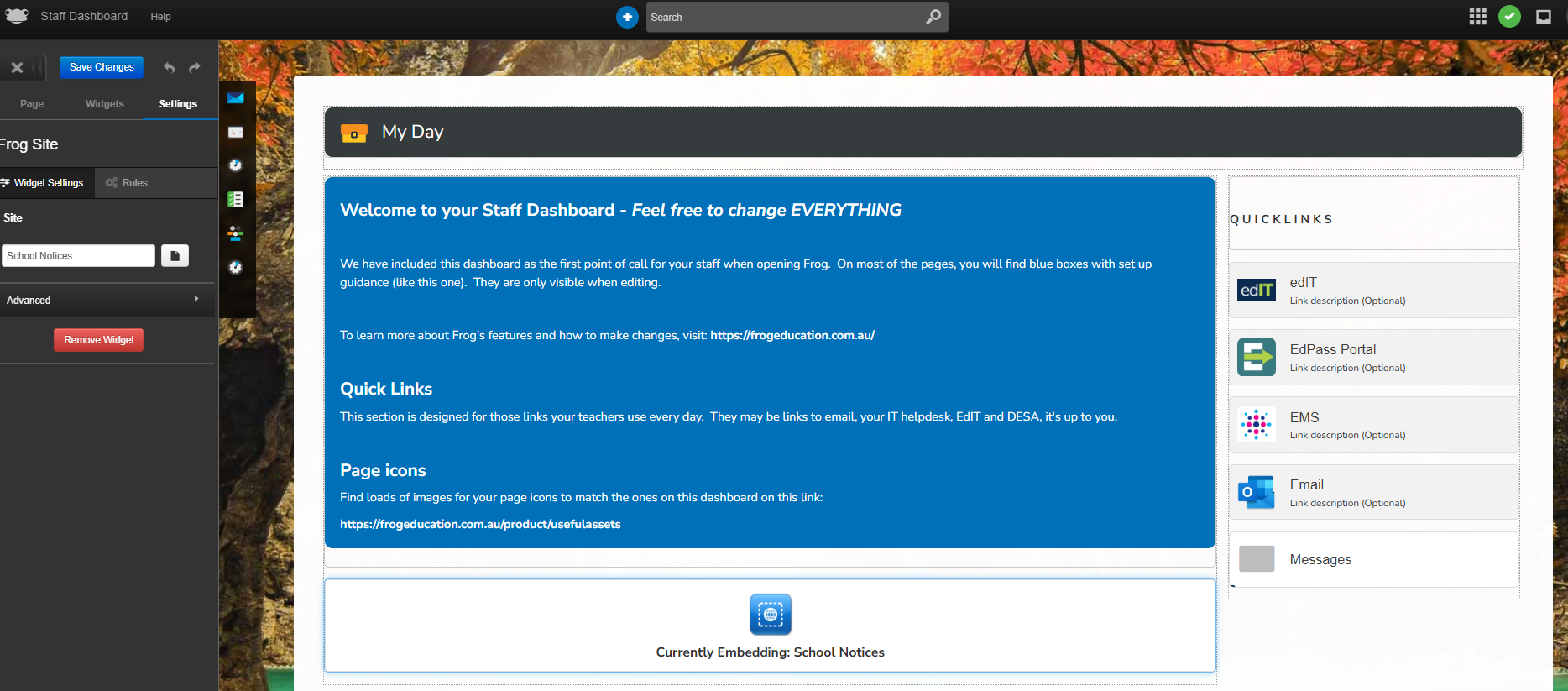
Inserting a Frog site or page can be used in a wide variety of ways. Here are some ideas:
- Student or staff handbooks
- Digital diaries/planners
- Whole school notices
- School maps
- Tidying up a page, allowing users to display different sections with a click
- Curriculum content browsers
- Giving specific staff the ability to edit sections of a dashboard without editing the WHOLE dashboard