












Back to All Guides
GET IN TOUCH
If you would like to get further information about Frog or help in getting it set up in your school please get in touch via the contact details below...
hello@frogeducation.com
Quizzes
The Frog platform contains a quiz builder that can be used to create quizzes for revision, assignments and for use in lessons.
Creating a Quiz
The Frog platform contains a Quiz builder that can be used to create quizzes for revision, assignments and for use in lessons. Quizzes can contain a number of different question types. Once a quiz has been created it can be placed into a site using the Quiz Widget.
Creating quizzes
To create a quiz, launch the Quiz creator through FrogDrive, select the Quiz category. Then select New quiz and the Quiz builder will be launched.
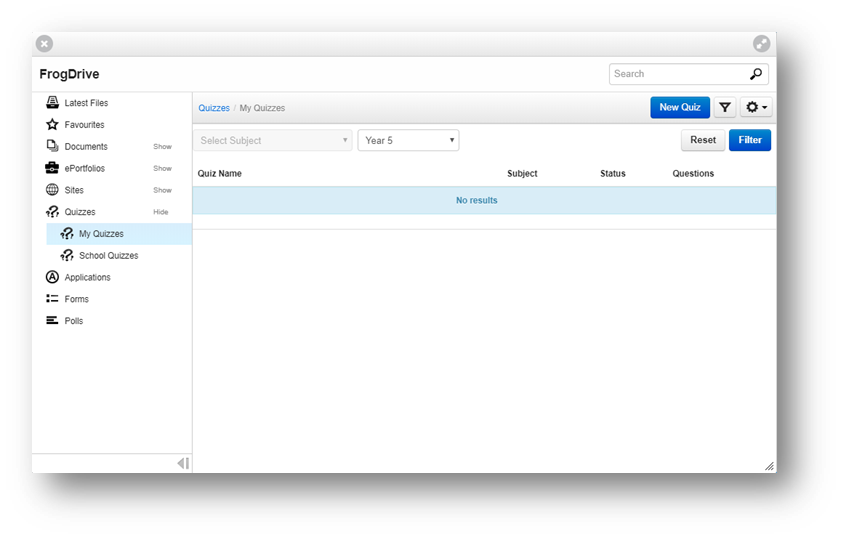
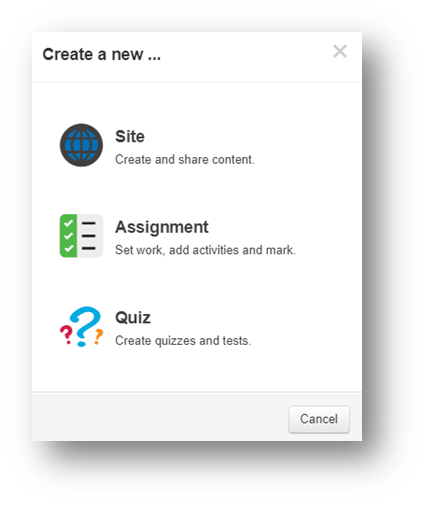
You can also create a quiz by using the Quiz creation wizard. To create a quiz this way, select the blue + button on the Frog bar and choose to create a new quiz from there. This will launch the Quiz builder.
Quiz Builder
The Quiz builder is the toolkit with which you can populate quizzes. Once the builder has been launched from your FrogDrive you can use it to add questions and information to your quiz.
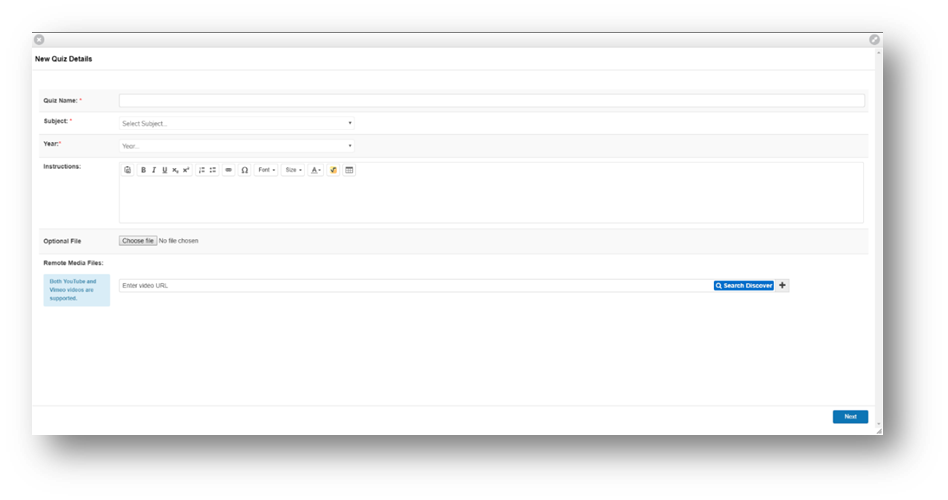
When the Quiz builder is initially launched you will be presented with the Quiz details screen. Enter the details for your quiz. Any fields marked with an * are required items and must have some information entered. The Optional file field allows you to select a file that can be viewed at the start of the quiz.
Question Types
Question types determine the way in which a question in the quiz is asked and how it must be answered. There are eight question types to choose from:
- Multiple choice - A Multiple choice question allows you to ask a question and have a student pick the answer for that question from a list of answers. If more than one answer is marked as correct the student must choose all of these items to correctly answer the question.
- Free text - A Free text question allows you to pose a question and have the student enter an answer into a text field. Ideally questions should only be one or two word answers. Answers are not case sensitive.
- Match pairs - A Match pairs question allows you to create a question that a student must complete by matching up items from two lists. You can have up to five matching pairs.
- Ordering - An Ordering question allows you to provide a list of items to a student who must then place the items in the correct order to complete to question successfully.
- Category - A Category question requires that a student drags items into the correct category for that item. You can have up to five categories with as many answers as required in each category.
- Highlight words - The Highlight words question type allows you to pose a question to a student who must then select a word in a paragraph to complete the question. You can specify that more that one word should be highlighted, in which case the question will only be marked correct if the student selects all the highlighted words.
- Fill the blanks - Fill the blanks allows you to write a sentence or paragraph and then highlight words which will be removed from the text when the student views the question. These pieces of text will appear as items that can be dragged and dropped back into the sentence. You can also specify incorrect or dummy words that can also be dragged and dropped.
- Find questions - Find questions contains a list of questions from other quizzes that have been given a similar title.
Editing Questions
Edit/duplicate or delete a question
To edit, duplicate or delete a question from your quiz, select from three buttons on the top right hand corner of your question panel.
Adding media to questions
All questions, with the exception of:
- Category
- Highlight words
- Fill the blanks
can have images or audio files attached to them.
Randomise questions
To have your quizzes questions appear in a random order each time the quiz is taken ensure that the Randomise questions option is set to on.
Managing your Quiz
Saving your quiz
At any point while you are creating your quiz it can be saved allowing you to retain changes without making the quiz accessible to other users. This means you can create your quiz over several sessions if needed.
Quick assign
Quizzes can also be assigned from FrogDrive.
Select the quiz from your FrogDrive what you would like to assign, select the Action cog on the top right of your page and select Assign. You will be taken through the same assignment creation process as before. Your quiz will be added to an assignment as an activity.
Publishing your quiz
In order to make your quiz accessible to other users, it must first be published. Select the quiz you would like to publish and then using the Action cog menu followed by the Publish to school option.
Editing your quiz
To edit an existing quiz, locate the quiz in the Quizzes category of FrogDrive. Select the quiz in the list and then select the Actions cog menu. Select the Edit option from the Actions menu.
Deleting your quiz
Deleting of quizzes is carried out through FrogDrive. To delete a quiz, locate the quiz in the list within the Quizzes category of FrogDrive. Select the quiz in the list and then choose the Actions cog menu followed by the Delete option.
Duplicating your quiz
Duplicating of quizzes is carried out through FrogDrive. To duplicate a quiz, locate the quiz in the list within the Quizzes category of FrogDrive. Select the quiz in the list and then choose the Actions cog menu followed by the Duplicate quiz option. You will be prompted to confirm the duplication of the quiz. When you confirm the duplication the Quiz builder will be opened with the duplicated quiz open for editing.