












Back to All Guides
GET IN TOUCH
If you would like to get further information about Frog or help in getting it set up in your school please get in touch via the contact details below...
hello@frogeducation.com
FrogSnap
FrogSnap is a free mobile app for both Android and Apple devices. It allows users to take photos, record audio and shoot videos inside the app then upload them directly into Frog.
FrogSnap
FrogSnap is a free mobile application for both Android and Apple devices. It allows users to take photos, record audio and shoot videos inside the application then upload them directly into Frog. Videos taken in FrogSnap are limited to 5 minutes. Audio files are limited to 10 minutes.
To log in, you will need your schools Frog URL and Department for Education log in details. Once logged in, the application will remember the user – so you won’t need to log in again. If your school is using shared devices, there is an option to log out of FrogSnap.
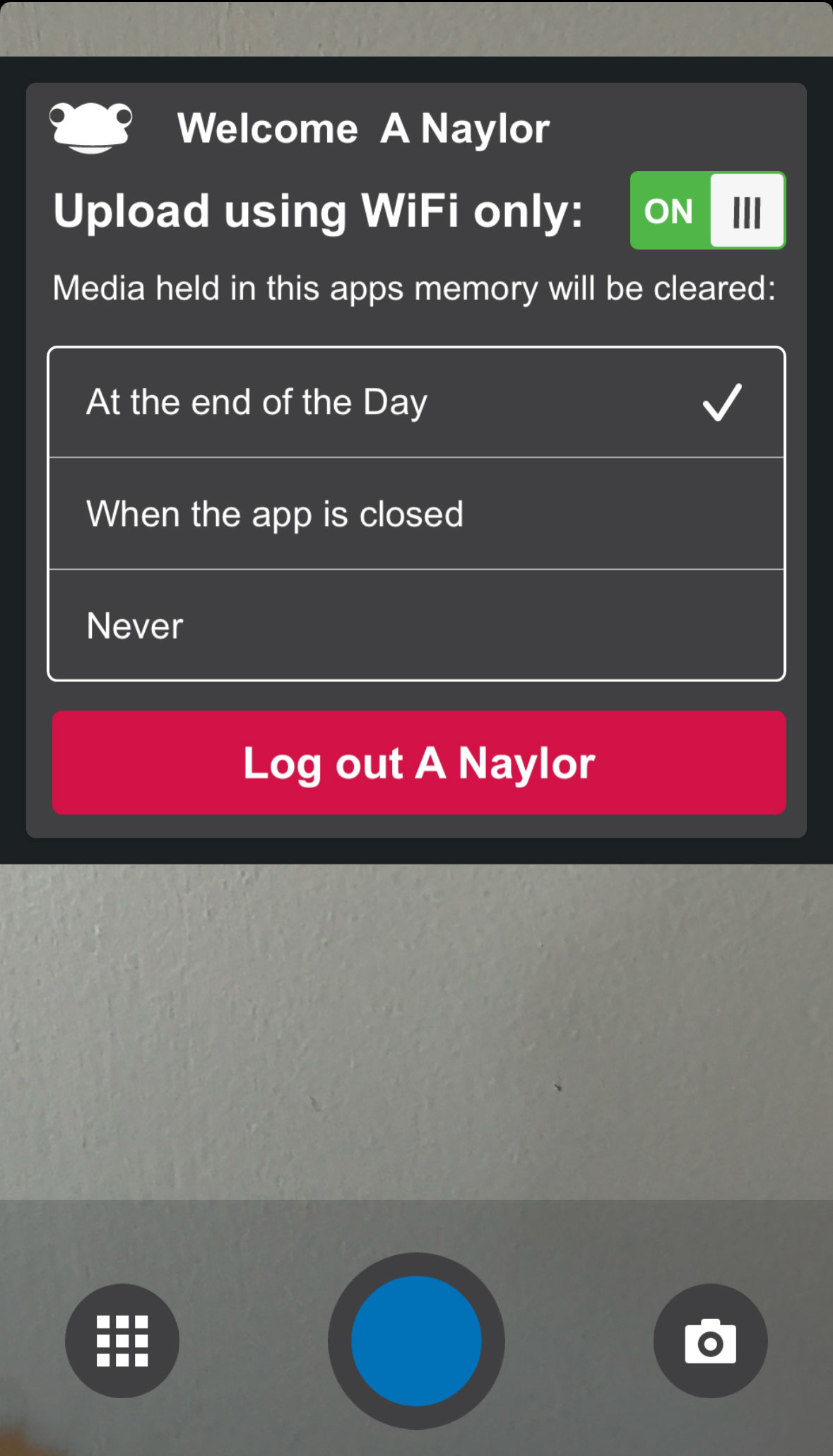
Users have a set of options within FrogSnap when pressing on the Frog head in the top left hand corner. They can choose to upload over WiFi only. This saves their data plans and is switched on by default.
Users can determine when media is deleted off their device. If they are in a no WiFi zone for instance or want to collect a set of photos together before uploading to Frog, they can set their application not to delete photos immediately.
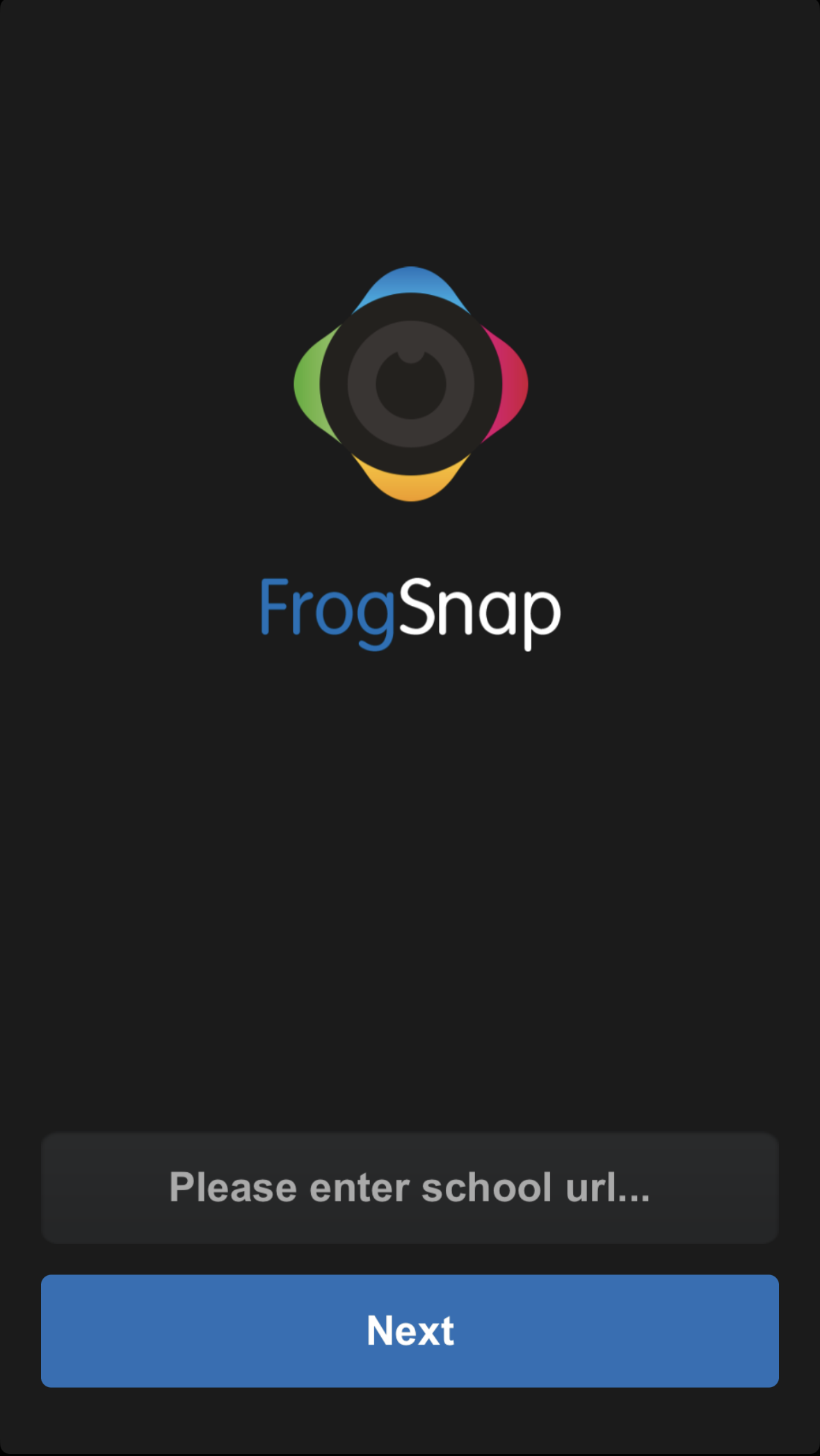
- When you first launch the app, enter your school URL on this screen. It should look something like this: abc-12345.frog.civica.education/
- You will then need to select the user type (staff, student or parent)
- Then sign into EdPass
You will now be able to use the app. You will only need to complete the above steps once unless you log out.
Capture Media
Once logged into FrogSnap, you will need to allow the application access to your camera and then you're ready to capture evidence. The landing page opens your camera and the default capture mode is set to capture an image. You can easily switch between capturing images, videos, audio and scanning documents by selecting the button in the bottom right hand corner and selecting another option. The image below is currently set to capture video, pressing the button in the bottom right opens the menu.
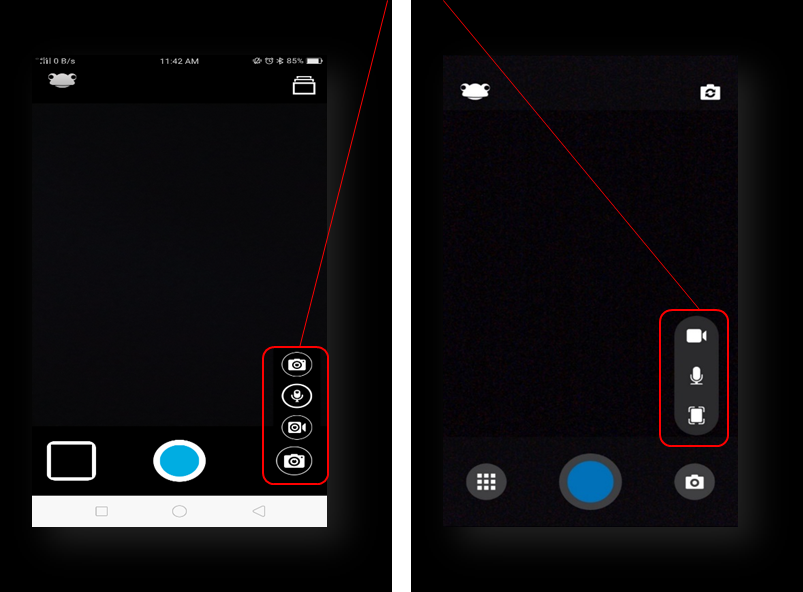
Selecting the big central button at the bottom of the screen will capture evidence. For video capture and audio, this button is red. For images, it is blue. When scanning documentation, no button is visible as the application intuitively knows to scan documents when you hover over them. You can switch between your front/rear facing cameras using the button in the top right hand corner.
Editing Images
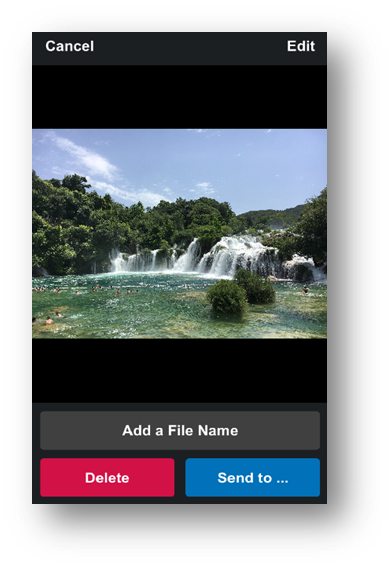
Within the FrogSnap application, you can edit images you have captured or images uploaded from your device. When you have the image you want to edit, in the top right hand corner of the screen, you should see an Edit button.
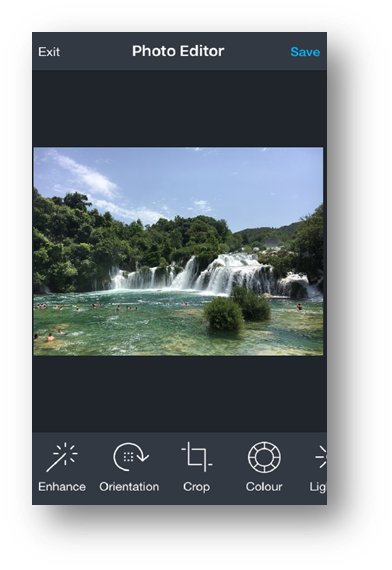
Sending to Frog
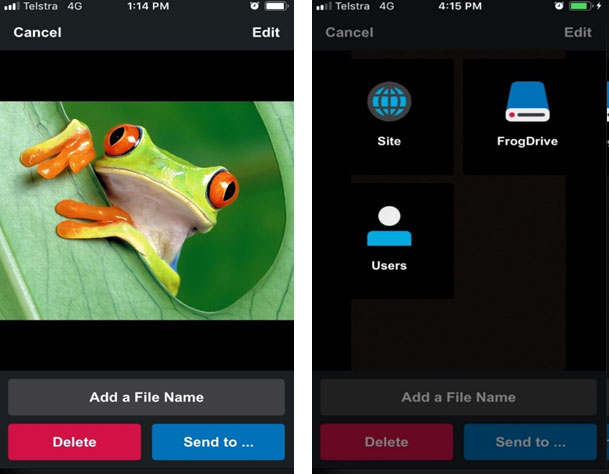
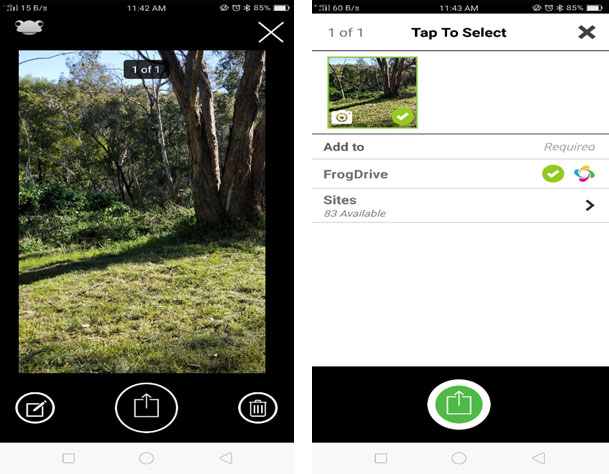
Once you have captured some evidence, you have the option to save it to your device for later, delete it, or you can send it to Frog.
When you capture evidence, you will immediately be taken to the following screen. Selecting the Send to … button will take you to the next screen where you have the option to send it to:
- Site - Send this image to any site you have Contribute access to
- FrogDrive - Send this to your My Documents area in FrogDrive
- User - Send this directly to a User (only for Apple).
If you want to send this to a Frog site, you will be taken to the next window where you can search for a site.
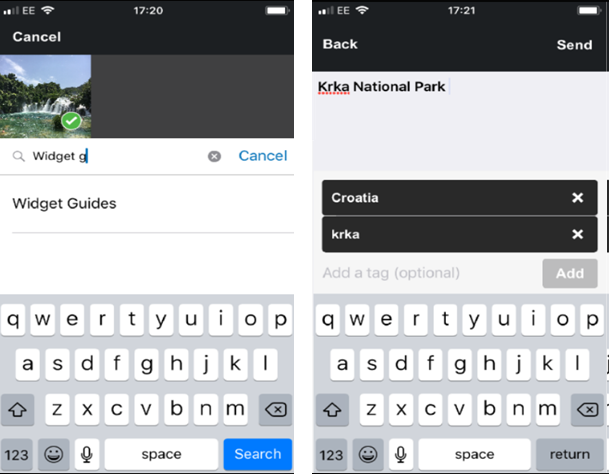
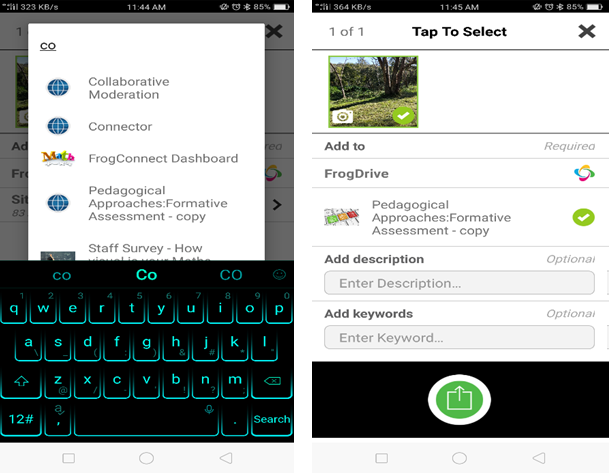
Once a Frog site is selected, you have the ability to add a description and add a tag. Tags can be used by widgets on the site so they will only display content with those tags.
Uploading from your Device
Not only can you capture new evidence using the FrogSnap application, you can upload content from your device so you can send it to Frog.
On the main screen when you log in, in the bottom left hand corner there is this button.
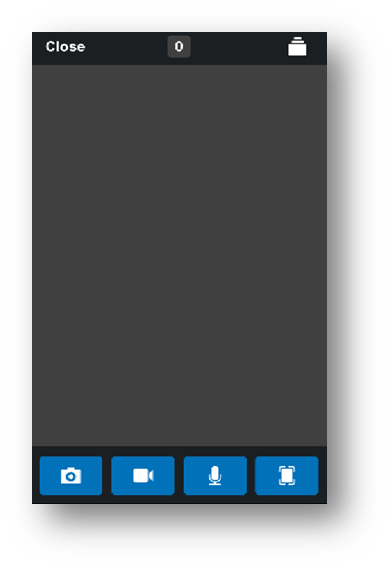
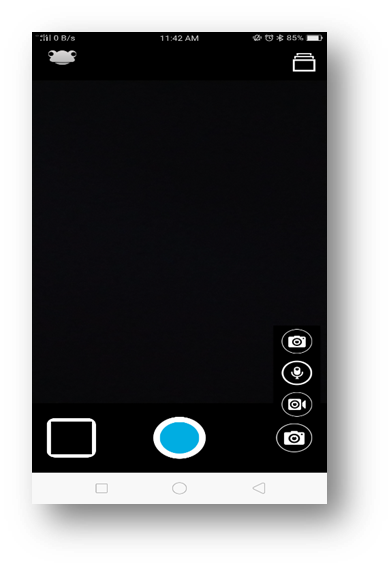
In the top right hand corner of this screen there is a small folder button.
Selecting this will open up the media on your device.
Note: You may be prompted to allow the Application to have access to this area, so you will need to allow this to happen.
You can then select all the media you want to add into the FrogSnap application.