












Back to All Guides
GET IN TOUCH
If you would like to get further information about Frog or help in getting it set up in your school please get in touch via the contact details below...
hello@frogeducation.com
My Class
The My class application allows educators to view a profile of the students in their class and keep up to date on any judgements that have been made against learners in their classes.
Navigating My Class
My class is an app designed to give educators quick access to information about the students in their classes.
Once an educator has been assigned to classes, when they select the My class app they will see all their classes presented as tiles.
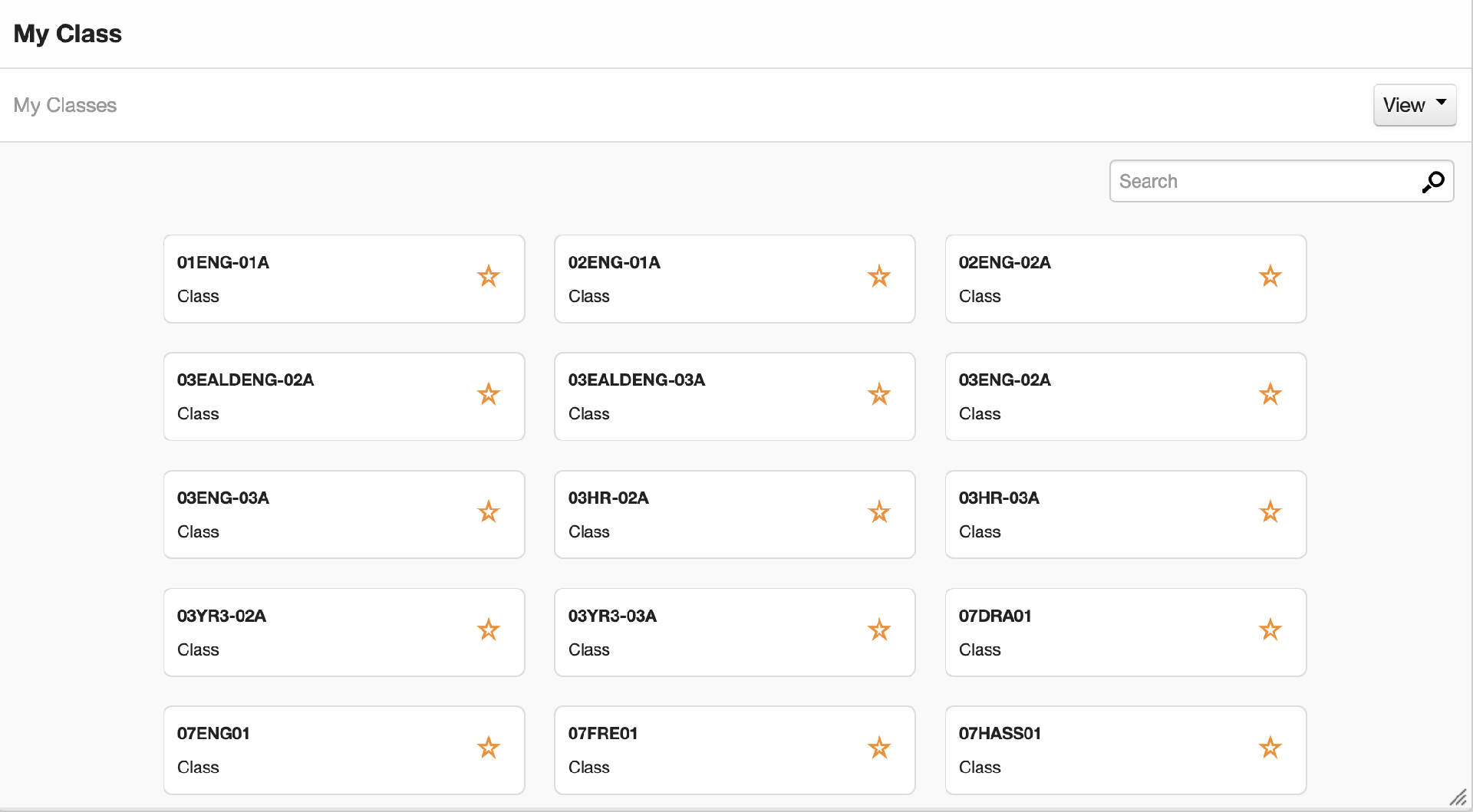
Educators can perform several tasks from this screen:
- Select a class to view from the Class summary page
- Select a star to Favourite a class Search for a specific class
- Select the View menu to sort between classes assigned to them or all classes at their preschool and/or school.
Class Summary Page
When you first select one of your classes, the following page is displayed.
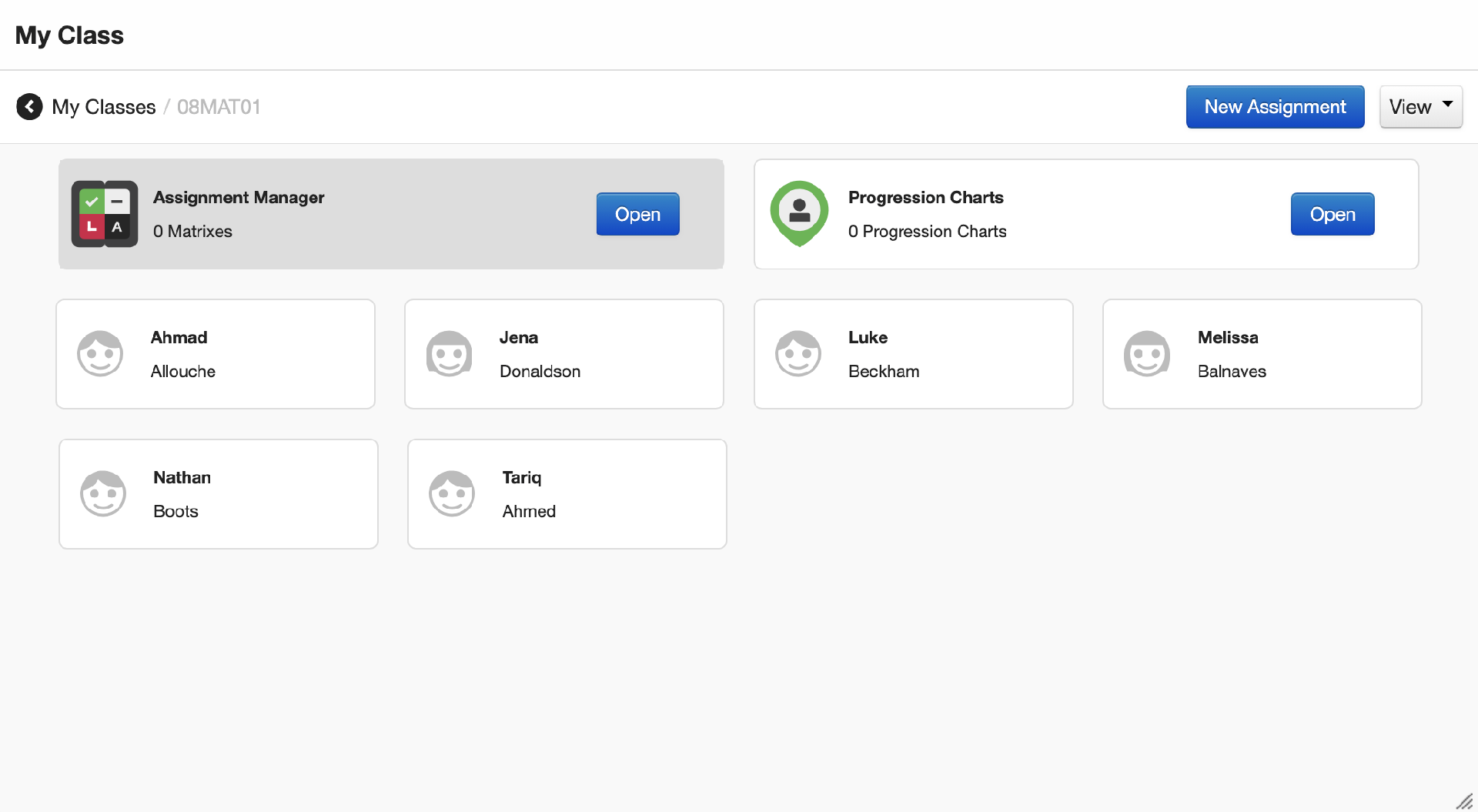
All the students in the class are displayed. Educators have the following options:
- Select a student to view the Student summary page
- Open the Assignment manager for that class
- Open the Progression charts for that class
- Create a new assignment for that class
- Select the View menu to display any contextual data for the students in that class
- Return to the My class home page.
Student Summary Page
Once you select a student in the class, information is displayed that is relevant only to the student you have selected.
Guidance and notes
The Guidance and notes section appears on every page of the student summary page. This space allows educators to make notes attached to the student for other educators to view.
Note: It is not recommended that this is used to record any sensitive information or information that is intended to follow the student. This should be recorded in Teacher toolkit.
Assignments
This page allows you to view all the assignments assigned to the student. You can navigate using the Assignment calendar, filter the view for all subjects or one subject and navigate forward or backward in time by week. This could be useful in learning conversations with the student to support them in managing their time and organisation or to consider the student's workload before setting more assignments.
Calendar
The Calendar page allows educators to view the student's personal calendar. If students have access to and use the Calendar application, this could be useful for educators to check a student's availability or their level of organisation in Frog.
Timetable
The Timetable page allows educators to view the student's timetable. Any timetabled lessons or events the student has will be displayed here.
Timeline
The Timeline page displays any activity in Frog associated with the student. It is displayed in chronological order, with the most recent at the top.
Progression chart
If the student has been added to a progression chart by an educator, other educators can view this here. It will display the name of the subject the progression chart is for and the colour for that progression chart. When you select it, the progression chart is displayed as a horizontal timeline of evidence of learning of that student. Educators can view learning evidence of the student and their teacher's judgement of this evidence on this page.
Profile
The Profile page displays all information about the student that is held in Frog. It will display:
- Their account information (name, email address etc)
- Their photograph (if added)
- The student's group membership (class, year levels and profile type)
- Contextual data
- An option to change their password to log into their local Frog account. Note: As Frog uses data from EMS, the student's password is managed using single sign on (SSO) and will use their EdPass credentials to authenticate into Frog. It is not recommended that this change password feature is used.