Back to All Guides
GET IN TOUCH
If you would like to get further information about Frog or help in getting it set up in your school please get in touch via the contact details below...
hello@frogeducation.com
Assignments
The Assignments application allows a student to view learning activities assigned through Frog.
Assignments for Students
The Assignments application allows students to see any work assigned to them. Students will access the Assignments application from their Quick launch menu found within their Frog bar.
When a teacher assigns work to a student, the student receives a notification in their Notification tray. Selecting this notification will also launch the Assignments application and display the assignment mentioned in the notification.
The Assignments application will show the student's:
- Open
- Closed
- Archived assignments.
The student will also see the:
- Date the assignment was issued
- Due date
- Teacher assigning the work.

Filtering the Assignments list
Within the Assignments application, the view of assignments in a given list can be filtered to allow students to more easily locate a given assignment.
To view the filtering options select the filter icon.
The filtering options displayed will be:
- Assignment name
- Issue
- Due date
- Subject
- Teacher.
Once the student has configured the filters, they can select the Filter button to apply these filter settings to the list. If you wish to remove any filter settings, select the Reset button followed by selecting the Filter button.
Submitting
Once a student has opened an assignment they can view any content that has been placed in that assignment, and also complete any activities placed by the teacher. This includes:
- Code Activity Widget
- Other Activity Widget
- File Drop Widget
- Quiz Widget
- Text Activity Widget
- Google Activity Widget (Note: Google integration with Frog is required)
- SCORM Player Widget.
Submitting assignments
A student submitting an assignment will hand the assignment back to the assigning teacher for marking. Students will be able to edit the assignment or the activities within the assignment, until the teacher closes the assignment. The assignment will then appear in the closed menu of their Assignments application.
To submit an assignment. Students will use the Hand in assignment button.
Assignments can include a Self-evaluation feature. This allows students to reflect on how well they understood what they were asked to do in the assignment and as well as leaving comments on the assignment.
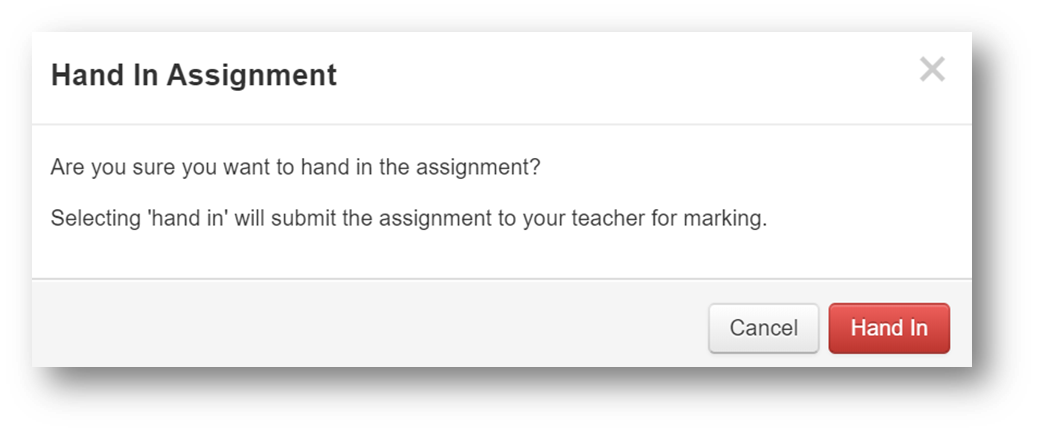
Once the self-evaluation feature has been completed, students will select the Hand In button to confirm.
If no self-evaluation has been requested by the teacher, the student can simply select Hand in to submit the assignment.
Communicating
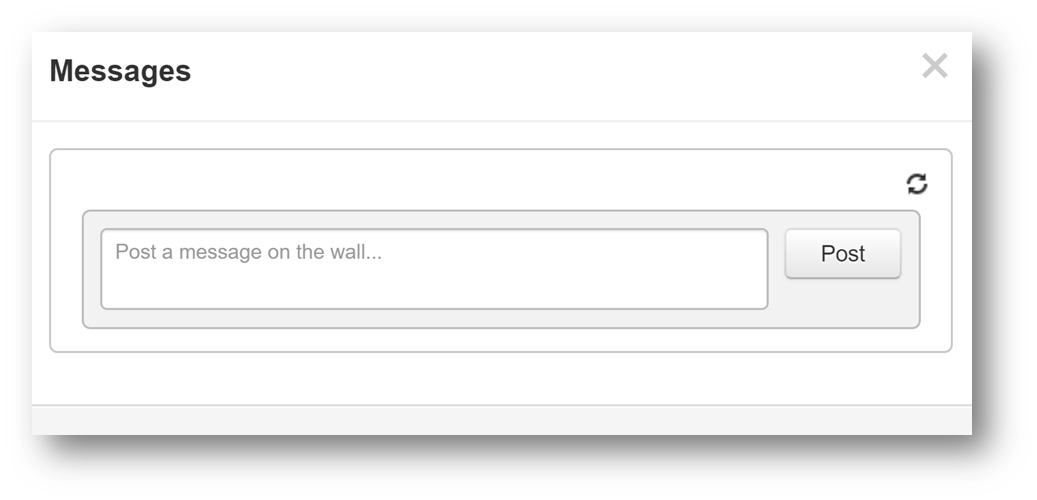
While working on the assignment, students can communicate with the teacher assigning the activities. To do this students will select the Message icon from the Assignments application. This will open the message window. Students will enter their message in the field.
Once finished, the student will select Post. This message will now be passed to the teacher. You can view the historical message and responses within the message window.