












Back to All Guides
GET IN TOUCH
If you would like to get further information about Frog or help in getting it set up in your school please get in touch via the contact details below...
hello@frogeducation.com
Profile Menu
Every user logged in to Frog will have a Profile menu on their Frog bar, which is the last icon on the right.
My Documents
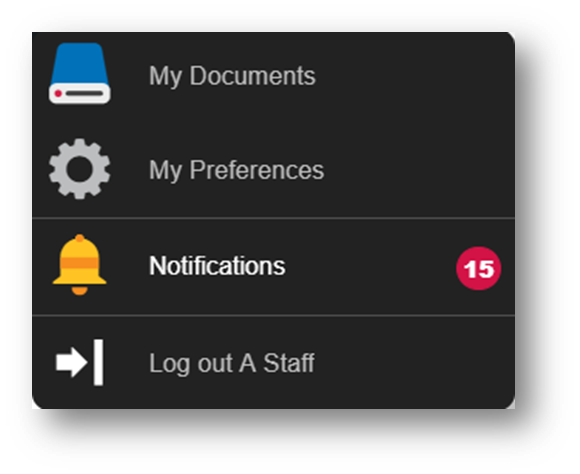
Every user logged in to Frog will have a Profile menu on their Frog bar which is the last icon on the right. The icon will be the initials of the user who is logged in. If you have any notifications you haven't viewed, a red bell will also be visible on your icon. Selecting your Profile menu will open up the following options;
- My documents
- My preferences
- Notifications
- Log out.
The My documents option gives you quick access to the My documents section of your FrogDrive.
My Preferences
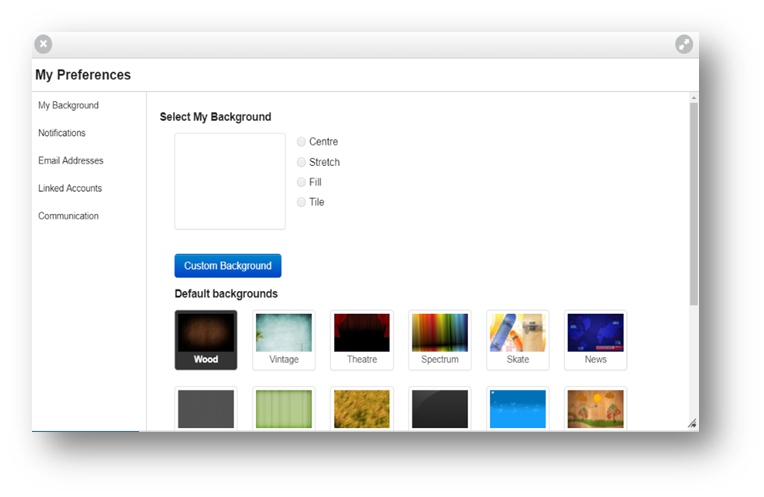
The My preferences menu allows you to manage your background and notifications.
The My background facility allows a user to select their own background image for use on the platform. This background image will be displayed on dashboards and sites using a theme that does not have its own background image.
- JPEG (.jpg)
- GIF (.gif)
- PNG (.png) files.
up to 100mb in size, can be used as background images.
Notifications
Throughout the Frog platform you can perform actions that have an impact on other users or provide other users with the opportunity to interact with you. In order to inform you that another user has carried out an action that is relevant to you, a notification will be displayed in the Notification tray.
If you have any unread notifications, the notification icon will be highlighted and display the number of unread notifications that are present.
Notifications are grouped by their type. This is determined by the area of the platform that generates the notification. Examples of these areas include assignments and calendars.
To dismiss a notification group, select the X button located to the right of the group title. You can select the notification itself to be taken to the item that generated it.
Notifications can also be displayed using the Notifications widget. This widget will also display notifications in groups and can be added to any page or site, including dashboards.
Customising notifications
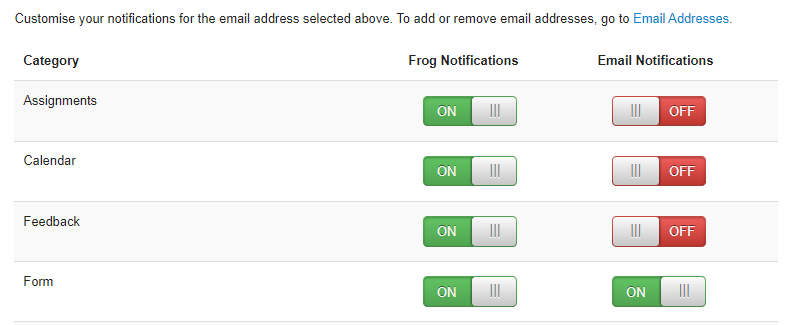
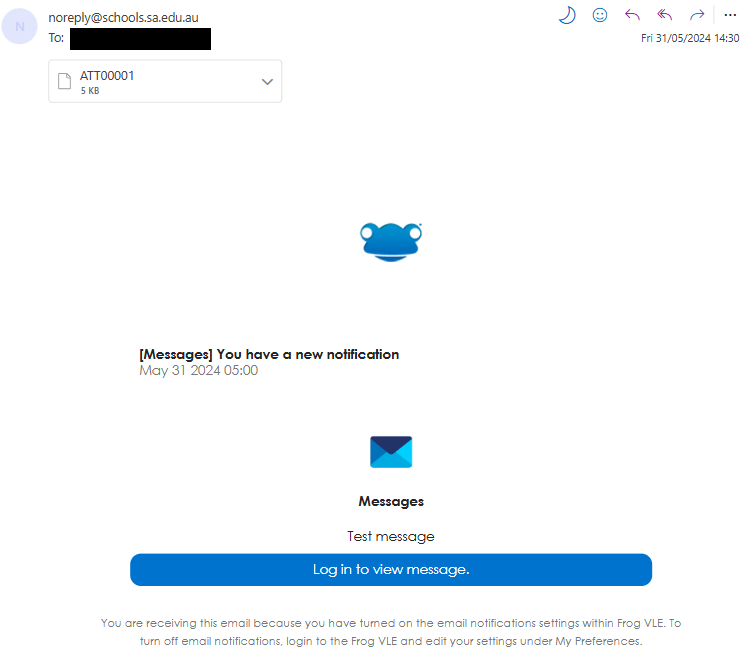
To customise the notifications you receive in Frog. Navigate to your Profile menu, located on the top right of your page. Select Notifications, and then toggle On or Off the types of notifications you would like to receive within the Frog platform or by email.
If you would like to receive email notifications from Frog;
- Click on the hyperlink 'Email Addresses' above the notifications toggle section. This will take you to another section of My Preferences called 'Email addresses'.
- Enter the email you wish to receive notifications to and click the blue add button. Your email will be displayed above with the tag 'unverified'.
- Check your email for a verification email from 'noreply@schools.sa.edu.au' and click the verify link.
- When you log back into Frog, the following screen should be displayed.
Now based on the categories that you toggled on, you will receive email notifications.
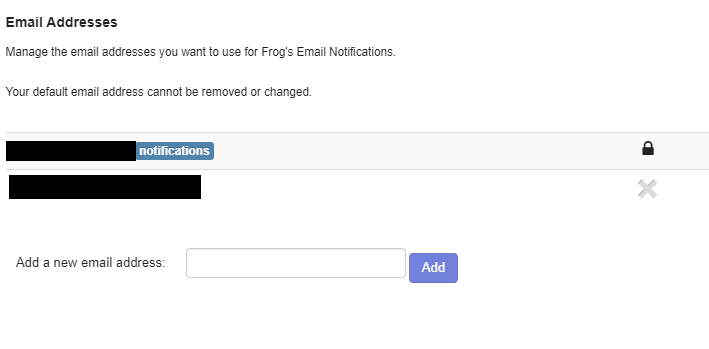
Now, Frog will send any notification you might receive to your nominated email address. This can take up to 30 minutes to receive.
Log Out
Within the Profile menu, you have the option to log out of the Frog platform.