












Back to All Guides
GET IN TOUCH
If you would like to get further information about Frog or help in getting it set up in your school please get in touch via the contact details below...
hello@frogeducation.com
My Child's Work
The My child’s work application allows a parent to view learning activities assigned through Frog for your child.
Overview of Work
Parents can get an overview of all the assignments their child currently has on Frog. They access this using the My child's work application.
To launch the My child's work application select the icon from the Quick launch menu.
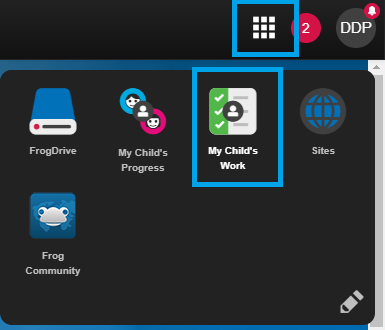
Once the app has opened the parent will see a list of their child's open assignments.
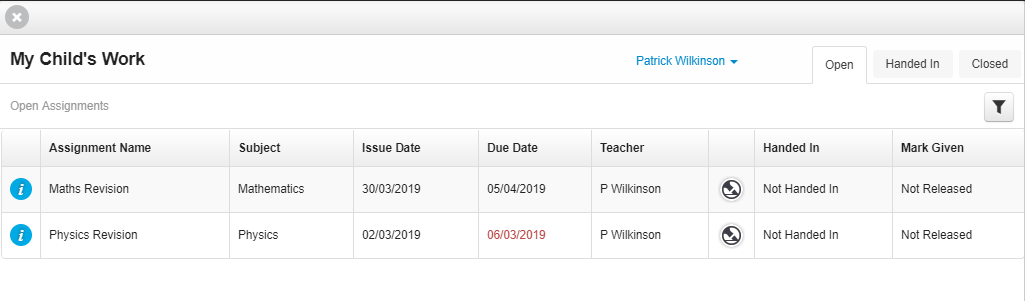
You can view assignments that have been handed in or closed by selecting the appropriate tab.
The overview allows you to see an:
- Assignment's name
- Subject
- Issue date
- Due date
- Teacher.
You can also see whether any feedback has been left by the teacher, whether or not an assignment has been completed by your child and the mark awarded for an assignment; if marks have been released by the teacher.
You can view further instructions provided for an assignment by selecting the Information icon for a given row in the table.
Notifications
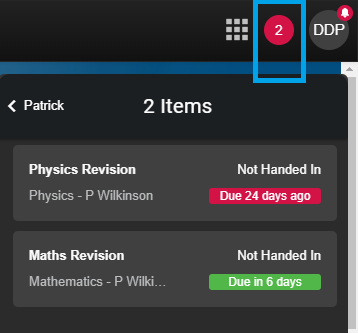
You can also see if a child has had any work assigned by the looking at the notifications on the Frog bar. In the top right hand corner is a button that will have a number and colour associated with it that changes when assignments are set and when they are due. The number reflects the amount of assignments set and if the colour is green, the student has more than a day to hand any open assignments in. If the colour is orange, an assignment is due in by the end of the day and if this colour is red, there is an assignment that is overdue.
Viewing an Assignment
To view further details for an assignment, select within the assignment list.
You can also view a specific assignment by selecting it from the notification tray in the Frog bar as shown above.
You will now see the details of this specific assignment.
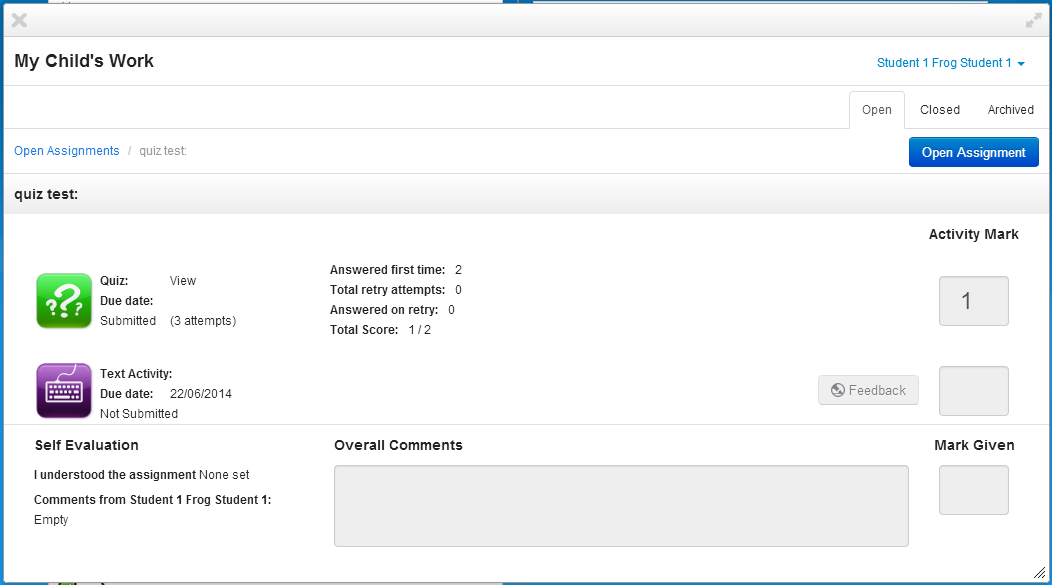
Viewing Activity Feedback
If a teacher has left feedback on a piece of work that a child has submitted via an activity, a parent can view this feedback through the My child's work application.
The Feedback icon on the assignment overview list will be displayed in colour, any assignments without feedback will display grey icons.